Outlook popup notifications provide several ways to remind yourself about upcoming meetings, appointments, and events, but its options for reminding attendees are much more limited. Capabilities also differ significantly between Classic Outlook, New Outlook, Outlook on the Web, and Outlook Mobile.
This comprehensive guide explains how Outlook reminders work, how to set default and per-event reminders, how to use scheduled email reminders, and what your options are when you need multiple, automated meeting reminder emails, SMS text reminders, or Microsoft Teams reminders.
Automate Outlook Attendee Reminders in 2 Minutes
Outlook doesn't allow automated, rules-based reminder emails or texts to attendees out of the box. Timelier connects to your Outlook or Microsoft 365 calendar to automatically send customizable email and SMS reminders to meeting invitees.
Outlook Reminder Options at a Glance
Outlook supports a variety of reminder types for calendar meetings, appointments, and events. Some are designed only for notifying you (the calendar owner), while others can notify guests and attendees:
| Reminder Type | Yourself | Attendees | Automated / Rules-Based? | Multiple Reminders? | Outlook Support |
|---|---|---|---|---|---|
| Popup / Notification | ✓ | No | 1 default alert | No | All versions |
| Scheduled Email Reminder | ✓ | ✓ | Manual per event | ✓ | New Outlook & Web only |
| SMS / Text Reminder | ✓* | ✓* | ✓* | ✓* | Not supported natively |
| Microsoft Teams Reminder | ✓* | ✓* | ✓* | ✓* | Not supported natively |
* Requires a calendar automation service such as Timelier.
How to Send a Meeting Reminder in Outlook to Attendees
To send meeting reminders to attendees in Outlook, you must use New Outlook or Outlook on the Web (Classic Outlook is not supported): edit the event, select "Add an email reminder", and check "Send to attendees". However, this must be done manually per event—Outlook cannot add attendee reminders automatically by default.
To automatically apply email and SMS reminders to all upcoming meetings without manual setup, use a calendar automation tool like Timelier.
How Outlook reminders work
In Outlook, the word “reminder” is used for a couple things. It’s important to understand the difference between a reminder that notifies you and a reminder that is actually sent to meeting/event attendees.
Your Outlook reminder is only for you
When you create a meeting, appointment, or calendar event in Outlook and set a reminder for 15/30/etc. minutes, before it starts, that reminder controls when Outlook notifies you; it does not control when other people invited to the event/meeting/appointment are reminded. You setting a 15-minute reminder on an event in Outlook does not mean other attendees will get a 15-minute reminder for that event.
Each attendee’s calendar manages its own popup or notification reminders.
This applies to the default reminder setting that, as its name suggests, applies to new events on your calendar by default, and it also applies if you manually override that default for a specific event.
A reminder sent to attendees is different
As we just discussed, the 15-minute (or whatever time increment you choose) reminder you have set on an Outlook event is not going to remind the other attendees of that event. If you want to actively notify the attendees, you need to send them a message.
Depending on the version of Outlook you use, this can include:
- A scheduled email reminder sent before the event
- A manually sent email to attendees
- A third-party automated reminder sent by email, SMS/text message, or Microsoft Teams
New Outlook and Outlook on the Web provide more attendee-reminder options than Classic Outlook, but all versions of Outlook have important limitations around automation, setting/sending multiple reminders, and ability to set rules that determine which events or attendees should receive a reminder.
The sections below explain what each version of Outlook supports and how to configure the available reminder options.
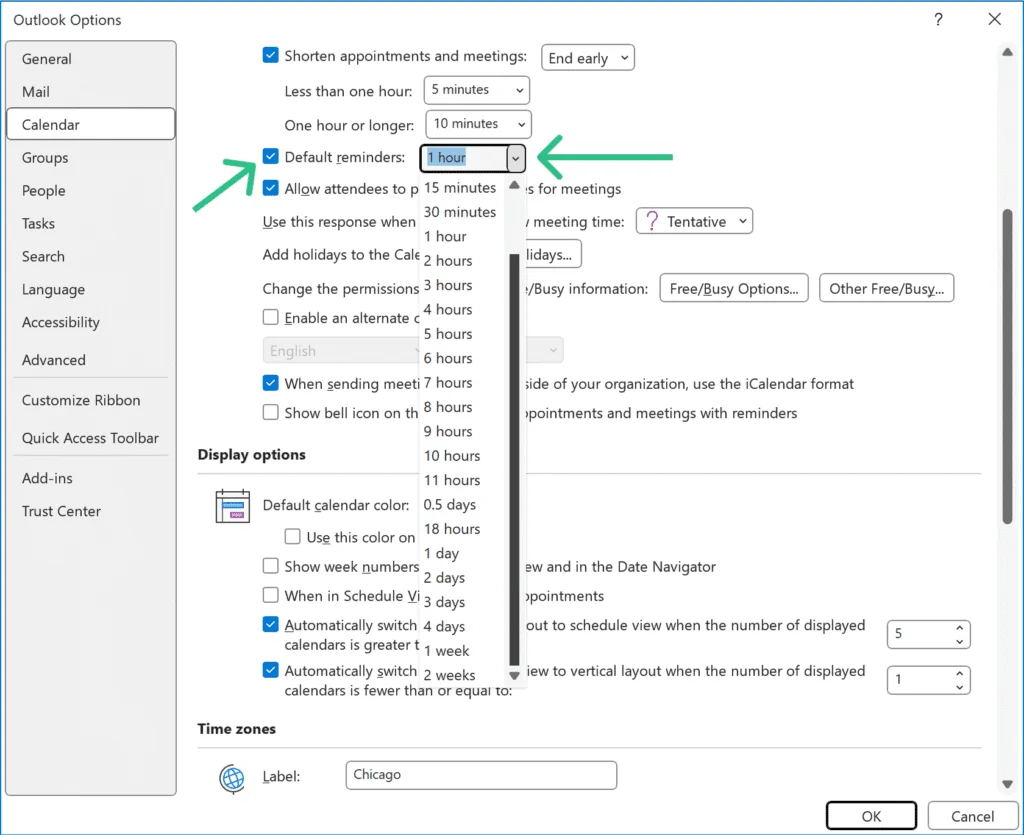
How to set the default Outlook reminder
In Outlook you can set one (and only one) default reminder. The default reminder automatically applies to all your timed events and determines when you get a notification. Importantly, the default reminder applies only to you. Your attendees’ reminders are determined by their own personal settings in their calendar app.
You can still override this default for any individual event, which we cover in the next section.
Also, the default reminder only provides a pop-up reminder. Outlook does not have default email reminders.
How to Set Your Default Reminder in Classic Outlook for Windows
In Classic Outlook you configure your default reminder by clicking “File” up in the top menu, then click “Options” then select “Calendar” in the left pane:
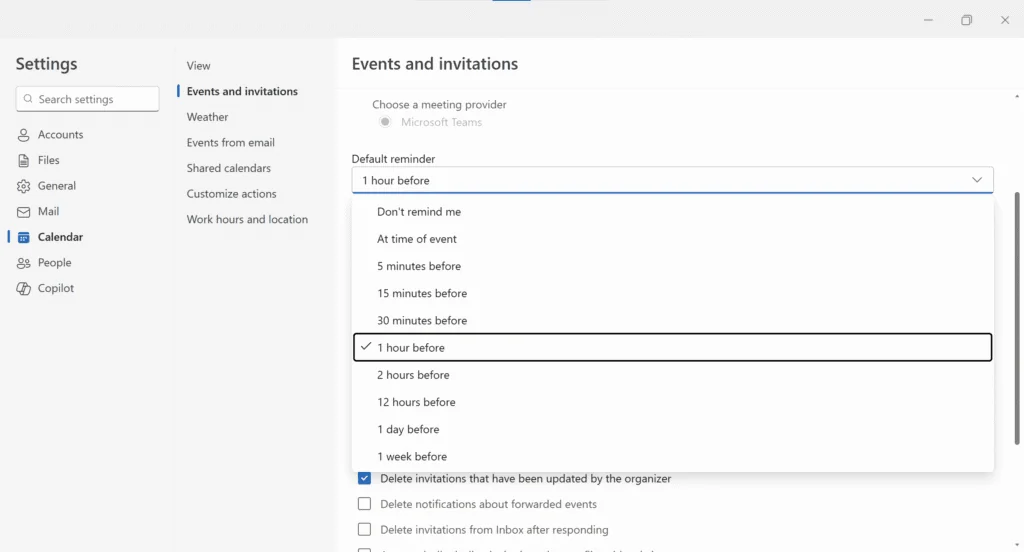
How to Set Your Default Reminder in New Outlook and Outlook on the Web
In New Outlook and Outlook on the Web, click the gear icon at the top and then select “Calendar” in the left pane, and “events and invitation” in the middle pane:
Outlook Mobile (iOS and Android) Uses the Default Reminder Set Elsewhere
Outlook Mobile does not have a default-reminder setting that you need to configure separately; it just applies the settings that you configure in New Outlook or Outlook on the Web.
In other words, if you want to change the default reminder used for new Outlook calendar events, make that change in New Outlook or Outlook on the Web. The resulting event reminders will then also appear in Outlook Mobile.
You can still change the reminder for an individual event from the mobile app.
How to change the reminder for a specific Outlook meeting, appointment, or event
Your default Outlook reminder applies automatically to new calendar items, but you can override it for any individual meeting, appointment, or event.
Changing the reminder for one event does not change your default reminder.
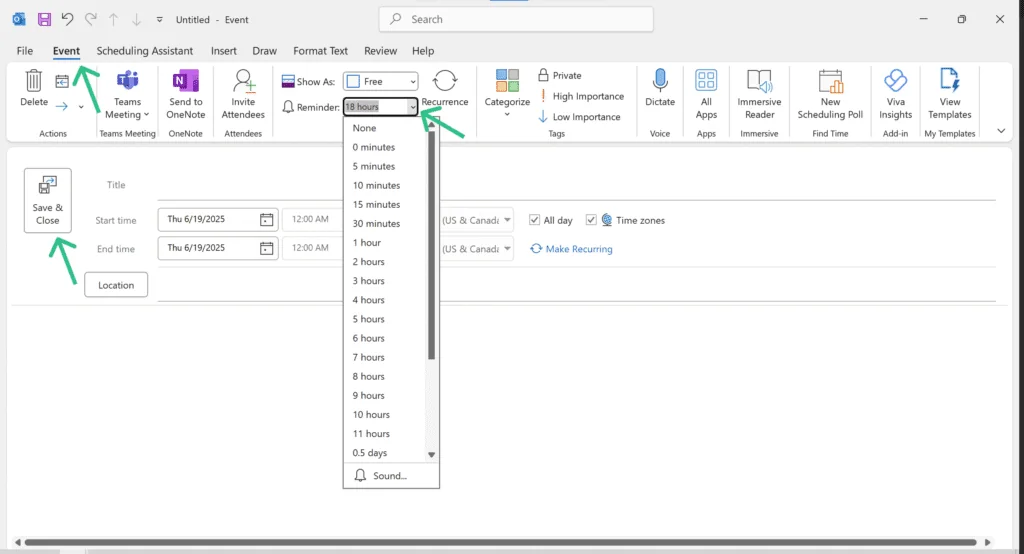
How to Customize an Event's Reminder in Classic Outlook for Windows
- Open the event/appointment (double-click it, or click it and then click ‘Edit’)
- In the Event or Appointment tab of the top ribbon, use the Reminder dropdown
- Select a new time or choose “None”
- Click Save & Close in the top-left corner of the event window.
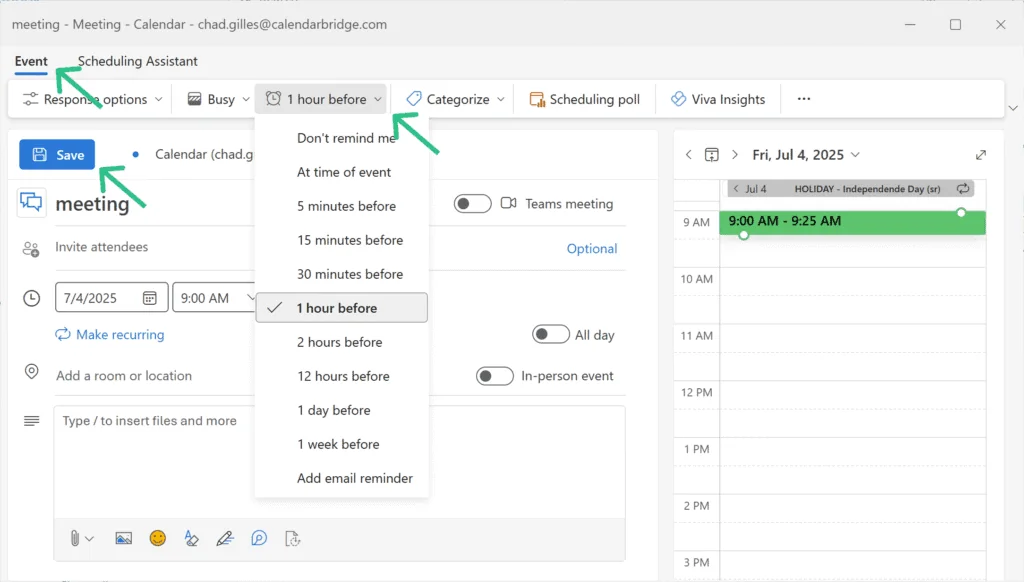
How to Customize an Event's Reminder in New Outlook and Outlook on the Web
- Open the event/appointment (double-click it, or click it and then click ‘Edit’)
- In the Event or Appointment tab of the top ribbon, use the reminder dropdown
- Select a new time or choose “Don’t remind me”
- Click Save in the top-left corner of the event window.
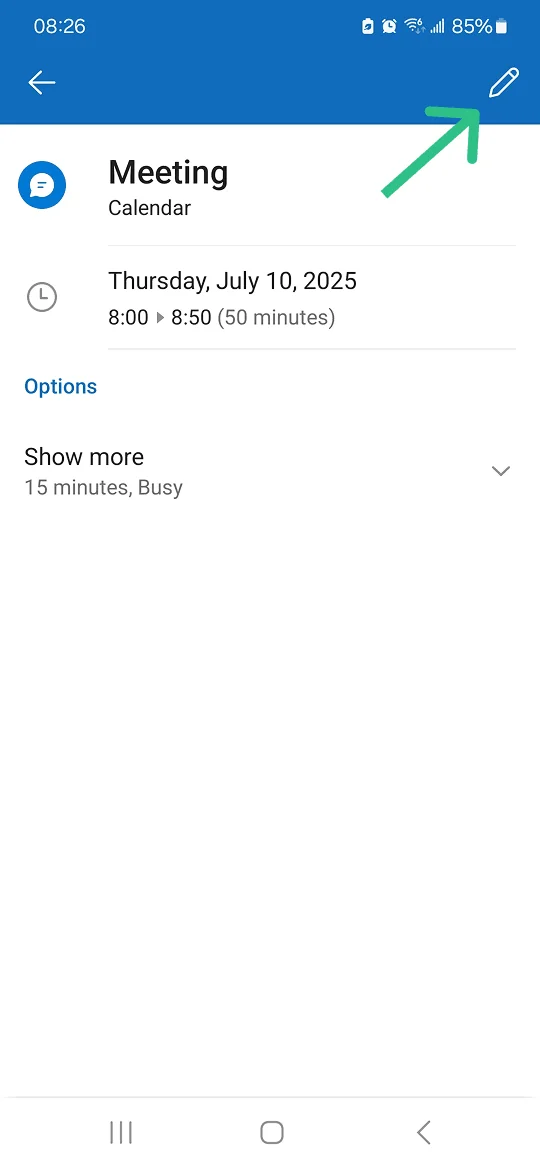
How to Customize an Event's Reminder / Alert in Outlook Mobile
- Tap the event
- Tap the pencil in the top right corner to edit the event (for a series select whether to edit only this instance or all instances of the series)
- Scroll down to Alert and tap it to choose a new time.
- Click the check mark in the top right corner to save your changes.
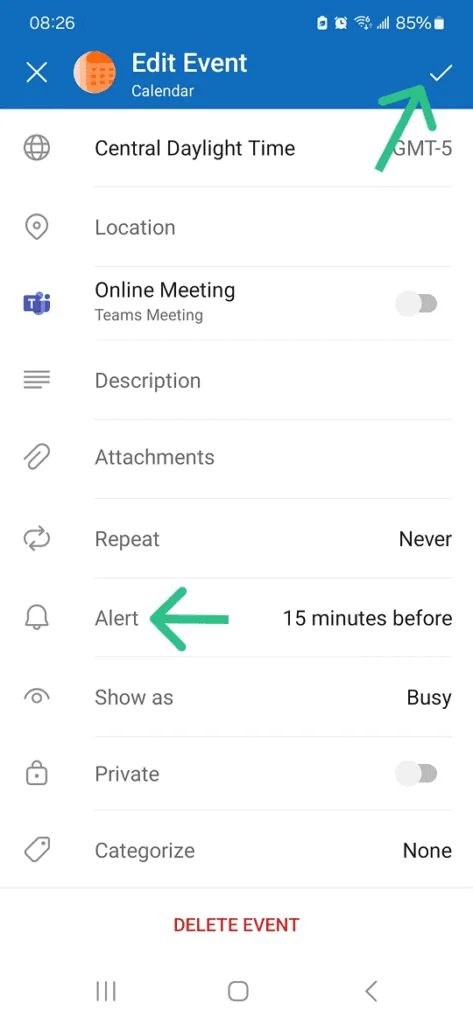
Outlook lets you change the reminder time for an individual event, but its normal popup reminder is still limited to a single reminder. If you want two or more reminders for the same meeting or appointment, the options depend on which type of reminder you want to send.
How to Set Multiple Reminders in Outlook
No version of Outlook lets you schedule multiple popup reminders (or “Alerts” as they are called in Outlook Mobile) for the same meeting, appointment, or calendar event. The underlying data structure of an Outlook calendar simply doesn’t support it.
You can snooze a reminder after it appears, and outlook will remind you again later after the snooze interval you choose, but that is not the same as scheduling multiple reminders in advance — it relies on you manually snoozing the initial alert.
What about multiple email reminders?
New Outlook and Outlook on the Web do support multiple scheduled email reminders. These are different from the normal popup reminder because Outlook sends an email rather than displaying a popup alert.
However, Outlook’s native scheduled email reminders must be configured manually for each event. Outlook does not have a default email reminder like it does for popup alerts. So there is no way natively in Outlook to define something like “For every client appointment, send reminders 24 hours and 1 hour before the meeting.”
If you need multiple reminders to be applied automatically across all meetings, or only for certain meetings, you will need an automation tool or reminder service.
Later in this guide, we’ll cover how automated reminder tools can send multiple email, SMS, or Microsoft Teams reminders based on rules you define.
Email Reminders: What Outlook Supports
As we have discussed, Outlook’s normal calendar reminder is a popup alert or notification for you. However, some versions of Outlook also let you schedule an email reminder for a meeting, appointment, or event. This is useful when you want a reminder delivered as an email instead of relying only on a calendar notification.
If you want to send email reminders, the way to set that up is different for Classic Outlook and New Outlook / Outlook on the Web.
Email Reminders in Classic Outlook for Windows
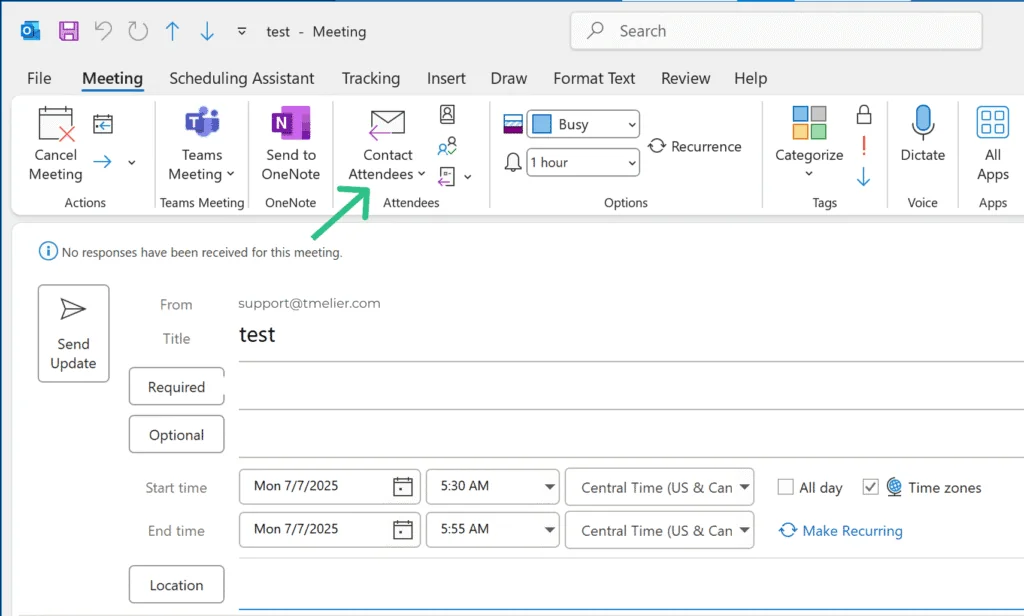
In Classic Outlook, the only option you have is to click “Contact Attendees” up in the Meeting tab of the ribbon. This is simply a shortcut for opening a new email and adding the attendees of this meeting to the email message. It does not allow you to schedule automated email reminders to the meeting attendees.
Scheduled Email Reminders in New Outlook / Outlook on the Web
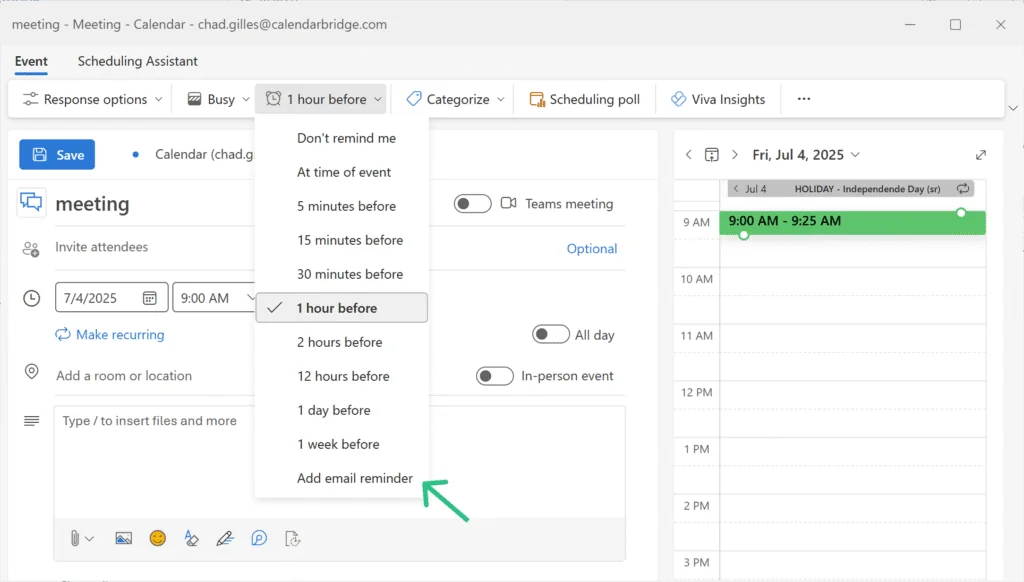
When creating or editing an event in New Outlook / Outlook on the Web, you can schedule an email reminder for that specific event. The email is separate from the event’s popup alert/notification.
- Open (double-click) event
- Click the reminder dropdown up in the ribbon
- Click “add email reminder”
- Click “+ add email reminder”
- Type in the message of the email
- If you want the reminder to go to attendees, check the “Send to attendees” box
- Click “Save”
The ability to schedule email reminders is definitely an improvement over Classic Outlook, but they are limited in that they need to be set up manually, per event. Outlook does not natively provide a way to schedule email reminders automatically. That distinction is discussed more in the next section of this article.
What about scheduled email reminders in Outlook Mobile?
You can not set a scheduled email reminder from Outlook for iOS or Outlook for Android, you need to do it from New Outlook or Outlook on the Web.
Scheduled Reminders vs. Automatic Reminder Rules
As discussed above, New Outlook and Outlook on the Web let you schedule email reminders, but Outlook’s built-in email reminder feature has several important limitations:
- You can send to just yourself, or to ALL attendees. There is no ability to send it to only certain attendees (e.g., only those who have accepted or not responded).
- They have to be set up manually, per event. There is no way to set rules to automatically schedule reminders for certain events.
- There is no way to set a predefined message template for these reminders.
- There is no support for SMS.
For example, Outlook cannot natively create automatic reminder rules such as:
- For customer appointments, automatically send a reminder to attendees 24 hours before the meeting.
- Automatically send reminders only to attendees who have accepted a meeting.
- Automatically send reminders only for events with “Consultation” in the title.
SMS and Microsoft Teams Reminders: What Outlook Supports
Above we have discussed Outlook’s native pop-up notification/alerts for reminding yourself and the
ability in New Outlook and Outlook on the Web to schedule email reminders to attendees/guests.
If you
want SMS/text reminders, or if you want to send reminders as Microsoft Teams chat messages, Outlook does not
have built-in options for those.
Can Outlook send SMS/text reminders for calendar events?
Outlook’s built-in SMS notifications was discontinued in 2020.
If your goal is something like:
For appointments with “lesson” or “consultation” in the subject, send attendees a text message 1 hour before the appointment.
you will generally need a third-party reminder service or automation.
For a complete walkthrough, see How to Send SMS/Text Reminders for Outlook Calendar Events, Meetings, and Appointments.
Can Outlook send Microsoft Teams reminders?
Outlook integrates closely with Microsoft Teams for scheduling and joining Teams meetings, but does not integrate tightly with Teams chat, and does not have a way to do something like:
For meetings with [email protected], send a Teams chat message reminder 15 minutes before the meeting.
If you need Teams chat messages generated automatically from Outlook calendar events, you will need an automation or reminder tool.
Later in this guide, we’ll show how Timelier can use calendar-based rules to send reminders through email, SMS, or Microsoft Teams.
Automating Outlook Reminders with Timelier
Timelier connects to your Outlook calendar and applies reminder rules automatically to matching meetings, appointments, and events.
Unlike Outlook’s native scheduled email reminders, you configure a rule once rather than adding reminders manually to each event.
- Event rules: Apply reminders only to matching appointments.
- Multiple reminders: Send several reminders at different times.
- Recipient rules: Remind all attendees, selected attendees, or attendees based on RSVP status.
- Multiple channels: Email, SMS/text, or Microsoft Teams.
- Templates: Reuse reminder messages instead of composing them event by event.
Learn more about how Timelier automates reminder emails from Outlook calendar events and delivers automated SMS text reminders.
How to setup automated guest reminders for your Outlook calendar in 5 minutes with Timelier
-
Start a Free Trial
Start a free trial at app.timelier.com.
-
Connect your Outlook Calendar
You have two options here. You can:
- connect with the familiar “sign in with Microsoft,” or
- use an ICS link to your calendar. The ICS option can work even where I.T. policies prevent you from connecting your calendar via sign in with Microsoft.
-
Create a reminder rule
Set filters that determine which events should have guest reminders and then set the timing, type, and recipients of the guest reminders.
That’s it! For complete instructions, visit our detailed instructions for setting up Timelier for automating Outlook Calendar reminders.
FAQ: Sending meeting reminders for Outlook Calendar events
Can Outlook send multiple reminders for one calendar event?
Email reminders: New Outlook and Outlook on the Web can support multiple scheduled email reminders for an individual event, but those reminders must be configured manually for that event rather than applied automatically by a rule or default setting.
Can Outlook automatically send reminder emails to meeting attendees?
Can I set a default email reminder to attendees for Outlook calendar events?
What is the "Follow Up" feature in Outlook, and can it be used for meeting reminders?
Can Outlook send SMS/Text reminders for calendar events, appointments, or meetings?
If you want Outlook calendar events to trigger text-message reminders, you generally need a third-party reminder or automation service.
Do Outlook reminders notify meeting attendees?
Each attendee’s own calendar determines when that attendee receives a popup or notification reminder.
If you want to actively remind attendees, you need to send them a message, such as an email reminder, SMS/text message, or Microsoft Teams message.