Calendly makes booking appointments effortless. But if you rely on appointments to earn a living—whether you are a consultant, coach, therapist, attorney, or service provider—getting the booking is only half the battle. Getting clients to actually show up is what protects your revenue.
Email confirmations frequently get buried in spam folders, promotional tabs, or overloaded inboxes. SMS text messages, by contrast, boast a 98% open rate, with most texts read within three minutes of delivery. That is why setting up a reliable Calendly SMS integration to dispatch Calendly automated reminders is the single most effective way to eliminate costly no-shows.
However, when Calendly users look for a way to add SMS text alerts to their schedule, they quickly run into two major hurdles:
- The Paid Tier Requirement: Calendly does not offer automated text reminders on its Free plan. To send automated texts natively, Calendly requires upgrading to their Standard plan ($10 to $12/month per user).
- The Non-Calendly Blind Spot: Calendly’s reminder automations only trigger for meetings scheduled through a Calendly link. If a client books over the phone, reschedules manually, or sends an invite directly to your Google or Outlook calendar, Calendly will not send any reminders.
Fortunately, you don’t have to pay for expensive per-seat software upgrades, configure complex third-party webhooks, or tolerate a fragmented calendar. By pairing Calendly with Timelier, you get a seamless, zero-code Calendly SMS integration that automates customized text alerts for all your Calendly bookings and any other event on your calendar for as little has half of the price of Calendly's Standard plan.
How Calendly Handles SMS Reminders
While configuring a native Calendly reminder via the platform's built-in Workflows feature seems like the obvious path, there are several key restrictions to keep in mind before building your entire client communication around it:
- Locked Behind Paid Plans: Calendly's Free tier only sends basic, immediate booking confirmations. Automated reminder sequences before meetings—both email and SMS—are strictly locked behind the Standard plan ($10/month billed annually or $12/month billed monthly) and higher tiers.
- Strict 180-Character Cap: Calendly caps SMS reminder templates at 180 characters. In the telecommunications world, a standard SMS segment holds up to 160 characters. When a message exceeds 160 characters, carriers split it into two segments under the hood. Calendly sets a hard ceiling at 180 characters to keep reminders short, but this leaves very little room once you insert dynamic variables like your client's full name, meeting title, date, time, and custom instructions.
- New Account Template Restrictions: To combat carrier spam filtering, new Calendly accounts may temporarily be locked into rigid, pre-approved system templates rather than allowing fully custom wording.
Can Calendly Send Reminders for Events Not Booked Through Calendly?
The short answer is no.
Calendly connects to your Google Calendar or Microsoft Outlook account to detect existing busy blocks and publish new bookings. However, Calendly does not monitor or trigger automated reminder sequences for any event that was not booked through a Calendly event link.
The Real-World Scheduling Problem
In practice, very few service businesses run 100% of their appointments through online booking links. Consider these common scenarios:
- A client calls you on the phone and asks to book a consult for tomorrow at 2:00 PM.
- An existing client finishes a session and schedules their next appointment in person.
- A colleague or referral partner sends you a direct calendar invite.
- You manually type an appointment directly into Google Calendar, Outlook, Apple iCloud, or ICS feeds.
Because these appointments did not originate from a Calendly form submission, Calendly completely ignores them. As a result, only some of your clients receive text reminders, while your manual and phone appointments remain vulnerable to costly no-shows.
The "One-Off Meeting" Trap
Even within Calendly itself, if you use the popular "One-Off Meeting" feature (which lets you generate a custom, single-use meeting link with specific times for a VIP client), Calendly explicitly disables Workflows. The result? No automated SMS or follow-up reminders are sent for one-off meetings.
The Clumsy Forum "Workaround"
In Calendly's own community forums, when hosts ask how to send automated reminders to clients who book over the phone, the suggested workaround is awkward: open an incognito browser window, navigate to your own public Calendly page, pretend to be the client, type in their contact info, and submit the booking yourself. Nobody has time to jump through those hoops between client calls.
The Zero-Code Calendly SMS Integration: How Timelier Works
If you search online for a Calendly SMS integration, most tutorials instruct you to connect Calendly to Zapier or Make, configure custom webhooks, and subscribe to a separate Twilio developer account. That route requires managing multiple software subscriptions, technical webhook troubleshooting, and ongoing maintenance fees.
Rather than relying on fragile middleware, Timelier offers a true calendar-first integration that attaches directly to the place where all your appointments ultimately live: your underlying calendar (Google Calendar, Microsoft Outlook, Apple Calendar, or ICS feeds).
When you pair Calendly with Timelier, you get an automated, zero-code pipeline that requires no webhooks or API keys:
via Calendly link
Event added to Google, Outlook, or iCloud calendar
Extracts the phone number from the event details
Sends the message(s) you want at the time(s) you want
How Event Descriptions Connect the Two Tools
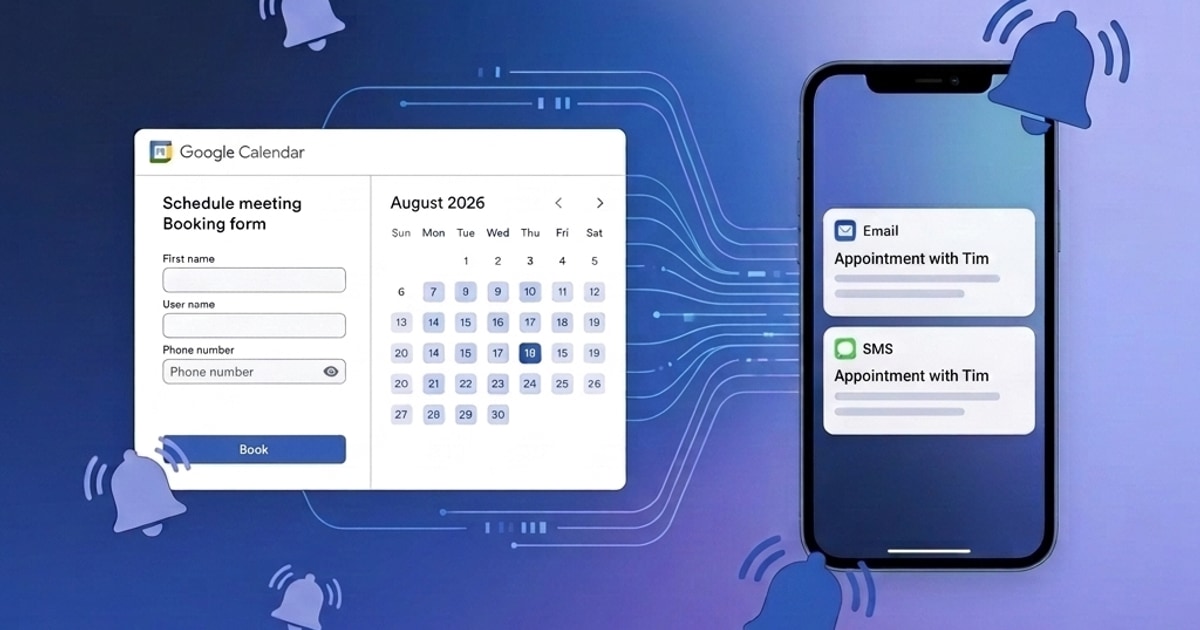
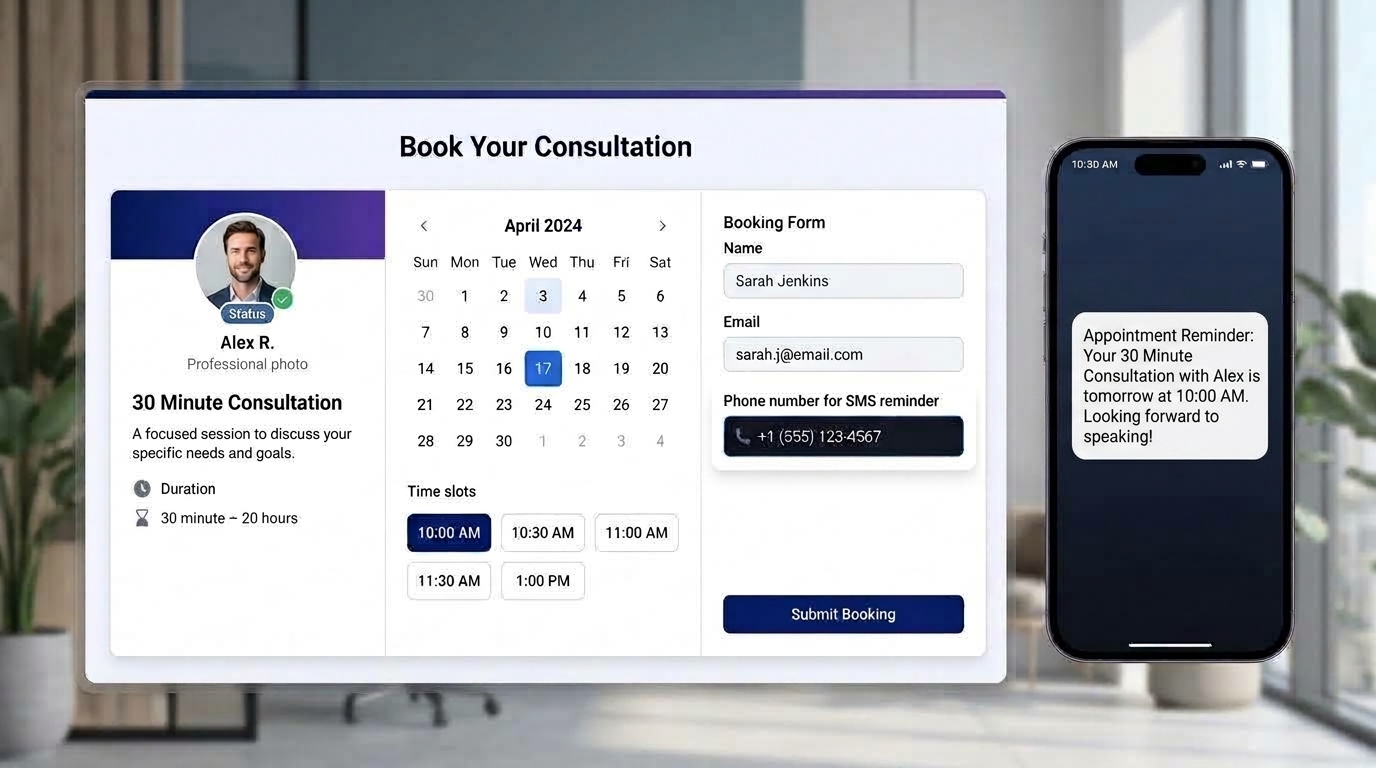
When someone schedules a meeting on Calendly, Calendly creates an event on your connected calendar. Your calendly form has a "Phone number for SMS reminder:" question
Date & Time: 10:00am - 10:30am, Tuesday, October 20, 2026
Invitee Questions & Answers:
Phone number for SMS reminder: (555) 234-5678
Timelier continuously monitors your calendar. When a new event appears, Timelier's parser scans the
description for the trigger label SMS reminder:, automatically extracts the
client's mobile phone number, and schedules your customized text reminder sequence.
Best of all, this exact same rule works for phone bookings, direct invites, and manual appointments. Simply type the client's phone number into the event description, and Timelier takes care of the rest.
Step-by-Step Tutorial: Setting Up Calendly SMS Reminders with Timelier
Setting this up takes less than five minutes and requires no technical knowledge or Zapier integrations.
Step 1: Add the "SMS Reminder" Question in Calendly
First, configure your Calendly booking form to ask for the invitee's mobile number using the label Timelier looks for:
- Log in to your Calendly dashboard and click on the Event Type you want to edit.
- Under Booking page options, click Invitee questions.
- Click + Add new question.
- In the Question field, enter exactly:
Phone number for SMS reminder: - Set the Answer type to Phone number (or One line).
- Check the box to make it Required so clients always supply their mobile number.
- Click Save & Close.
Why this specific wording matters: Calendly appends custom questions directly to the calendar event
body as [Question Label]: [Answer]. Naming the field SMS reminder: produces the exact prefix Timelier's parser expects.
Step 2: Connect Your Calendar to Timelier
- Sign in to your Timelier account (or start a free trial).
- Go to Calendar Sources and connect the Google Calendar, Microsoft Outlook, or Apple Calendar account that receives your Calendly bookings. If you are unable to connect via OAuth (as is the case with many corporate Microsoft accounts), you can also use the ICS feed URL from your calendar.
- Timelier will sync your calendar events within minutes.
Step 3: Create an Automated SMS Reminder Rule
- In Timelier, click Rules in the left sidebar, then click Create Simple Rule.
- Select your Calendar: Choose the connected calendar where your Calendly events appear.
- Filter Events (Optional): You can apply filters based on various event fields so
reminders only trigger when appropriate. Common examples include:
- Matching the Event Title: Only trigger for events containing a specific meeting name (such as your Calendly event type).
- Matching the Event Details: Only trigger for events containing
SMS reminder:in the description to queue a reminder whenever a phone number is provided.
- Configure the Reminder Channel & Recipients:
- Select SMS Text Message.
- Check "Extract number(s) from details" to deliver the SMS reminder directly to the invitee.
- If desired, you can configure additional email and/or SMS reminders to go to the invitee, to yourself (for a personal heads-up alert before meetings), or anyone you want.
- Set the Timing: Choose when your text reminder should be sent (for example, 24 hours before the start time, and 1 hour before).
Step 4: Customize Your Reminder Message
Timelier gives you the freedom to craft friendly, informative text messages with dynamic placeholders:
Step 5: Test Your Setup
To verify that everything is working smoothly, go to your live Calendly scheduling link and book a test appointment using your mobile phone number. Within moments, check Timelier's Manage Reminders dashboard—you will see your test booking queued with the exact dispatch time and extracted mobile number.
How to Get Calendly-Style SMS Reminders for Phone Bookings & Manual Events
Now comes the biggest advantage of using a calendar-first reminder tool: you are no longer trapped inside Calendly's booking links.
Whenever you take a booking over the phone, schedule an appointment via email, or set up a recurring client session:
- Open your Google Calendar or Microsoft Outlook as you normally would.
- Create the appointment at the desired time and give it a clear title.
- In the event description or notes, simply add:
SMS reminder: (555) 123-4567 - Save the event.
Timelier will automatically scan the event, extract the phone number, and queue the exact same professional SMS reminder sequence. You get all the no-show reduction benefits of Calendly Workflows without forcing your clients through an online form or typing your own info into an incognito window.
Comparison: Calendly Workflows vs. Timelier
Here is how native Calendly Workflows compare to automating your calendar with Timelier:
| Feature / Capability | Calendly Workflows | Timelier |
|---|---|---|
| Entry Price for SMS | $10–$12/month per seat | ✓ $6/month (Plan 1) |
| Calendly Bookings Covered | ✓ Yes | ✓ Yes |
| Phone & Manual Bookings Covered | ✗ No | ✓ Yes (entire calendar) |
| One-Off Meeting Links Covered | ✗ No (Workflows disabled) | ✓ Yes |
| Message Character Limit | 180 characters max | ✓ Flexible (160 chars/segment) |
| Multi-Channel Capabilities | Email & SMS | ✓ SMS, Email, & MS Teams |
| Calendar Compatibility | Google, Outlook | ✓ Google, Outlook, Apple iCloud, ICS |
Frequently Asked Questions
Do I need Zapier or webhooks for a Calendly SMS integration?
Does Calendly send reminder emails on the free plan?
Can Calendly send reminders for events not booked through Calendly?
Can I send SMS reminders on Calendly's free plan?
How does Timelier extract the client's phone number from Calendly?
Why does Calendly have a 180-character limit, and how does Timelier handle longer texts?
What happens if a Calendly event is rescheduled or canceled?
Conclusion: Complete No-Show Protection for Your Entire Schedule
Calendly is a fantastic tool for sharing your availability, but relying exclusively on Calendly's built-in Workflows forces you to pay for expensive software seats, restricts your message customization, and leaves every manual or phone appointment completely unprotected.
By connecting your Google or Outlook calendar to Timelier, you get the best of both worlds: keep using your convenient Calendly booking links while automating reliable SMS reminders for your bookings, phone calls, and one-off meetings.