Automatically send reminder emails for client meetings, tasks, appointments, and important dates directly from your Google, Outlook, Apple iCloud,or ICS calendar.
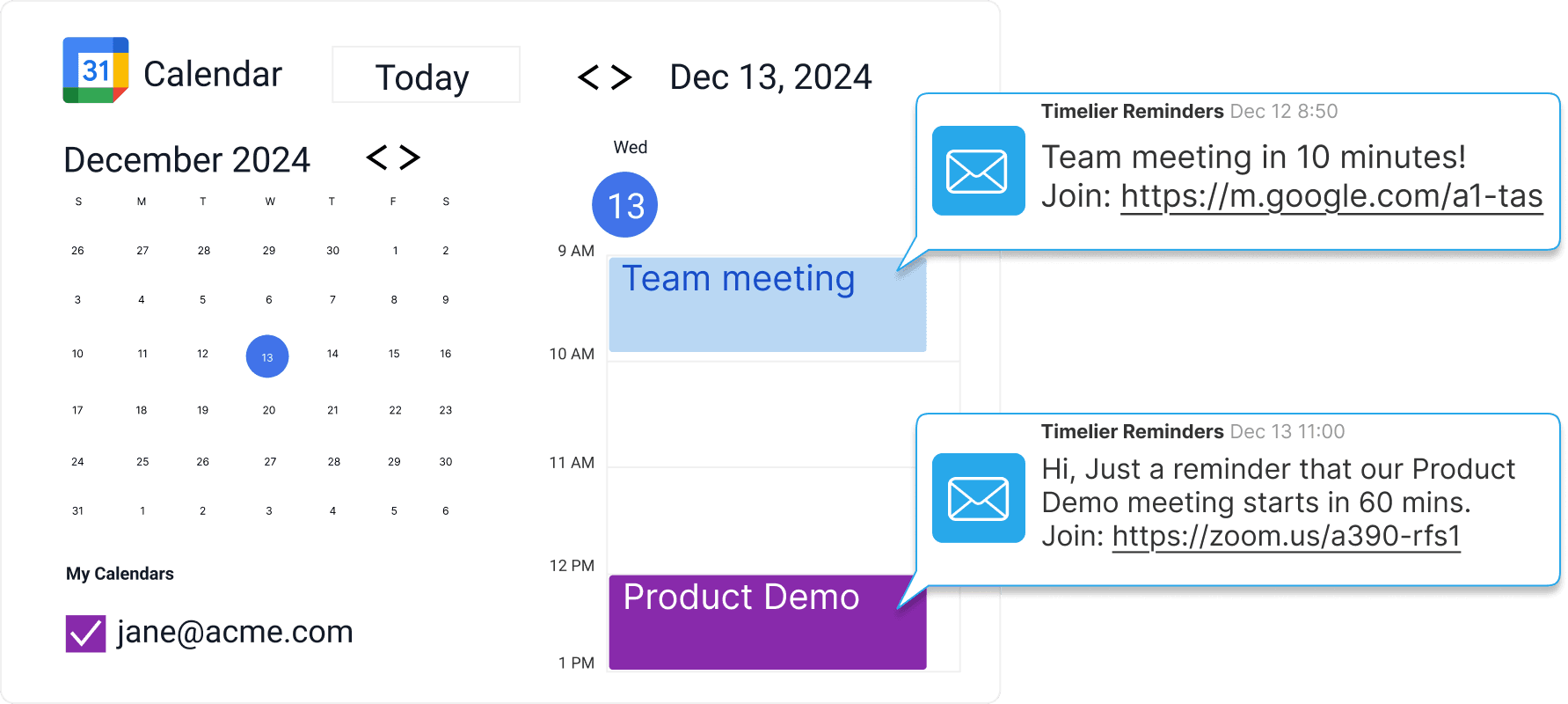
Automated meeting reminder emails are ideal for business and professional meetings where a subtle, non-intrusive reminder is preferred. Because appointments are typically scheduled through email in the first place, email reminders feel natural, familiar, and easy to act on.
Timelier connects directly to your calendar events with flexible rules that ensure the right reminders go out for the right meetings at the right times—without manual intervention.
Unlike built-in calendar reminders that only trigger a notification on your own device, Timelier allows you to email invitees, external clients, internal team channels, or yourself on any custom timetable.
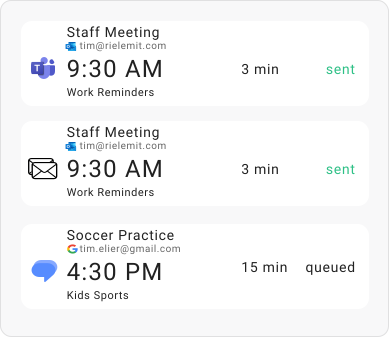
Trigger reminders 24 hours before, 15 minutes before, or at any customized timing that fits your schedule.
Sent directly through your connected Google, Outlook, or Apple iCloud account so recipients recognize and trust your emails.
Email all guests, specific addresses, or target specific RSVP statuses—such as accepted or unresponded—while skipping declined attendees.
Automatically include web conference links (Zoom, Teams, Meet, etc.) right in the reminder message so guests never have to search for them.
Reminders only trigger for the exact appointments you want based on rules you set up.
Customize messages with dynamic tags for attendee names, locations, agendas, and preparation instructions.
Timelier monitors your connected calendar and sends reminder emails to you and/or your guests automatically based on flexible rules you define. Here are two real-world examples in action.
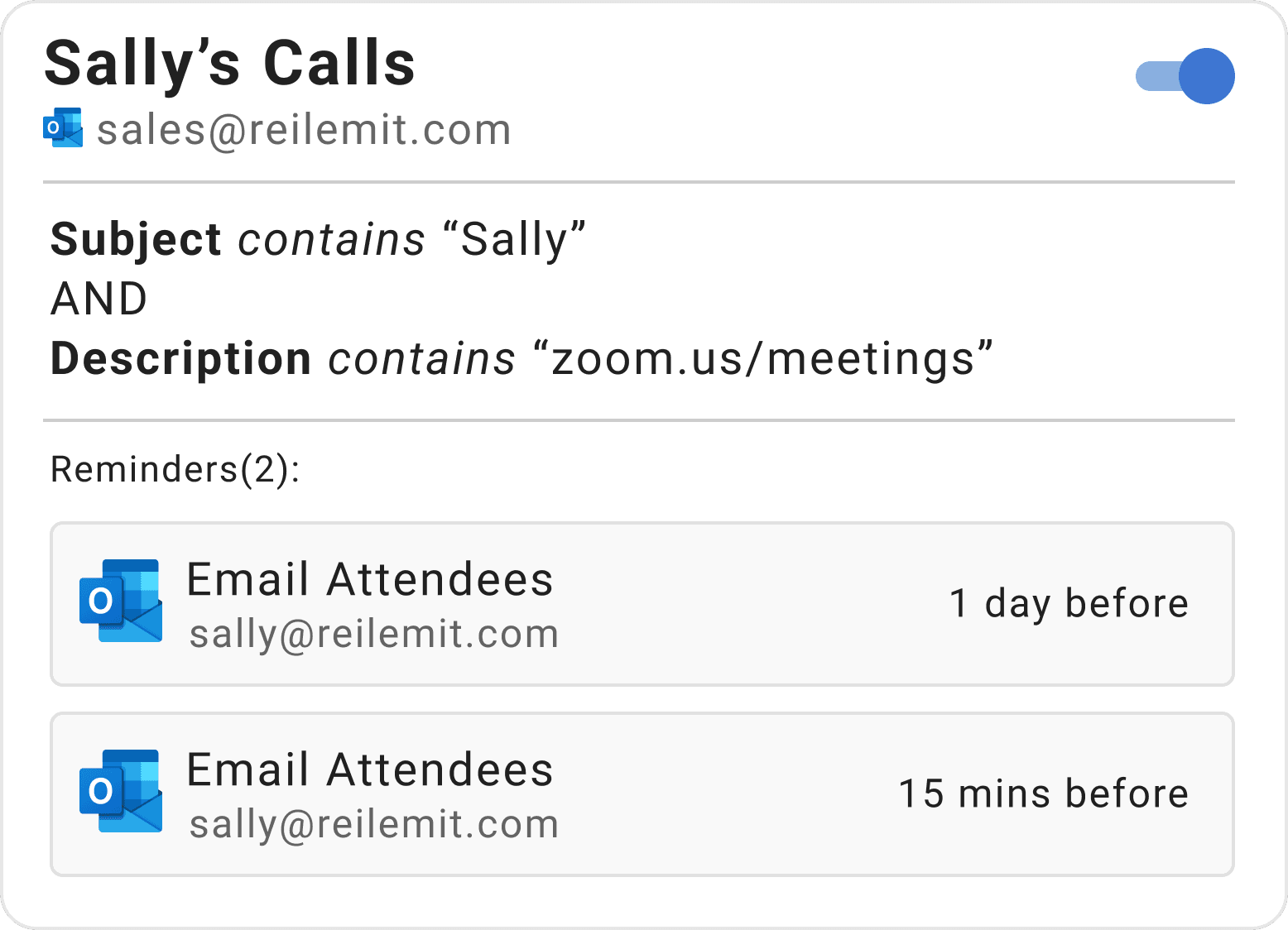
This rule monitors an Outlook calendar for appointments that have “Sally” in the subject and a Zoom meeting link in the description. (These are customizable examples—your rule can match any keywords or patterns you use in your events).
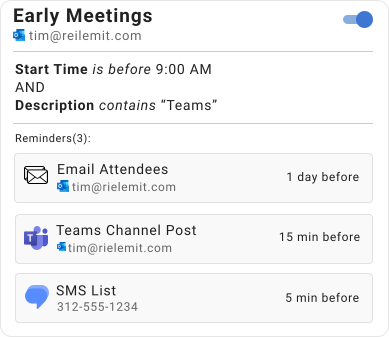
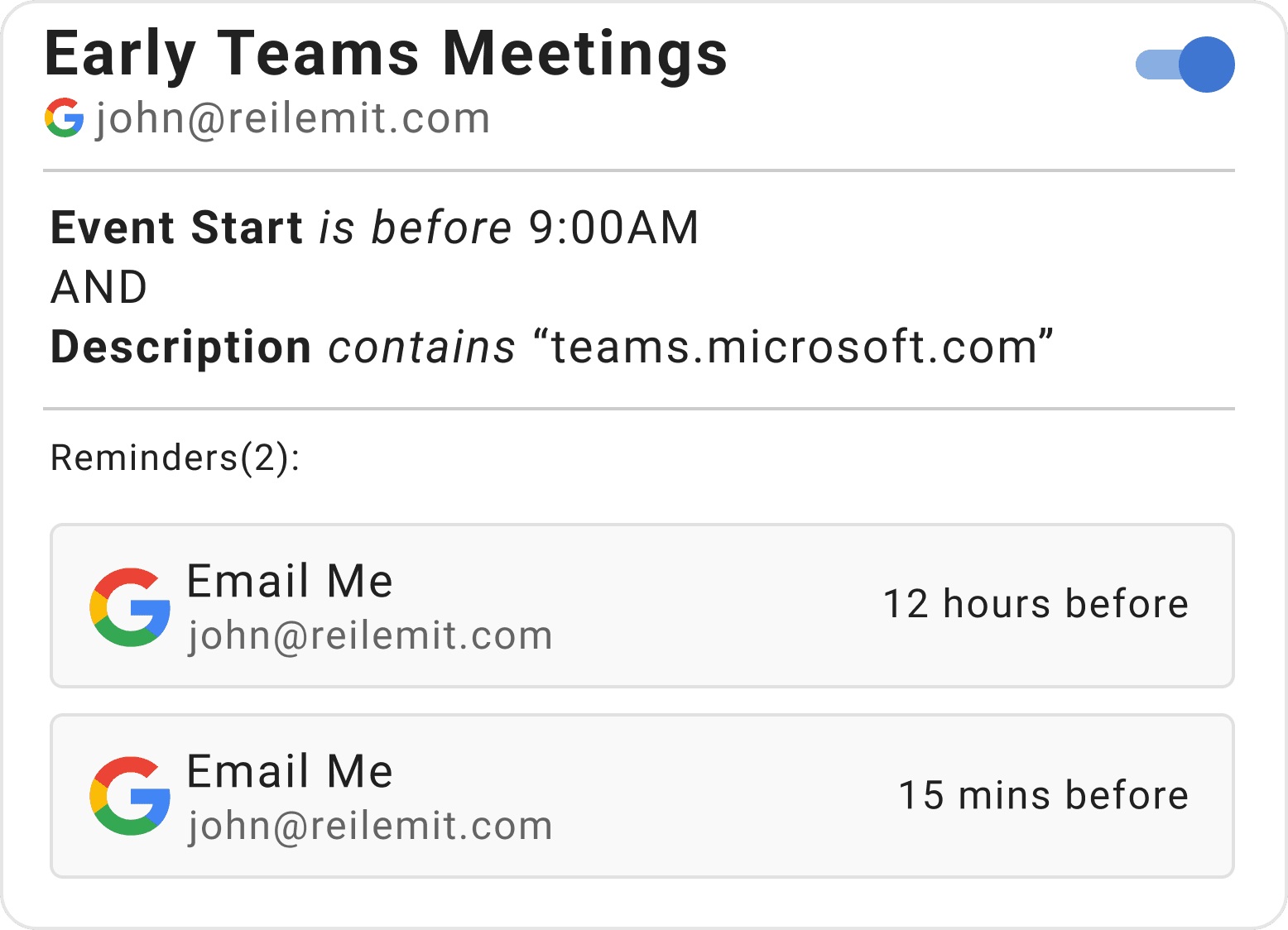
John needs extra help remembering when he has early morning Teams meetings. This rule monitors his Google Calendar for events that start before 9:00 AM and contain a Microsoft Teams link in the event details.
Common questions about automated email reminders for Google Calendar and Outlook.
Yes. With Timelier's "Email from Me" feature, reminder emails are sent directly through your authenticated Google Workspace, Gmail, or Microsoft 365 Outlook mailbox. Your recipients see your familiar name and verified email address in the From field, and all replies arrive directly in your inbox.
Yes. Timelier automatically detects Zoom, Google Meet, Microsoft Teams, and Webex links in your calendar event location and description, inserting clean, one-click join buttons directly into the reminder email so nobody gets left behind in empty waiting rooms.
Yes. You can fully customize your reminder email subject lines and body copy using dynamic placeholders such as event title, start time, location, and attendee names. You can create different custom templates for client consultations, coaching lessons, or internal team syncs.
Yes. Timelier supports multi-tier reminder cadences. For example, you can automatically send a preparation email 24 or 48 hours in advance, followed by a final nudge with video call links 15 minutes before start time. Read our step-by-step tutorial on how to send meeting reminders for Outlook Calendar.
Set up your first reminder rule in under 3 minutes. Free forever on our starter plan.
Create Your Free Account →