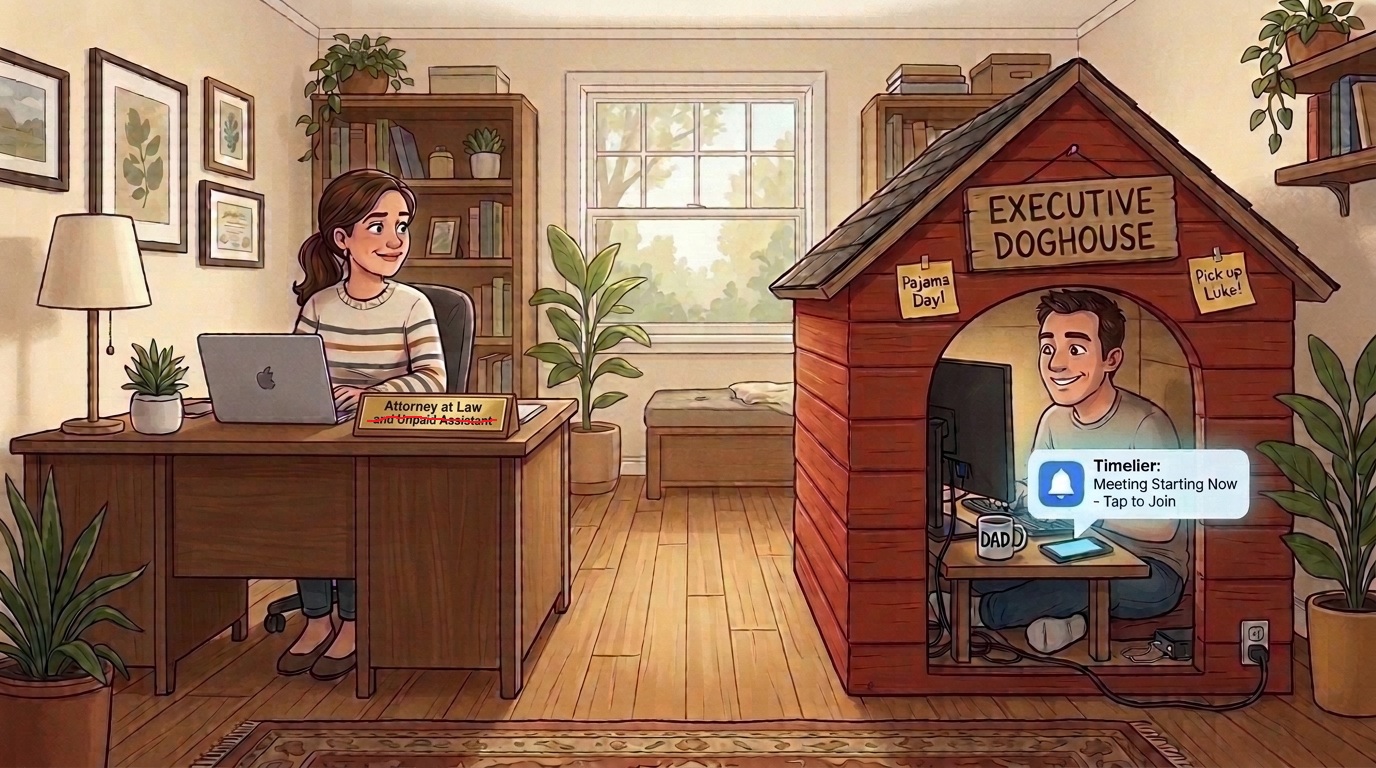
My wife and I share a home office. On paper, this is a modern remote-work fairy tale: two professionals working side-by-side, sharing coffee breaks, basking in domestic synergy.
In reality, it means my wife sits five feet away from me and regularly sets me into panic mode with questions such as:
My heart rate instantly spikes to 160 BPM. I frantically slap my mouse around, minimize three browser windows, and stare in horror at the bottom right corner of my screen. Sure enough, it’s 2:04 PM. A meeting that began at 2:00 PM is already four minutes deep without me.
I am the head of operations for a software company. Organization and timeliness is kind of implied in “operations.” Yet left to my own devices, I am Doug the Dog from the Pixar movie Up, and everything is a squirrel.
I’m distractible. I’m forgetful. And until recently, my wife was carrying the crushing mental load of acting as my unpaid executive assistant, calendar whisperer, and life-preserver. She was exhausted, and I was embarrassed (and usually defensive / full of crap that I didn't actually forget).
Here is the story of how default calendar reminders failed me, how almost missing school pickups nearly broke me, and the exact two-part Timelier automation system that saved my job, my sanity, and my marriage.
Part 1: Snooze Roulette (Or: Why Outlook Reminders Don't Work for Me)
To be fair to myself, I was trying to remember. I dutifully entered important events in my Outlook calendar and had a 30-minute default reminder setup.
For many people, that one reminder Outlook allows you might be enough, but not for me.
Here is the exact cycle of failure that played out almost every time:
1. Alert Fatigue & The “Swipe of Doom”
Because my default was set to 30 minutes, Outlook pinged me about everything 30 minutes ahead of time:
- All-company meetings I was optional for? Ding.
- Operational deadlines on our shared team calendar that somebody else in my department was handling? Ding.
- Courtesy invite to a design review? Ding.
When your phone buzzes 30 times a day with low-priority clutter, muscle memory takes over: you swipe notifications away without reading them. The problem is that somewhere between swiping away unimportant reminders, I’d accidentally swipe away the important sales call. Poof. Gone into the notification ether.
2. Snooze #1: The 15-Minute Trap
If I didn’t accidentally dismiss an important 30-minute reminder, I would snooze it.
Outlook mobile gives only 4 snooze options: 15 minutes, 30 minutes, 1 hour, and 2 hours. So when the 30-minute reminder popped up, my move was to snooze it for 15 minutes. The logic being that 15 minutes will be plenty of time to wrap up what I am doing and join the call.
3. Snooze #2: The Final 15-Minute Countdown
Assuming I caught that 15-minute alert (and didn't accidentally swipe it away instead), I would hit the 15-minute snooze one more time. Just as an insurance policy against my distractable brain. 15 minutes is plenty of time to decide to refill get a cup of tea, start answering a new email, or start watching the latest Veritasium video on YouTube, and completely wipe any memory of the meeting from my cerebral cortex.
And that assumes I even heard or saw the reminder in the first place.
The non-persistent nature of Outlook’s phone notifications are easy for me to miss. There’s no persistent alarm or full-screen takeover—just one notification sound and one tiny little icon quietly parked at the top of my phone’s status bar. I tried choosing the loudest, longest notification sound on my phone (a Halloween sound offect called "Evil laugh") but it still only plays once. If I stepped away for some tea, had my phone on vibrate across the desk, or was deep in a spreadsheet, that single audio alert came and went completely unnoticed. A tiny icon hiding among battery and Wi-Fi bars isn't going to pull me out of whatever I am focusing on.
One clumsy thumb slip, or just missing that one alert and tiny status bar icon, and the entire chain broke.
4. The 0-Minute Scramble: “Where the Hell is the Link?!”
If by some miracle of discipline and fine motor control I survived the snooze gauntlet and sat down right as the clock struck 2:00 PM, a new nightmare began:
Where is the call?
- Is this on Microsoft Teams?
- Did they send a Zoom link in the calendar invite body?
- Wait, is this a Google Meet from an external partner?
Cue two minutes of furious clicking, digging through Outlook calendar descriptions, searching my inbox, and eventually arriving five minutes late, sweating, breathless, delivering the universal corporate apology of blaming technical issues on whichever meeting platform was being used for that call.
Part 2: The Domestic Danger Zone (Kids, Pajamas, and Saintly Spouses)
As stressful as work meetings were, missing work calls only risked my professional reputation. Messing up family logistics risked something far more serious: my status as a married man and my children's emotional well-being.
If you have kids, you know that modern parenting is essentially running logistics for a cat herding competition that never ends. Between our two boys the calendar is relentless:
- School pickups and drop-offs
- Extracurriculars, practices, doctor appointments
- Spirit weeks (is today Pajama Day? Wacky Hair Day? Dress like your favorite 19th-century author day?)
- Lunch money top-ups
- Parent-teacher conferences and winter concert recitals
In my defense, it is a lot of data.
On the other hand, my wife manages to remember all of it while also holding down a demanding full-time job and remembering the meetings I am forgetting that she has absolutely nothing to do with.
Meanwhile, I had a track record that reads like an episode of a bad 90s sitcom:
- I have shown up to school to pick up the kids on days they had after-school club.
- I have arrived on the completely wrong day for practices.
- I have sent a child to school in regular clothes while every other 3rd grader was wearing fleece footie pajamas.
My wife never asked to be the default CEO of the household. She didn't want to be the sole guardian of the master schedule. And frankly, having to constantly ask, “Did you leave to pick up your son yet?” was wearing thin.
I needed a solution that didn't rely on my faulty memory, didn't depend on fragile lock-screen snoozes, and didn't turn my wife into a glorified alarm clock.
Part 3: Why I Built Timelier
I didn’t build Timelier because I wanted to disrupt the productivity software space.
I built Timelier out of sheer survival.
I realized two fundamental truths about my brain:
- Passive calendar alerts don't work for me. Standard notifications blend into background noise. I need high-signal, high-priority pings that demand attention.
- Friction kills punctuality. If an alert tells me I have a meeting, but I still have to hunt for a meeting link or check three apps to find the address, I will get lost along the way.
I needed automated rules that would scan my existing calendar, filter out the noise, and send me proactive, direct SMS and email nudges at the exact moments I needed them.
Here is the exact setup I use today.
Part 4: My Personal Timelier Playbook
Workflow #1: The Work Meeting Lifeline
Instead of putting a blanket 30-minute alarm on everything on my calendar, I created a Timelier rule that targets only meetings that involve other humans that will notice if I am late.
The Rule Trigger:
Timelier automatically watches my calendar for any event containing video conference links:
zoom.usteams.microsoft.commeet.google.com
If an event doesn't have a video link, it’s usually a block of focus time, an async deadline, or an optional broadcast. By filtering specifically for meetings with video links, 80% of my work calendar clutter disappears instantly.
The Timelier Notification Cadence:
-
1 Hour Before: Email & SMS Reminder.
This gives me the gentle macro-awareness: “Hey, don't start doing something that will prevent you from joining the meeting in 1 hour.” -
0 Minutes Before (Meeting Start Time): Direct SMS with Join Link.
This is the secret weapon. Right at 2:00 PM, my phone buzzes on my desk:Ops Review starting now!
Join here: https://teams.microsoft.com/l/meetup-join/...
I don't have to unlock my laptop. I don't have to tab over to Outlook. I don't have to search through email invites. I tap the link in the text message, and boom—I'm in the lobby. Zero scrambling. Zero sweat.
Workflow #2: The “Out of the Doghouse” Family Protocol
For personal and family life, my wife and I instituted one simple convention when inviting each other to family events: The Family Member Tag.
Whenever either of us sends the other an invite to a family event, we include the name of teh family member(s) involved in the event title:
Mom(my wife)Dad(me)Ender(our oldest son)Luke(our youngest son)
Examples:
Luke Karate Practice - Bring sparring gearEnder Orthodontist checkupMom & Dad Date Night - Dinner ReservationsDad Dentist appointment!
The Timelier Family Rule:
In Timelier, I set up a filter that looks for any event title containing Mom, Dad,
Ender, or Luke.
When a match is found, Timelier fires two specific SMS notifications to my phone:
-
2 Hours Before: The “Sanity & Transition” Alert.
Two hours is enough time to finish a work sprint, make sure the car has gas, ensure Luke's soccer cleats aren't hiding under the porch, or realize that I need to swing by the ATM for lunch money. -
15 Minutes Before: The “Keys in Hand” Alert.
Fifteen minutes means: stop typing, put shoes on, grab the kids, and walk out the front door.
Note: Bring sparring gear & water bottle!
Because this alert comes via SMS with the exact event details right on my screen, I don't need to consult my wife, and she doesn't have to track my progress.
The Verdict: Life on the Other Side
Since implementing this two-rule system:
- At work: I went from the chronically tardy ops guy to the person who is sitting in the video room waiting for others to join. My anxiety levels dropped through the floor.
- At home: Luke gets picked up on time. Ender has his lunch money. Spirit week outfits are documented and executed. And my wife no longer has to look across our home office with that look of exasperation.
If you find yourself constantly battling alert fatigue, falling into the snooze trap, or relying on your partner to be your human calendar, stop torturing yourself.
Your calendar app wasn't designed for how distractible human brains actually work.
Set up a couple of automated rules in Timelier, let the system handle the nudges, and enjoy staying on time—and permanently out of the doghouse.