Google Calendar’s Appointment Schedule feature (also known as Google Calendar Booking Pages) is one of the easiest ways for freelancers, consultants, service providers, and small business owners to share availability and accept bookings online.
While anyone can create a basic Google booking page, there is a catch that catches many users off guard: Google limits automated email reminders to higher-level paid tiers (such as Google Workspace Business Standard+ or Google One Premium). If you are on a free account or an entry-level Workspace plan (like Workspace Business Starter), automated reminders aren't included.
Furthermore, Google Calendar Booking Pages do not offer SMS text reminders on any plan—free or paid.
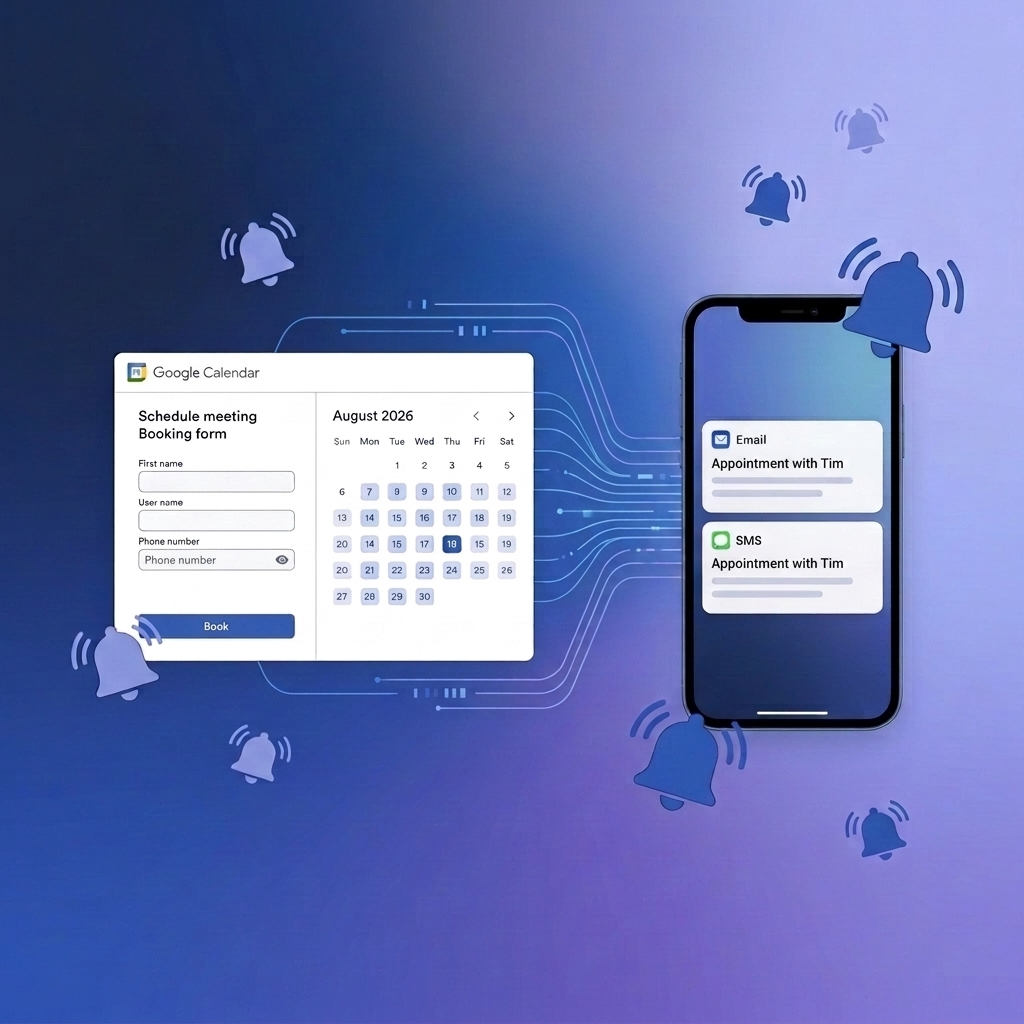
If you want to eliminate no-shows with automated email and SMS reminders without paying for expensive Google plan upgrades, Timelier provides the perfect solution.
Google Calendar Booking Pages: Free vs. Paid Plan Features
Here is a breakdown of what Google Calendar offers out-of-the-box across free and paid plans:
| Feature | Free / Starter Google Tiers | Higher Paid Google Tiers |
|---|---|---|
| Active Booking Pages | 1 Active Page | Unlimited |
| Calendar Conflict Check | 1 Calendar | Multiple Calendars |
| Automated Email Reminders | ❌ Not Included | ✓ Included |
| Automated SMS Reminders | ❌ Not Supported | ❌ Not Supported |
| Stripe Payment Collection | ❌ Not Included | ✓ Included |
The Reminder Restriction Problem
When setting up a booking page in Google Calendar, toggling on automated email reminders requires a costly paid subscription tier. For small businesses, solo professionals, or creators on free Gmail or Business Starter plans, upgrading your monthly Google subscription just for booking reminders is an unnecessary overhead.
Even worse, even if you pay for Google's highest tiers, Google Calendar still doesn't send SMS text reminders to attendees.
Choose Your Setup Configuration:
Select your preferred reminder workflow to jump straight to the complete step-by-step setup guide:
Option 1: Setting Up Email Reminders Only
If you only want to send automated email reminders to clients before meetings, this setup is completely straightforward and requires no custom form fields on your Google booking page.
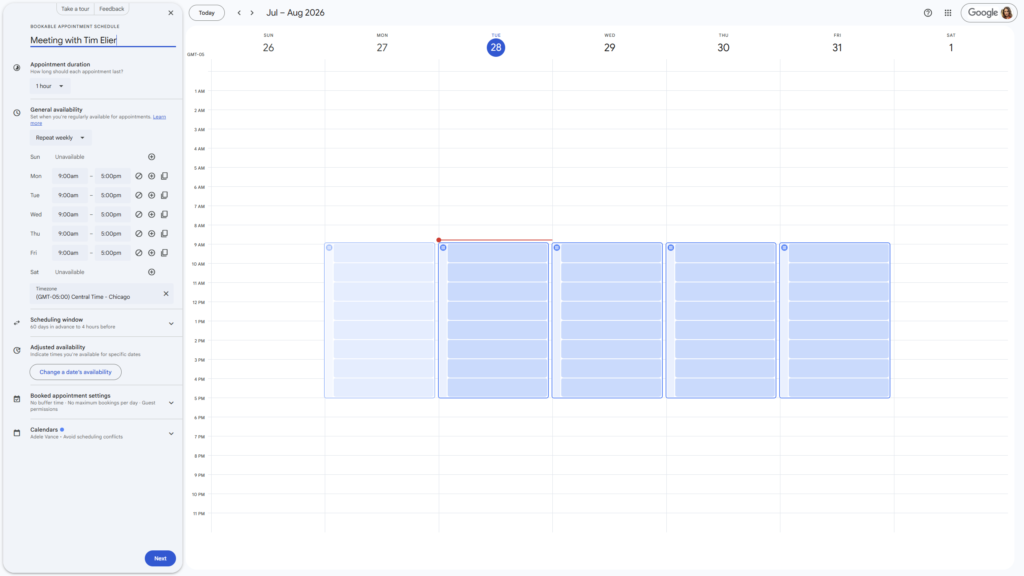
Step 1: Create Your Google Booking Page
- Open Google Calendar on your desktop browser.
- Click + Create in the top-left corner and select Appointment schedule.
- Set your title (e.g., "30-Minute Consultation"), duration, and weekly availability.
- Click Next. On Page 2, keep the standard booking form fields (First name, Last name, Email address) or add whatever fields you prefer.
- Click Save. Your open appointment slots will appear on your calendar schedule.
- Visit your public booking page and book a test meeting for sometime in the next 7 days.
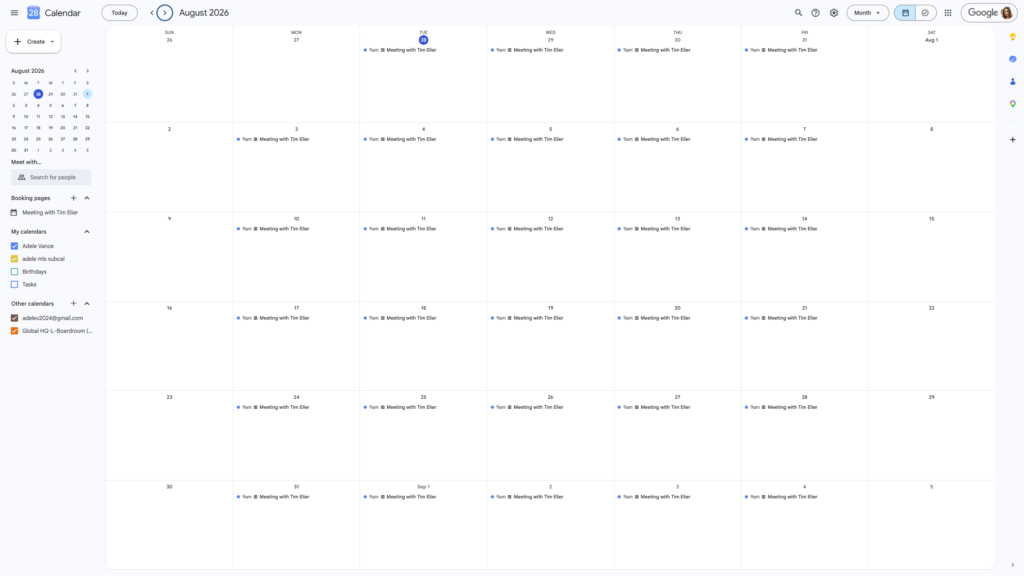
Step 2: Configure & Save Your Email Rule in Timelier
- Log in to app.timelier.com.
- Connect your Google Calendar if you haven't already.
- Go to Rules and click Create Simple Rule.
- Walk through the 5-step guided wizard:
- Select Calendar: Pick your Google Calendar account.
- Identify Events: Select "A keyword in the subject" and type the name of your Google Booking page.
- Configure Reminder: Choose "Email from me" and in the attendee status dropdown, select Accepted, Tentative, and No response.
- Set Timing: Set your timing (e.g., 24 hours before).
- Click Finish. Click Preview Reminders to verify your rule detects your test appointment, then click Save to activate it!
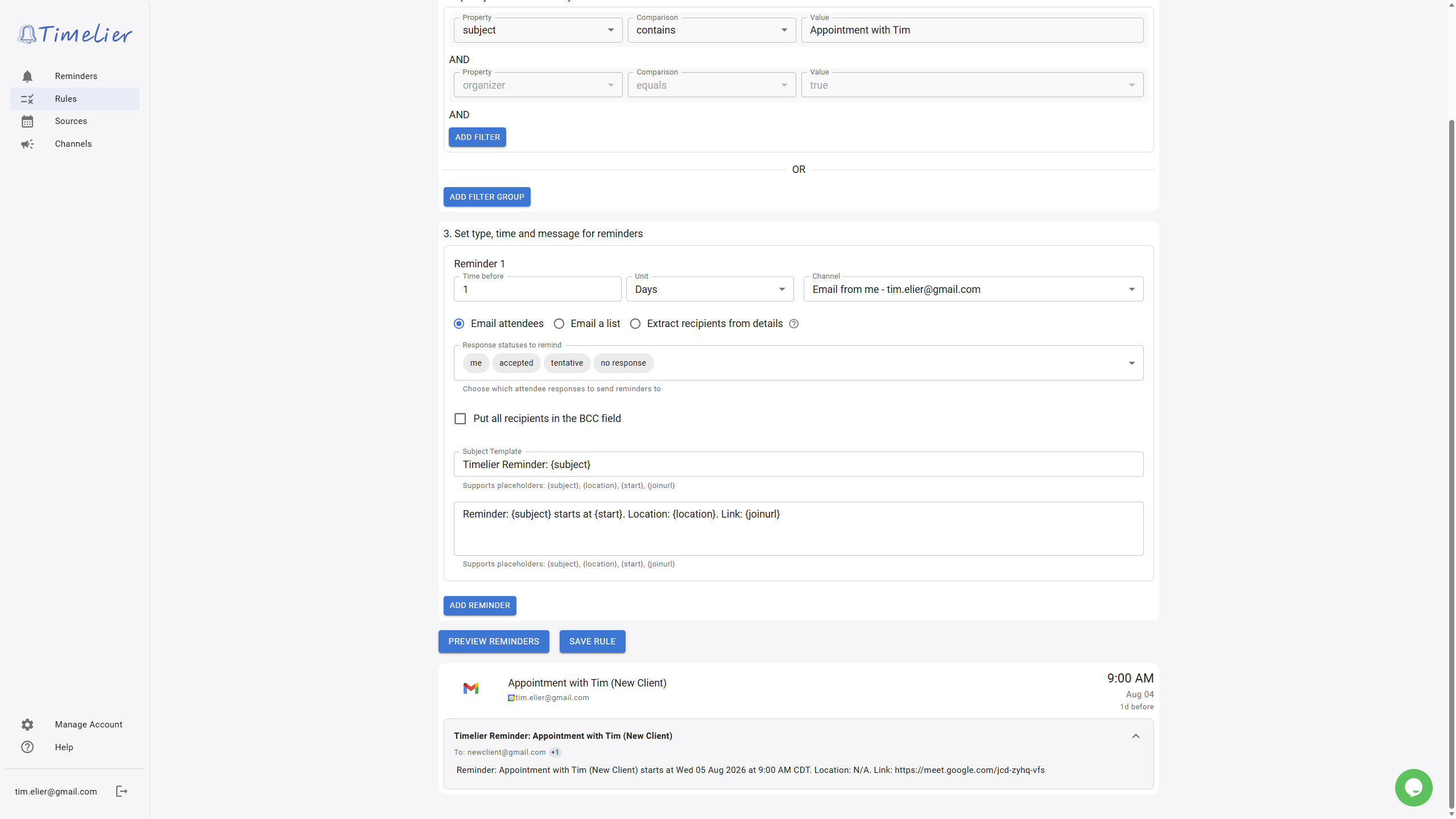
Option 2: Setting Up SMS Reminders Only
If you want to send direct text message reminders to attendees' mobile phones, you simply add one custom form field on your Google Calendar booking page so guests can provide their mobile number.
Step 1: Create Google Booking Page with Custom Phone Field
- Open Google Calendar and click + Create > Appointment schedule.
- Set your title, duration, and availability, then click Next.
- On Page 2 under Booking form, click Add an item and select Custom item.
- In the field label, type exactly:
Phone number for SMS reminder: - Choose whether to make the field required or optional.
- Click Add item, then click Save.
- Visit your booking page and book a test appointment with a valid phone number.
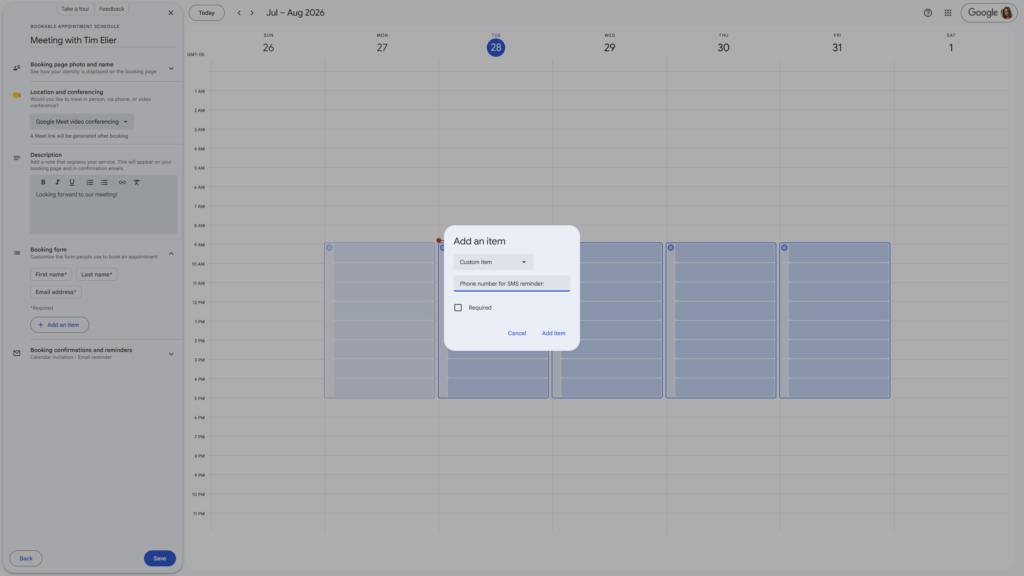
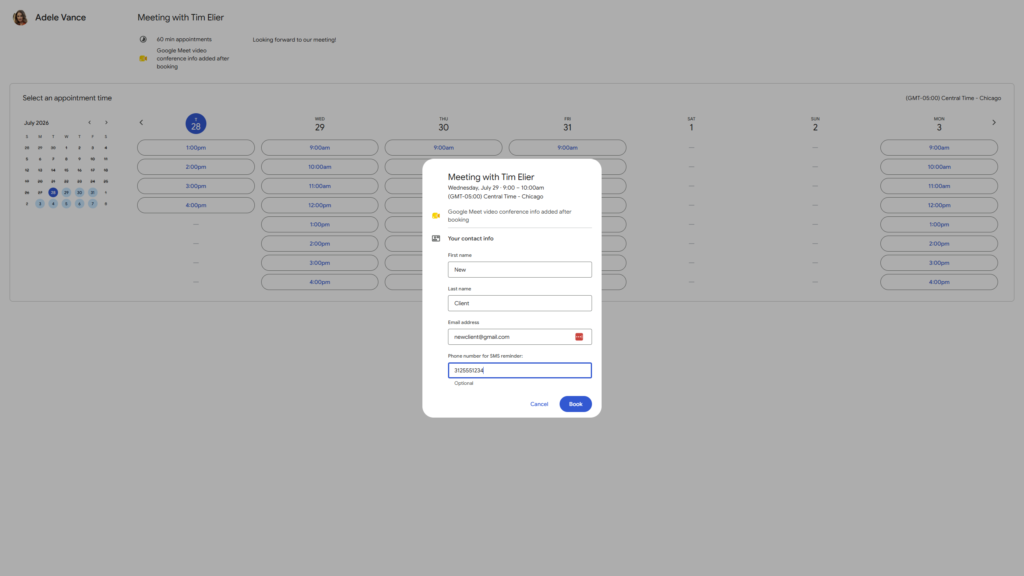
Step 2: Configure SMS Rule in Timelier Simple Rule Wizard
- In Timelier, go to Rules and click Create Simple Rule.
- Select your calendar and filter by the keyword matching your booking page name.
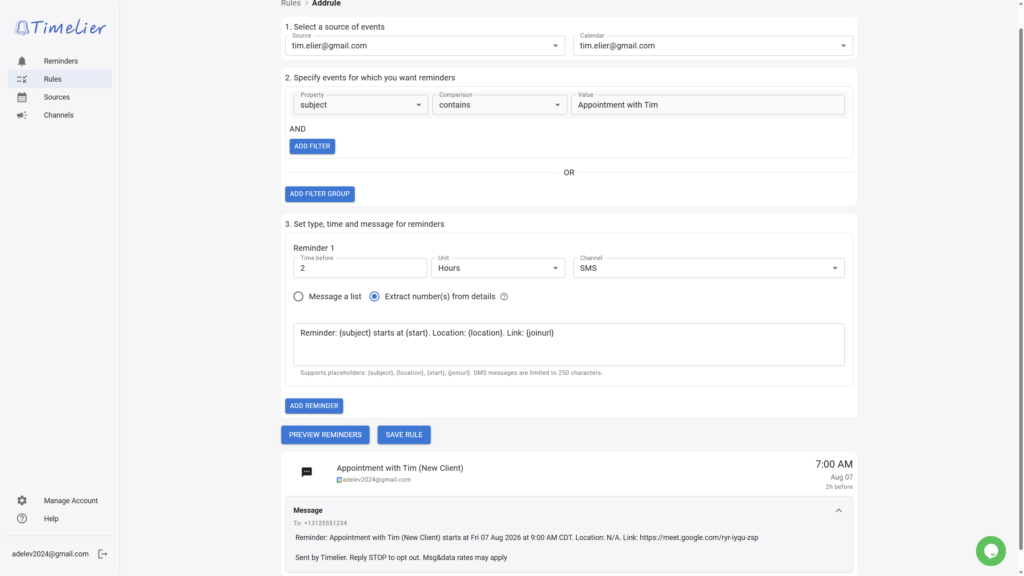
- Under reminder configuration, choose SMS and check the box for "Extract number(s) from details".
- Set your timing (e.g., 2 hours before the start time).
- Click Finish, test using Preview Reminders, and click Save.
How SMS Reminders Work Behind the Scenes
When a client books a slot, they fill out your custom phone field:
Google Calendar puts the phone number in the event details on your calendar:
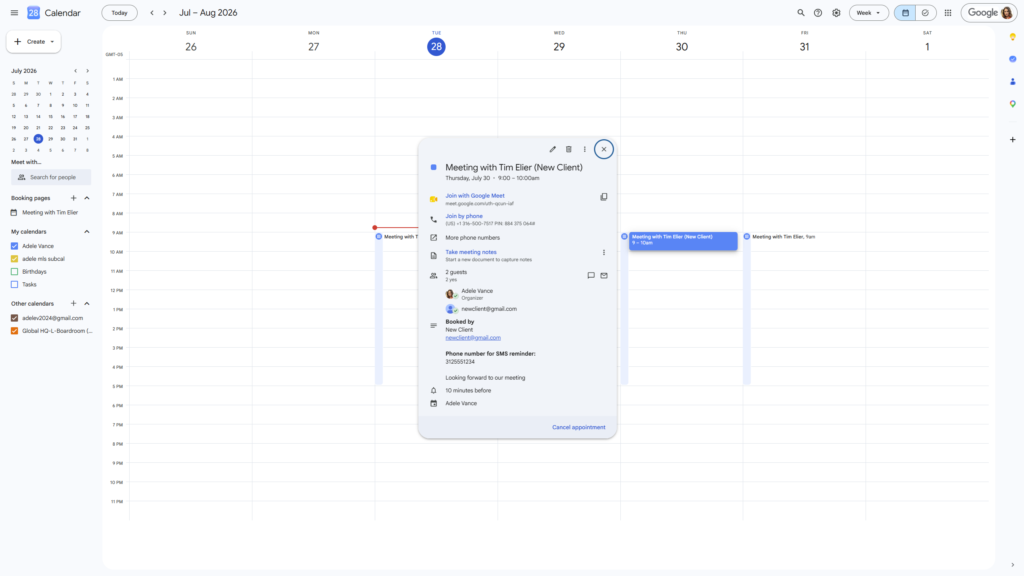
With “Extract number from event description” enabled, Timelier parses the phone number and sends your text reminders automatically!
Option 3: Setting Up Both Email & SMS Reminders
For maximum attendee attendance and 0% no-shows, combine Email and SMS reminders into a multi-touch notification sequence (e.g., 24 hours before via Email, 1 hour before via SMS).
Step 1: Create Google Booking Page with Custom Phone Field
See the instructions for this under Option 2 above.
Step 2: Configure Dual-Channel Rules in Timelier
- Follow the steps above under Option 2 Step 2 for setting up an SMS reminder.
- Go to your Rules page and click the pencil icon on the rule to edit the rule. This will open up the Advanced Rule form.
- In section 3 “Set type, time and message for reminders” click Add Reminder.
- For Reminder 2:
- select the timing of the email reminder (e.g., 1 day before)
- in the “channel” dropdown, select “Email from me”
- in the “Email attendees with status” dropdown, select “Accepted”, “Tentative”, and “No response.”
- Click Preview Reminders. You should see two upcoming reminders for the test event you booked through your booking page. If not, double check the keywords in your rule match the subject of the test event. When then rule is correctly showing a reminder for your test event, click Save to activate your rule! (For additional guidance, check out the Timelier Help Guide).
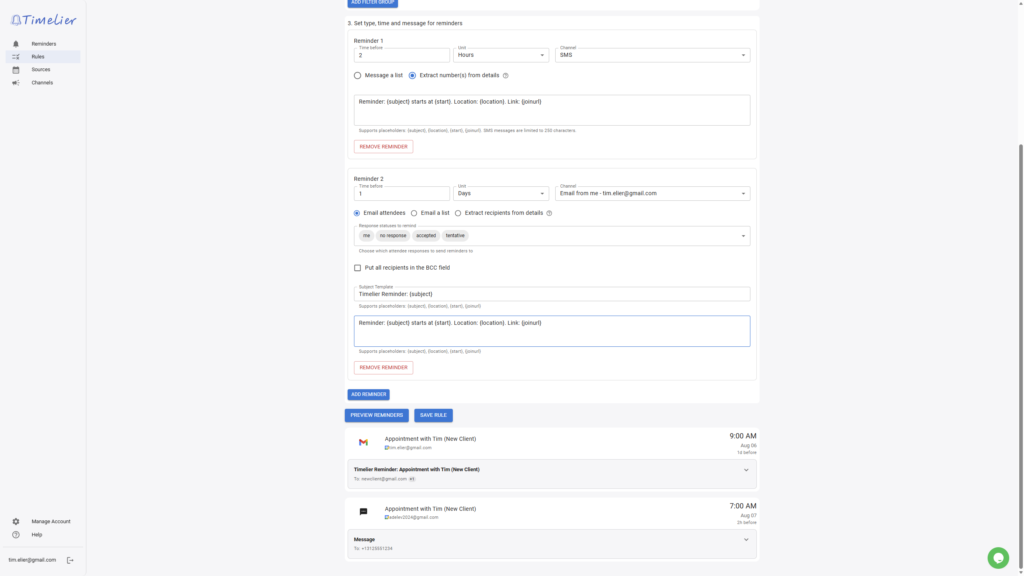
Your attendees will now receive an email confirmation and reminder sequence as well as a last-minute text alert right before the meeting!
Key Benefits of Using Timelier with Google Calendar
- Save Money: Avoid upgrading your Google subscription tier just to unlock basic email reminders.
- Flexible Configurations: Choose Email Reminders Only, SMS Reminders Only, or Both depending on your business needs.
- Simple Rule Wizard: 5-step guided wizard gets your rules set up in seconds.
- Custom Branding & Messaging: Full control over reminder phrasing, tone, links, and preparation instructions for attendees.
- Zero Maintenance: Works completely in the background without needing manual intervention after setup.
Frequently Asked Questions (FAQ)
Why can't I add email reminders to my Google Calendar booking page?
What configurations can I use for booking page reminders?
Phone number for SMS reminder: custom field in Google Calendar and check the “Extract number from event description” option in your Timelier rule.
Does Google Calendar support SMS text reminders for booking pages natively?
How many booking pages can I create in Google Calendar?
Conclusion: Simple, Smart Reminders for Google Booking Pages
Google Calendar's Booking Pages are a fast, convenient way to let people book time with you. But relying solely on Google's native features leaves many users without email reminders and completely excludes SMS notifications.
By pairing your Google Calendar Booking Page with Timelier, you unlock automated email and SMS reminders, drastically reduce no-shows, and maintain a professional client experience—all without unnecessary subscription upgrades.