
Google Calendar gives you several ways to remind yourself about upcoming meetings, appointments, and events. You can set default notifications for a calendar, customize reminders for individual events, receive reminders by email or notification, and schedule multiple reminders.
Reminding other people is different.
For a normal Google Calendar event, the notifications you configure generally control when you are reminded; they do not let you create an organizer-controlled reminder schedule for your Google Calendar guests. Your guests receive reminders according to their own calendar settings.
Google Calendar’s Appointment Schedule booking pages work differently. On eligible paid Google plans, you can automatically send reminder emails to people who book an appointment with you via your booking page.
This guide explains how the different types of Google Calendar reminder work, how to configure reminders for yourself, how to remind guests, how Appointment Schedule reminders work, and what your options are if you need more flexible automated reminders.
| Reminder type | Reminds you | Reminds guests | Automatic | Multiple reminders | Native Google support |
|---|---|---|---|---|---|
| Calendar notification / alert | ✓ | Guests use their own settings | ✓ | ✓ | ✓ |
| Email notification to yourself | ✓ | Guests generally use their own settings | ✓ | ✓ | ✓ |
| Manual email to event guests | — | ✓ | No | As needed | ✓ |
| Appointment Schedule email reminder | — | ✓ | ✓ | Up to 5 | Eligible plans |
| Rules-based automated guest email | ✓* | ✓* | ✓* | ✓* | Requires an automation service |
| SMS / text reminder | ✓* | ✓* | ✓* | ✓* | Requires an automation service |
* Available through a third-party automation service such as Timelier.
One of the most important things to understand about Google Calendar reminders is the difference between a notification on your calendar, which are generally only for you, and a reminder that actually gets sent to another person.
Google Calendar lets you configure default notifications for each calendar and override those settings for individual events.
For example, you might configure your default reminders to email you 1 day before every event and display a notification 15 minutes before every event. And then, for certain events, you might manually override those settings with reminders at different times (or no reminders at all).
Those settings are associated with your calendar and your account. Setting a 30-minute reminder on a meeting does not mean that everyone you invited will automatically receive the same 30-minute reminder.
Google Calendar guests generally receive reminders according to the notification settings they have configured in their own calendar. Google’s documentation on Calendar notification settings explains how these personal notification settings work.
If your goal is to make sure another person actually receives a message before an appointment, you need more than your personal Calendar notification setting.
Depending on the type of Google Calendar event, your options include:
The sections below explain each option and how to set it up.
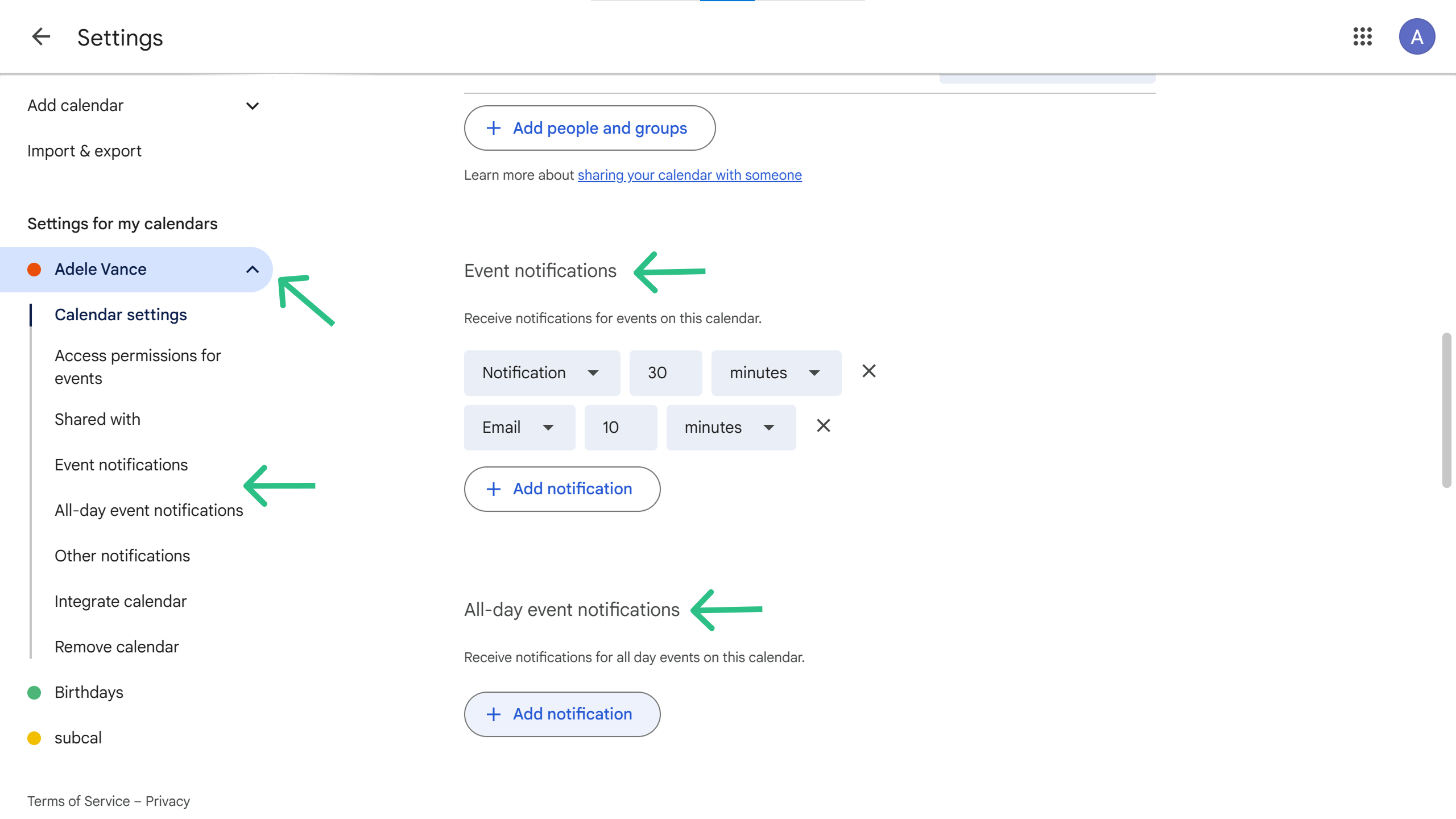
To save time and ensure consistency, you can set default reminders for any new event you create within a specific calendar. Google Calendar allows you to set separate default reminder preferences for timed events and all-day events.
Open Google Calendar in your web browser (calendar.google.com).
In the top right, click the Settings gear icon and select Settings.
On the left sidebar, under “Settings for my calendars,” click the specific calendar you want to modify (e.g., your primary calendar).
Scroll down to the “Event notifications” section. This section has two distinct subsections:
“Event notifications” (for timed events):
Here, you can edit existing notifications, add another notification, or remove a notification for regular events that have a specific start and end time.
You can choose the time (e.g., 15 minutes before) and method (Notification or Email).
You can set up multiple reminders (e.g., a notification 10 minutes before and an email 1 hour before).
“All-day event notifications”:
This section allows you to set default reminders specifically for events that last a whole day (without a specific start time).
By default, all-day event reminders are often set for 9 AM on the day of the event, but you can change this to any desired time and method (Notification or Email).
You can add multiple notifications for all-day events as well.
Changes are saved automatically.
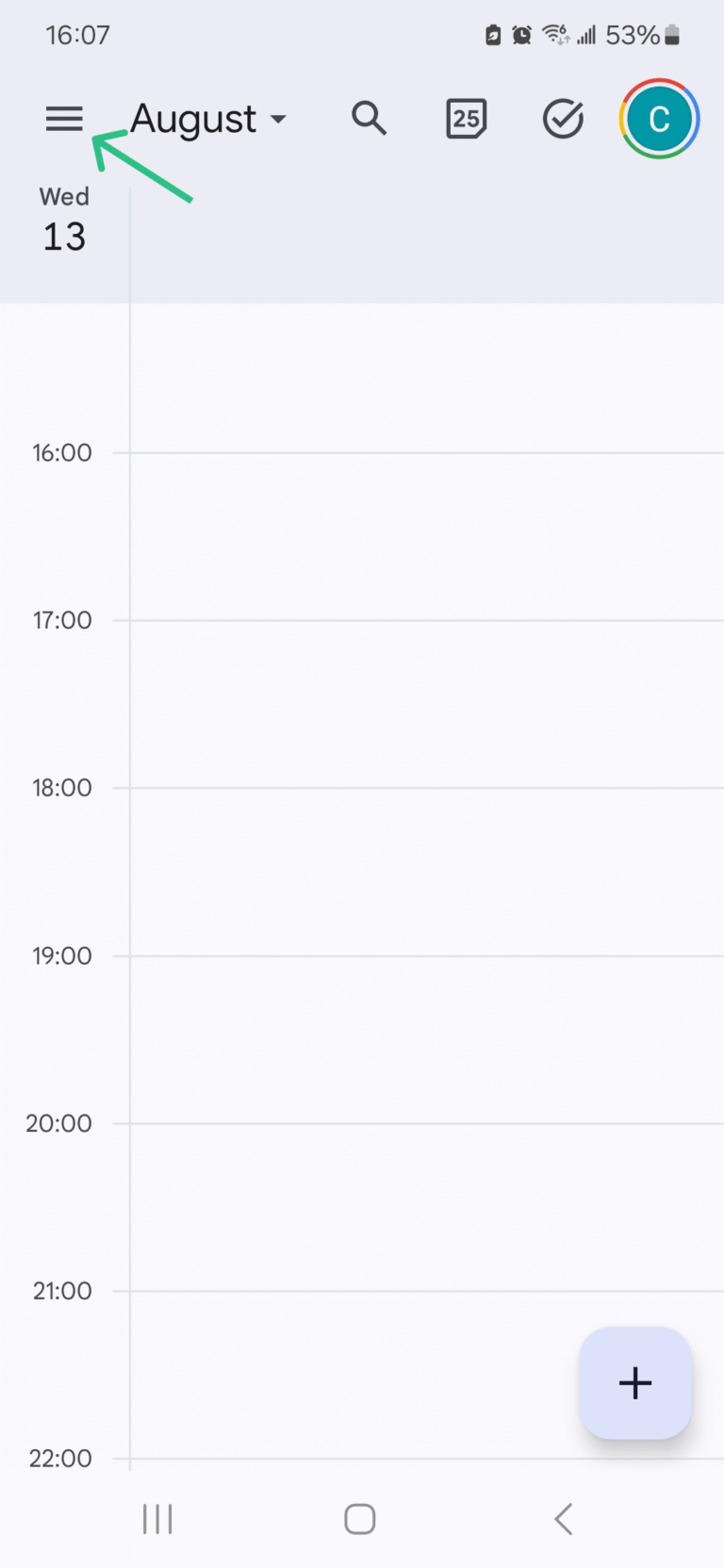
Open the Google Calendar app.
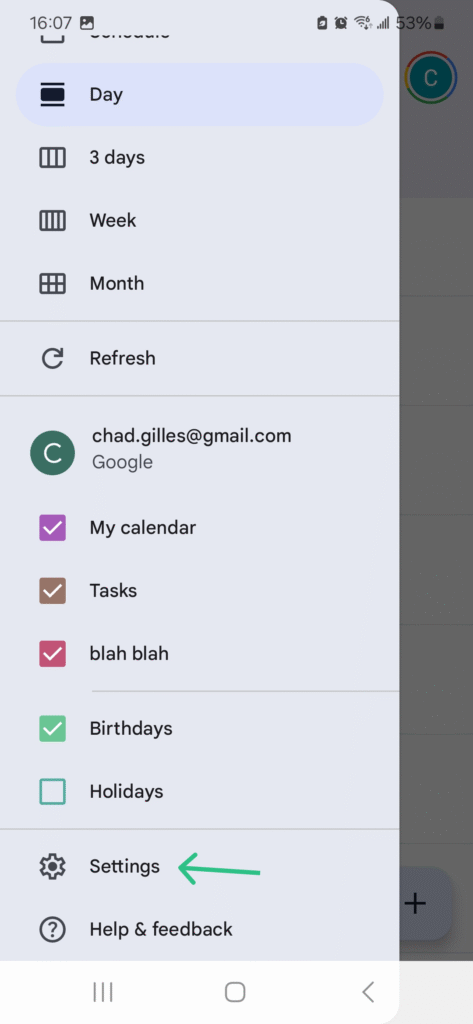
Tap the hamburger menu in the top left.
Scroll down and tap Settings.
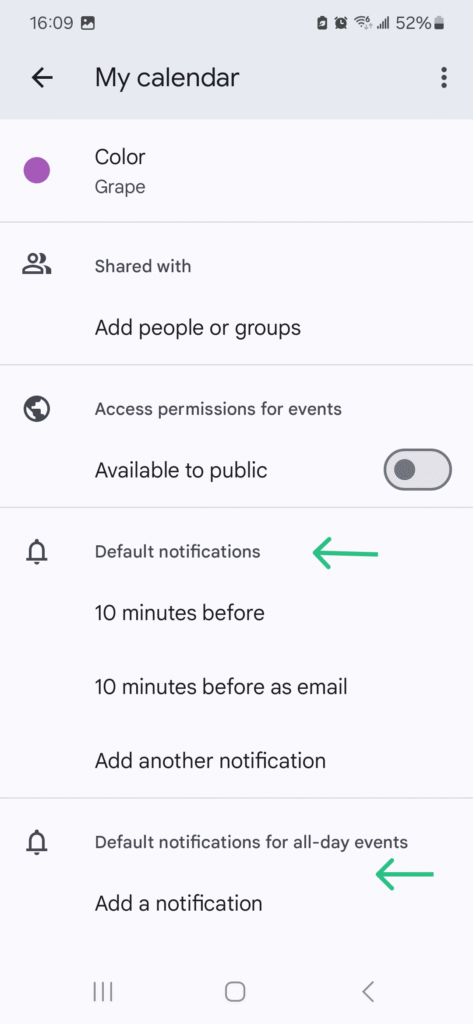
Tap the calendar you want to change.
Under “Notifications,” you will find options to adjust the default notification settings. Similar to the desktop version, you will see separate categories for “Default notification” (for timed events) and “Default notification for all-day events.”
If you want to remind the people attending your event, rather than just remind yourself, your options depend on how the event was created.
For a regular Google Calendar event, you can manually email the guests, but Google Calendar does not provide a general-purpose way for the organizer to schedule automatic reminder emails to those guests.
For appointments booked through a Google Calendar Appointment Schedule, Google does offer automatic email reminders on eligible paid plans, but there are limitations which we discuss below.
For more control—or to automatically remind guests for any type of Google Calendar event—you can use a reminder service such as Timelier.
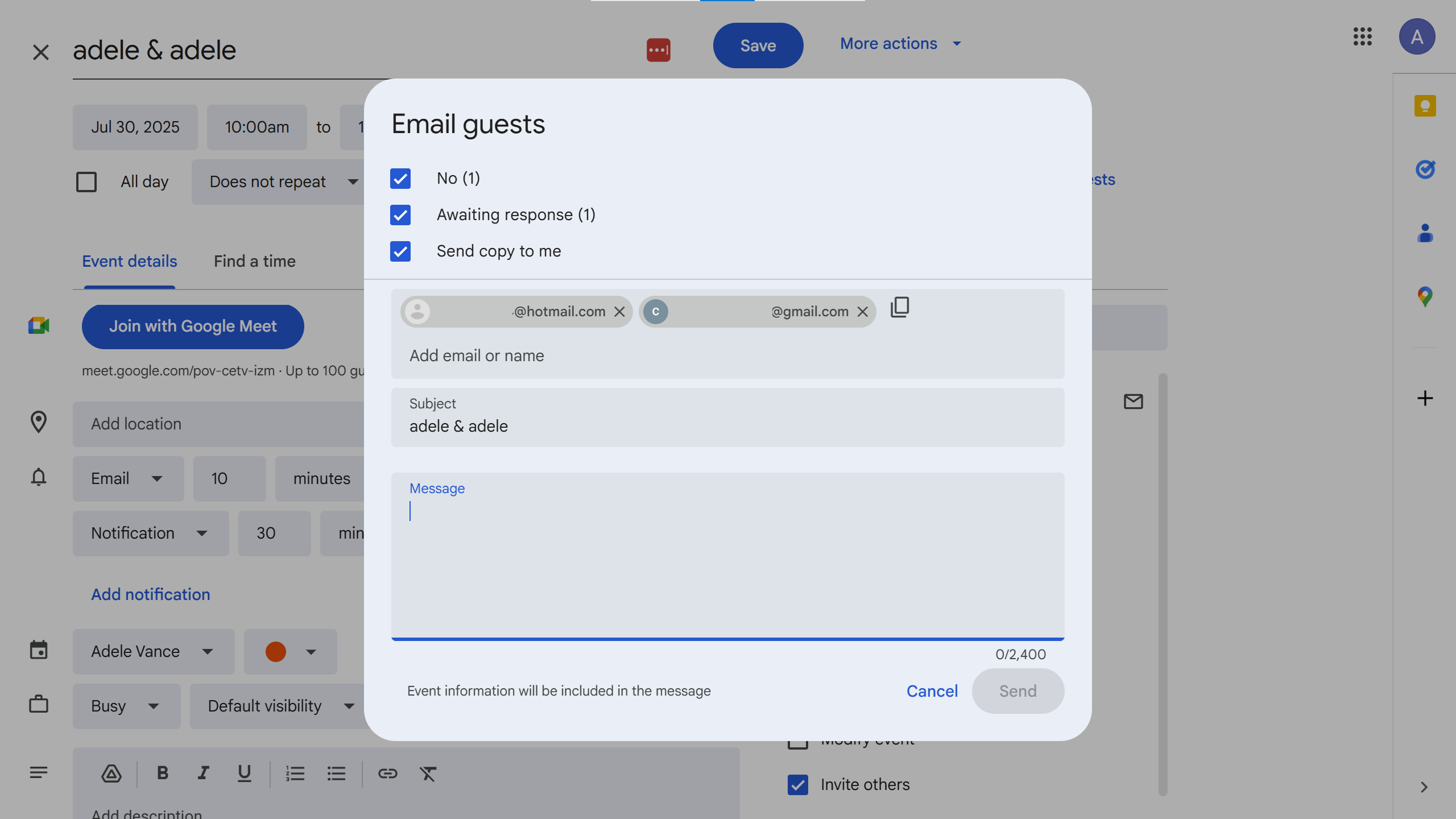
For regular Google Calendar events not booked through an Appointment Scheduling booking page, there is no built-in option to automate email reminders to guests. That said, Google Calendar does give you the option to send a manual email reminder to guests. This is useful if you want to send a one-time reminder, meeting update, preparation instructions, or other message before an appointment.
On a computer:
Open the event.
In the “Guests” section of the event details, locate the envelope icon at the top. Click it.
A new email window will open, allowing you to compose your message.
Helpfully, you will see checkboxes next to various recipient groups based on their response to the invite (“Yes,” “No,” “Maybe,” “Awaiting response,” “Send copy to me”). You can select specific groups and you can also manually add or remove email addresses in the “To,” “Cc,” or “Bcc” fields.
Compose your message and click “Send.”
On Mobile:
1. Tap the event.
2. Click the envelope icon to “Email guests.”
This will pop up the option to send one of a handful of canned messages (e.g., “be there in about 10 minutes”) or you can click “write your own” to open the compose email window with the To and CC fields prepopulated based on the event guests.
3. Edit the recipients, if desired, compose the message, and click “send”
This works well for an occasional reminder, but it is a manual process. Google Calendar does not let you schedule this email to automatically go out a day or an hour before every regular Calendar event.
If you frequently need to remind customers, clients, students, or other attendees, manually emailing the guest list for every appointment can quickly become impractical.
As mentioned above, regular Google Calendar events (created by you manually or by receiving an email invite) do not have a way to schedule an email reminder to guests.
Events created via Google Calendar’s Appointment Schedules—the feature that lets you create a booking page where other people can schedule time with you—can send automatic email reminders to people who book appointments.
With an eligible paid Google subscription, you can configure an Appointment Schedule to send up to five reminder emails before an appointment according to Google’s Appointment Schedule documentation.
Google lets you choose when those reminders are sent, but there are some limitations:
If you use a Google Calendar booking page and Google’s built-in reminders meet your needs, this can be the simplest solution.
If you need a detailed walkthrough of the native Google options and how to add custom email or SMS reminders to booked appointments, see How to Send Automated Email and SMS Reminders for Google Calendar Booking Pages.
If you need a reliable way to automatically send reminders to guests for regular Google Calendar events, or you need more flexibility than Google’s Appointment Schedule reminders provide, Timelier can send email (and SMS) reminders based on the events already on your calendar.
Instead of remembering to manually send reminders, you create rules that determine which events get reminders, who receives them, when they are sent, and what they say.
For example, you could automatically:
Google Calendar does not currently offer a built-in option to send SMS/text-message reminders for calendar events.
If you want to automatically text yourself or your guests before an appointment, you need to connect Google Calendar to a third-party reminder service.
Timelier can send SMS reminders based on the same kinds of rules used for email reminders. For example, you can:
Sending SMS reminders to guests requires a phone number for the recipient. How that number is collected depends on how the event was created. Google Calendar Appointment Schedules, for example, can collect a phone number through a custom booking-form field.
For a complete walkthrough, including how to obtain the recipient’s phone number and configure automated texts, see How to Send SMS/Text Reminders for Google Calendar Events.
That’s it! For complete instructions, visit our detailed instructions for setting up Timelier for automating Google Calendar reminders. Once the rule is active, Timelier monitors your Google Calendar and automatically sends reminders as matching events approach.
This is particularly useful when Google Calendar is the central place where appointments from several different sources end up. Whether the events are created manually, sent to you as a meeting invitation, or created by another scheduling application; Timelier can apply the same reminder rules to all of them.
If the event was created specifically through a Google Calendar Appointment Schedule, see our booking-page reminder guide for the more specialized setup options available for those appointments.
For regular Google Calendar events, your notification settings do not control the reminders received by guests who use Google Calendar. Those guests receive reminders according to their own notification settings.
If the appointment was booked through a Google Calendar Appointment Schedule, Google can send automatic reminder emails on eligible paid plans.
For Google Calendar events created manually or by receiving an invite, automatically sending reminders to guests requires a third-party service such as Timelier.
You can invite someone to an event, but you generally cannot control the notification schedule for another Google Calendar user.
If you need to make sure a guest receives a reminder at a specific time, you can manually email the guest, use Google’s automatic Appointment Schedule reminders when applicable, or use an automation service such as Timelier.
No. Google does not natively support SMS or phone call reminders (Google discontinued SMS notifications in 2019).
To automatically send text reminders based on Google Calendar events, you need a third-party service. See our guide to sending SMS/text reminders for Google Calendar events for a complete walkthrough.
Yes. Google Calendar can send email notifications to remind you about your own events.
For guests, Google also supports automatic reminder emails for appointments booked through eligible Google Calendar Appointment Schedules. For ordinary Calendar events (created manually or by receiving an email invitation), Google does not provide an automatic guest email reminder feature.
Google allows you to add up to five event notifications for an individual Calendar event.
These notifications apply to your account and are not shared with guests who use Google Calendar. Guests normally use their own reminder settings.
Google discontinued the old Reminders feature and moved that functionality into Google Tasks.
If you previously used Google Calendar Reminders for personal to-dos such as “call the dentist at 3 PM,” you now create a Google Task with a date and time instead. Tasks can appear directly on your Google Calendar.
This is separate from the event notifications and guest reminders discussed in this guide.
The terminology can be confusing because people often use the word “reminder” broadly.
For Calendar events, Google officially refers to the alerts you receive before an event as notifications. These can include browser, mobile, and email notifications.
Google’s older product called Reminders was a separate personal to-do feature that has since been replaced by Google Tasks.
In this guide, we use “Google Calendar reminders” in the broader sense that people commonly search for it: notifications for yourself and reminder messages sent to event guests.