Timelier allows you to send automated appointment reminders directly from your own personal or workspace Gmail, Microsoft Outlook, or Microsoft Teams account. When connected, your recipients receive notifications from a recognized, trusted address with your authentic profile and branding.
Why Connect a Personal Notification Channel?
Every Timelier account includes built-in system notification channels (Email from Timelier and SMS via Timelier). Connecting your own Google or Microsoft account unlocks powerful advantages for client communications:
Direct Deliverability
Messages are sent through Google Workspace or Microsoft 365 mail servers, drastically reducing spam flags and ensuring prompt inbox arrival.
Two-Way Communication
When clients or attendees reply to a reminder (e.g. "Running 10 mins late!"), their response lands immediately in your personal email inbox.
Sent Items Audit
Outbound reminder emails appear directly in your email provider's Sent folder, giving you a complete audit log of dispatched messages.
Microsoft Teams Chat
Send 1-on-1 Teams direct chat messages to colleagues and internal team members without cluttering their email inboxes.
Connecting Google (Gmail) Reminder Channel
Authorize Timelier to send reminder notifications from your personal @gmail.com or business
Google Workspace email address.
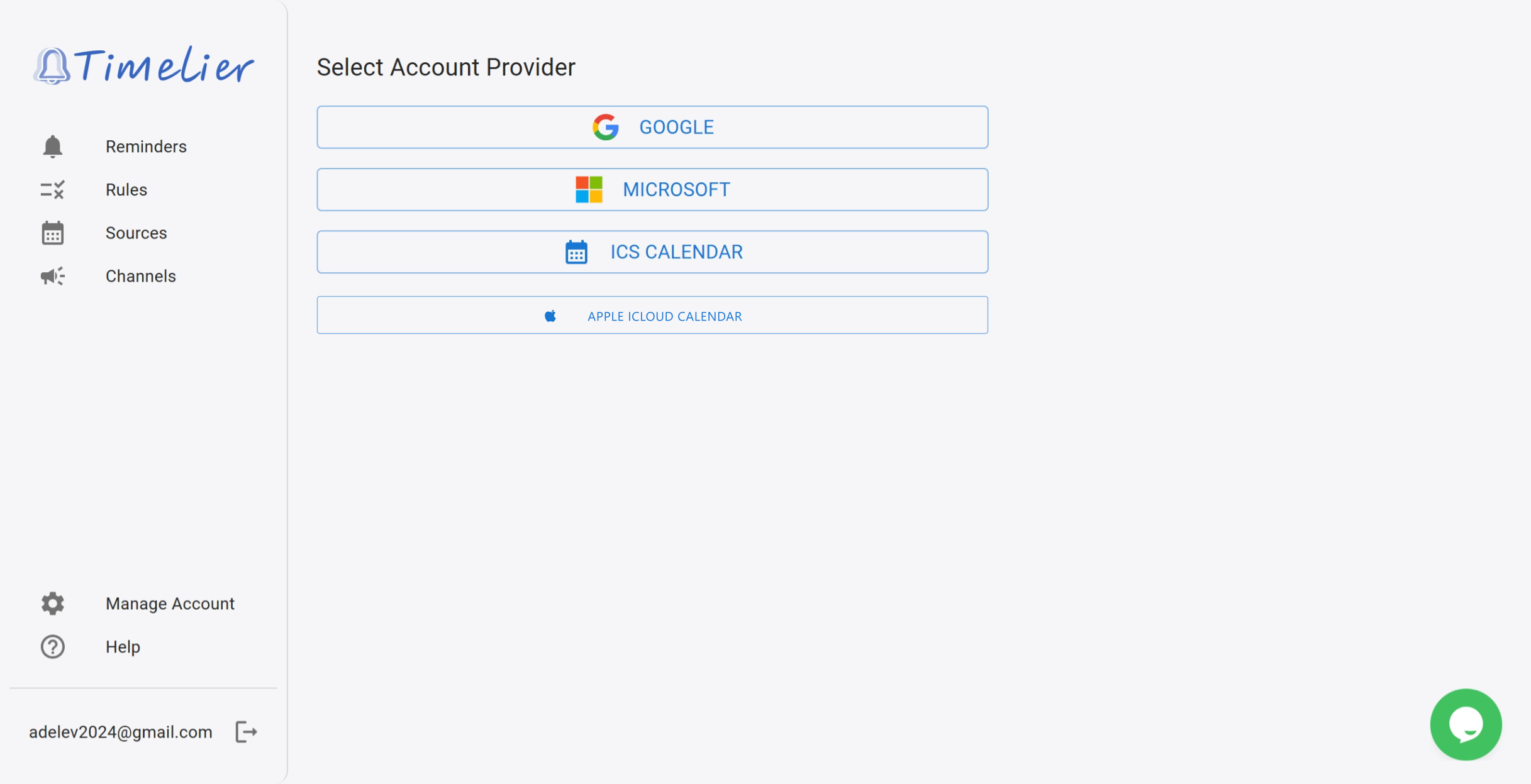
In Channels, click the Add (+) button and choose Google from the Account Provider screen.
From the left navigation menu, click Channels. In the upper-right corner of the page, click the blue circular + (Add) button.
On the Select Account Provider screen, select the Google button.
Enter your Google account email address (e.g. [email protected]). In the options
checkboxes below, ensure:
- Connect as an email reminder channel: Check this box (Required) to authorize sending outbound emails via Gmail.
- Connect as a source of events: (Optional) Check this box if you also want Timelier to monitor this Google account's calendar for events.
Click Connect Google Account. You will be redirected to the secure Google OAuth authorization portal:
- Sign in to your Google account if prompted.
- Review the requested permission: "Send email on your behalf".
- Click Allow to grant permission and finalize the setup.
You will be redirected back to Timelier with a confirmation banner: "Account connected successfully!"
Connecting Microsoft (Outlook & Teams) Reminder Channel
Connect your personal @outlook.com, @hotmail.com, or corporate
Microsoft 365 / Office 365 business account to send emails via Outlook and chat reminders
via Microsoft Teams.
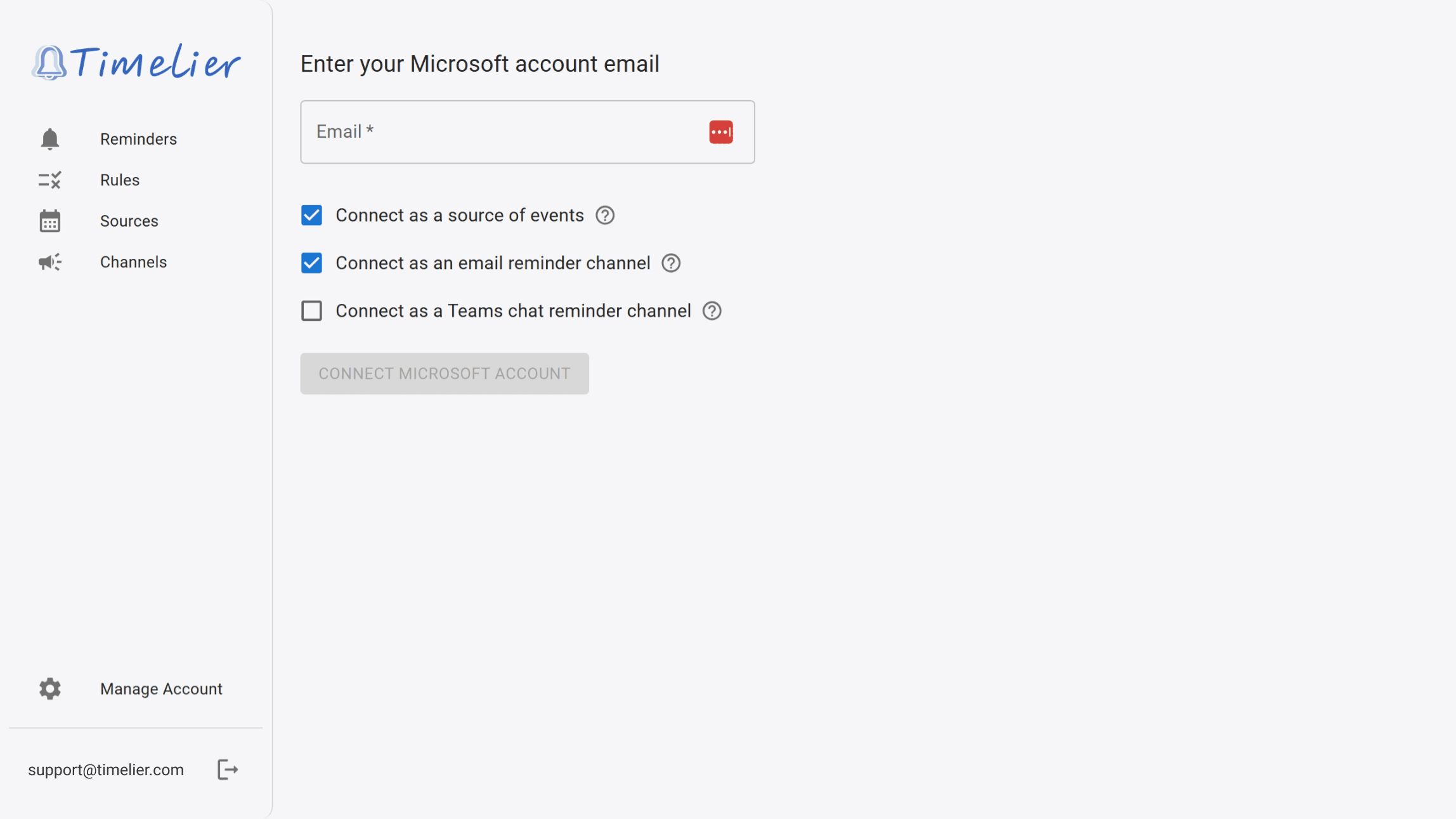
Configure your Microsoft account email and check the desired reminder channels (Email and/or Teams chat).
In the Timelier left sidebar, click Channels → + (Add) → Microsoft.
Enter your Microsoft account email address, then select your intended channel functions:
- Connect as an email reminder channel: Authorizes Timelier to send automated reminder emails through your Outlook mailbox via Microsoft Graph API.
- Connect as a Teams chat reminder channel: Authorizes Timelier to dispatch direct 1:1 chat reminders to recipients inside Microsoft Teams.
- Connect as a source of events: (Optional) Check this box if Timelier should also scan this account's Outlook calendar for upcoming meetings.
Click Connect Microsoft Account. Sign in to your Microsoft account and grant the requested permissions. For Microsoft 365 corporate accounts, if your organization requires administrator consent, you may see an admin approval prompt.
Permissions & Privacy Transparency
Timelier adheres to the principle of least privilege. We only request the minimum OAuth scopes necessary to deliver your scheduled notifications:
| Provider | Permission Scope | What This Enables & Privacy Boundary |
|---|---|---|
| Google Gmail | gmail.send |
Allows Timelier to dispatch outbound reminder messages. Timelier cannot read your inbox, view incoming emails, or delete messages. |
| Microsoft Outlook | Mail.Send |
Allows Timelier to send outbound emails from your Outlook address. Timelier cannot read your emails, modify folders, or access your inbox. |
| Microsoft Teams | Chat.Create, ChatMessage.Send |
Allows Timelier to initiate a 1-on-1 chat and send reminder alerts to specified attendees. Timelier cannot view your channel conversations or read personal message history. |
Managing, Reconnecting & Deleting Channels
The Channels list page summarizes all active delivery endpoints connected to your account:
- Email from me: Displays your connected Gmail, Outlook, or iCloud address. Click the three dots () to reconnect or delete the channel.
- Microsoft Teams: Displays your connected Microsoft Teams identity for chat notifications.
- Email from Timelier: Click the edit () button to manage verified sender addresses in Verify Additional Emails.
- SMS via Timelier: Click the edit icon to configure phone numbers and test dispatches in Verify Phone for SMS.
Reconnecting an Expired Account
If you change your Google or Microsoft account password, or if your organization revokes active tokens, Timelier will display a red indicator badge on your channel card:
- Click the three vertical dots () on the affected channel.
- Select Reconnect Account from the dropdown menu.
- Confirm the action in the dialog prompt and sign in to re-authorize the OAuth connection.