
The Reminders page is your real-time operational dashboard for tracking scheduled reminder deliveries, reviewing past messages, inspecting recipient statuses, and troubleshooting skipped notifications.
Overview & Processing
Timelier automatically monitors your connected calendars and generates reminders based on your active Reminder Rules. Every generated notification appears on the Reminders page (accessible anytime by clicking Reminders in the side navigation).
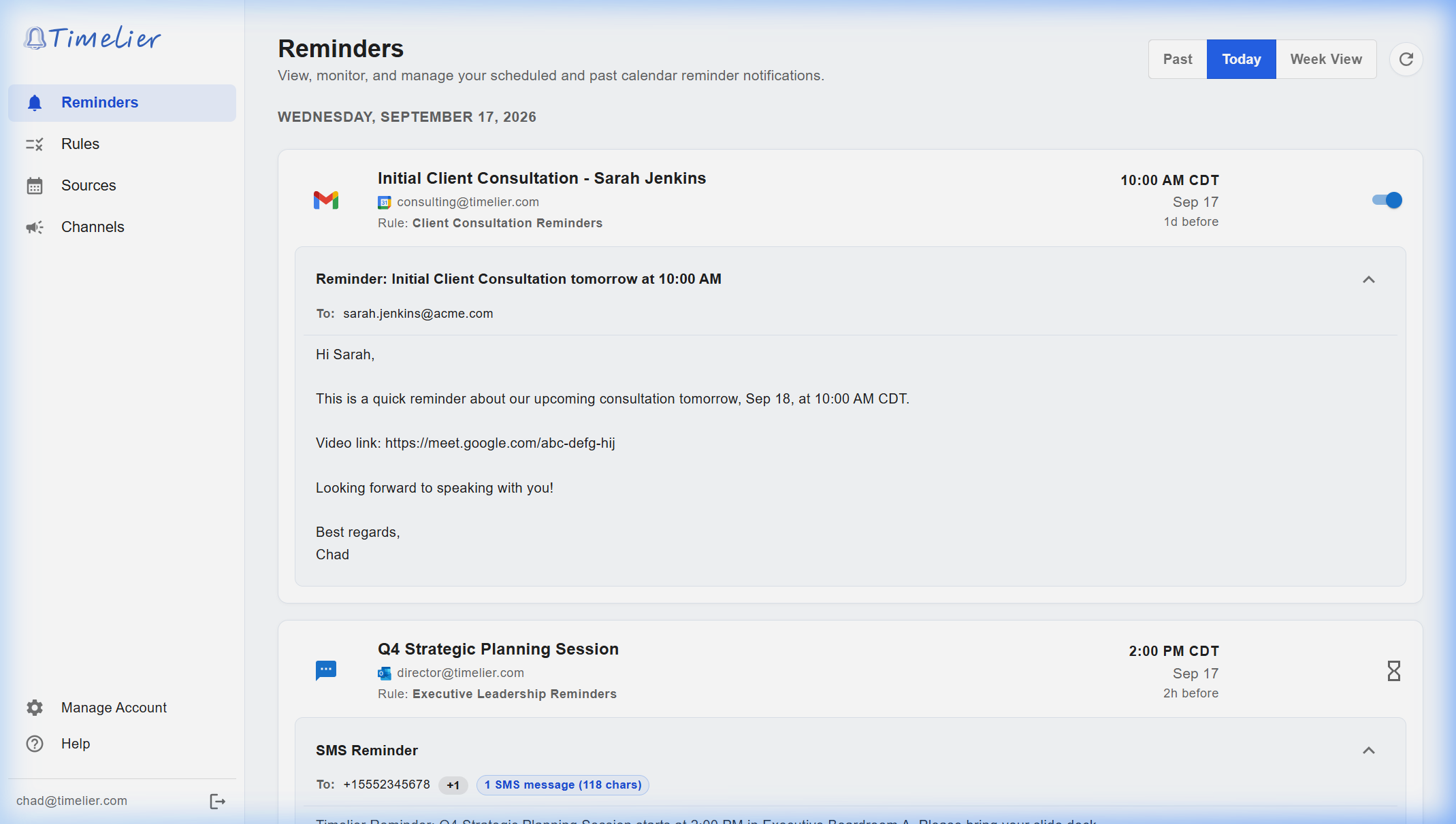
The Reminders dashboard shows all upcoming and past calendar reminders grouped by date with delivery details.
Filter Views (Today, Week View, Past)
At the top of the Reminders dashboard, a toggle bar allows you to switch between three specialized time horizons:
- Today View: Displays upcoming reminders scheduled to go out during the remainder of the current day in your local timezone.
- Week View: Shows a comprehensive forward-looking schedule of all reminders queued for events across the next 7 to 8 days.
- Past View: Displays an audit trail of all reminders processed over the last 7 days (sorted in reverse chronological order, newest first).
- Date Grouping: Reminders are automatically grouped by date headers (e.g., Sep 17, 2026) so you can quickly scan daily agendas.
- Manual Refresh (): Click the refresh button in the top bar to query the latest server status and sync state immediately.
Anatomy of a Reminder Card
Each card on the Reminders page represents an individual scheduled or delivered notification:
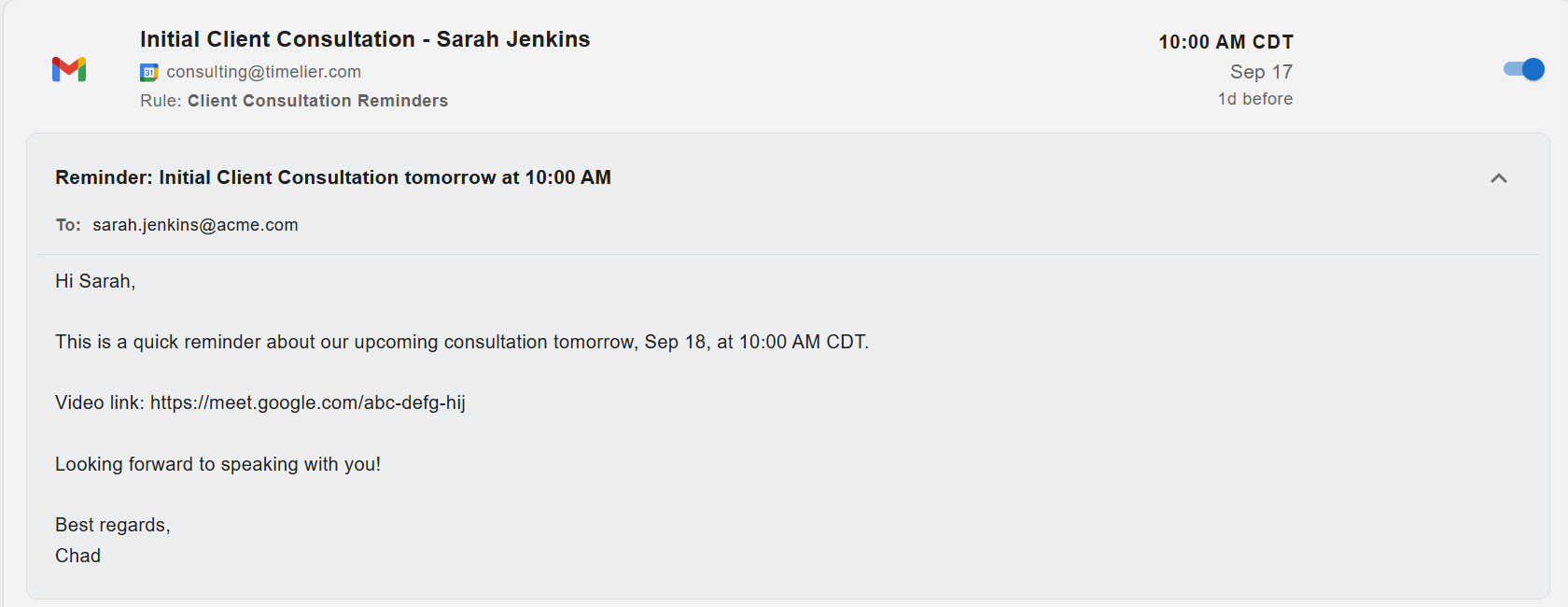
Anatomy of an active reminder card showing delivery channel, event title, source calendar, rule name, scheduled timing, toggle switch, and expandable message body.
The main header of the card displays:
- Channel Icon: Identifies delivery path at a glance:
Gmail (
 ),
Outlook (
),
Outlook ( ),
Timelier Email (),
Twilio SMS (), or
Microsoft Teams (
),
Timelier Email (),
Twilio SMS (), or
Microsoft Teams ( ).
).
- Event Subject: The title of the calendar meeting or appointment.
- Calendar Source: Provider icon—Google Calendar (
 ), Microsoft Outlook (), Apple iCloud (), or ICS Calendar ()—and connected account name.
 - Rule Name: Displays which automation rule generated this reminder.
The right column shows the scheduled delivery time:
- Exact Time: Displayed in your account's configured timezone (e.g.
9:45 AM CDT). - Date: The scheduled delivery date (e.g.
Sep 17). - Lead Time: How far in advance of the event start time the notification triggers (e.g.
1d before,2h before, or15m before).
Every upcoming future reminder (that has not yet sent or skipped) features an individual On/Off Switch:
- Cancel / Disable a Single Reminder: If a client calls to confirm their meeting early, you can toggle their reminder Off. A confirmation dialog appears asking: "Are you sure you want to disable this reminder?"
- Surgical Control: Disabling an individual reminder does not affect other scheduled reminders for that meeting, nor does it alter your primary reminder rule.
- Re-enable: You can flip the switch back On anytime before the scheduled delivery time arrives.
When viewing queued, completed, or skipped reminders, status icons replace the toggle switch:
| Status | Icon | Description & Behavior |
|---|---|---|
| Queued | ⏳ Hourglass | The reminder is queued in the system and waiting for its scheduled dispatch time. |
| Sent | ✅ Green Checkmark | Successfully handed off to your email provider (Google/Microsoft), SendGrid, Twilio, or Teams. |
| Skipped | 🚫 Red Cancel Icon | The reminder was not sent. Click the red icon to open the diagnostic dialog showing the exact cause (e.g. limit reached, missing phone number, or unsubscribed recipient). |
Below the event row is a collapsible card containing the message details:
- Subject Line & Header: Displays the rendered subject line (or "Message" for SMS/Teams) and an accordion toggle arrow.
-
Recipients (To / Bcc): Shows destination email addresses or phone numbers. If multiple recipients are attached, a badge (e.g.
+2) lists the additional attendees upon hover. -
Inline Recipient Warnings: Timelier highlights potential delivery issues directly on the card before sending:
- Missing Email or Phone: If an extraction rule failed to find an email or phone in the meeting notes, an info icon () appears with a direct link to the extraction syntax guide.
- Unsupported Number: Appears if a phone number cannot receive SMS messages (such as landlines or invalid international formats).
- Opted Out / Unsubscribed: A block icon appears if the recipient previously texted
STOPto opt out of SMS or unsubscribed from reminder emails. - Bounced: An error badge flags addresses that previously bounced or failed delivery.
-
Expanded Message Preview: Click anywhere on the message header to unfold the full formatted message text, verifying live placeholder values such as
{subject},{startTime}, and meeting URLs.
For SMS reminders, Timelier automatically calculates standard telecom message segment sizing:
- Standard Messages: Standard single-segment SMS text (up to 160 GSM characters) displays a badge:
1 SMS message. - Multi-Part SMS Warning: If your customized template with live placeholders exceeds 160 characters, the telecom network splits the message into multiple billable segments. Timelier displays an amber warning badge (e.g., 185 chars; 2 messages). Hovering over the badge shows exact character counts and explains how many messages will count toward your plan's monthly SMS quota.
Skipped Reasons Reference & Troubleshooting
If a reminder shows a red Skipped status, click the icon on the card to view the exact diagnostic message. The table below details all system reason codes and how to resolve them:
| Status Code | Dashboard Message | Explanation & Recommended Action |
|---|---|---|
skipped-disabled |
"This reminder was skipped because the rule or reminder was disabled." | The rule was turned off or the individual reminder switch was toggled off before send time. |
skipped-day-limit |
"This reminder was skipped because you reached your daily reminder limit." | Your account exceeded its daily outbound message sending threshold. You can upgrade your plan in Manage Your Subscription. |
skipped-month-limit |
"This reminder was skipped because you reached your monthly reminder limit." | Your account used all available monthly reminder credits. Upgrade your tier to resume immediate deliveries. |
skipped-unverified-limit |
"This reminder was skipped because it was sent to an unverified recipient and you reached the limit for unverified recipients..." | Free trial or unverified accounts are restricted to 1 unverified recipient per day and 4 per month to prevent spam. Upgrading to any paid tier lifts this restriction. |
skipped-no-phone |
"This reminder was skipped because 'SMS Reminder: [phone number]' was not found in event details." | The rule was set to extract mobile numbers from the event body, but no matching keyword was found. Ensure your calendar appointment description includes SMS Reminder: 555-123-4567. |
skipped-no-recipient |
"This reminder was skipped because 'Email Reminder: [address]' was not found in event details." | The rule was set to extract email addresses, but no Email Reminder: [email protected] tag was present in the meeting notes. |
skipped-unsupported-number |
"This reminder was skipped because the phone number is invalid or unsupported." | The extracted or specified phone number is either formatted incorrectly, is a landline, or belongs to an unsupported country code. |
skipped-opted-out |
"This reminder was skipped because the recipient has opted out of SMS reminders." | The recipient previously replied STOP to an automated text. For legal compliance (TCPA), Timelier will not send further SMS messages until the recipient texts START or UNSTOP. |
skipped-bounced-email |
"This reminder was skipped because the email address bounced or is invalid." | The destination mail server rejected the message (e.g. mailbox does not exist, domain inactive, or spam filter rejection). |
skipped-unsubscribed-email |
"This reminder was skipped because the recipient unsubscribed or marked a previous email as spam." | The user clicked the "Unsubscribe" link included in email reminder footers. |