
Understand your plan quotas, audit real-time daily and monthly channel usage, review sending limits for verified versus unverified recipients, and manage invoices and payment methods in Timelier.
Table of Contents ▾
Overview & Plan Types
Timelier offers flexible plans tailored to individuals, consultants, and teams automating their calendar reminders across email, SMS, and Microsoft Teams. You can review your subscription details anytime in your Account Management dashboard.
Timelier supports three primary subscription states:
- Free Trial: Every new user starts with a comprehensive free trial. You enjoy full access to all reminder rule features, calendar syncs, and multi-channel dispatch capabilities without entering a credit card upfront. Your trial expiration date is displayed at the top of your Account Management page.
- Paid Plans (Monthly & Annual): Paid subscriptions unlock higher active reminder rule caps and substantial daily and monthly message allowances across all channels. Choosing Yearly Billing grants an instant 20% discount compared to monthly billing.
- Free Plan (Fallback Tier): If your free trial concludes or you cancel an active paid subscription, your account automatically transitions to the Free plan at the end of your billing cycle. Your reminder rules and calendar configurations remain safely preserved, operating under the Free plan's basic rule and channel allowances.
app.timelier.com/account-management.
Plan Limits & Channel Quotas
Each Timelier plan defines clear operational capacities to ensure reliable message delivery and prevent unexpected surges. These limits are displayed directly in the Your Plan Limits card:
- Active Reminder Rules Cap: The maximum number of simultaneous active reminder rules you can keep enabled across your connected Google, Microsoft 365, Apple iCloud, and ICS calendars.
- Email from Timelier (Day / Month): Cloud-delivered reminder emails dispatched directly through Timelier's verified email infrastructure with DKIM/SPF authentication.
- SMS (Day / Month): Text messages dispatched via Timelier's carrier-registered 10DLC messaging routes.
- Email from Me (Day / Month): Messages sent directly through your authenticated personal or workspace mailbox (Google Gmail, Microsoft Outlook 365, or Apple iCloud).
- Teams Chat Message (Day / Month): 1-on-1 direct Microsoft Teams chat alerts dispatched using your authenticated Microsoft 365 work or school account.
Quota Reset Schedules
Usage tracking operates on two independent schedules displayed at the top of your Current Usage section:
- Daily Reset: Your daily channel allowance resets every 24 hours at midnight (12:00 AM) in your configured account timezone.
- Monthly Reset: Your monthly allowance resets automatically on your billing cycle anchor date (or on the 1st of each calendar month for trial and free accounts).
Sending Limits: Verified vs. Unverified Recipients
To maintain high carrier reputation, comply with TCPA and anti-spam telecommunication regulations, and protect attendees from unwanted message bursts, Timelier enforces distinct sending allowances depending on whether a recipient has verified their contact information.
| Sending Attribute | Unverified Recipient | Verified Recipient |
|---|---|---|
| Daily Sending Limit | 1 message / day per recipient | Unlimited (within plan channel quota) |
| Monthly Sending Limit | 4 messages / month per recipient | Unlimited (within plan channel quota) |
| Channels Affected | Email from Timelier & Twilio SMS | None (All channels unrestricted) |
| Status When Cap Exceeded | Marked as skipped-unverified-limit |
Sent normally |
| How to Lift Restrictions | Recipient completes one-click email or SMS verification | Permanent unrestricted sending |
How "Skipped - Unverified Limit" Works
If a reminder rule triggers for an event where an attendee's phone number or email address has already received 1 message today or 4 messages during the current billing cycle, Timelier automatically suppresses additional dispatches.
On your Reminders Dashboard, the reminder status will show Skipped with the specific reason code skipped-unverified-limit. This guarantees that unverified attendees are never spammed, and your account remains in good standing with telecommunication carriers.
To eliminate recipient caps, follow our quick verification guides:
- Verify Additional Email Addresses — Send one-click confirmation links to attendees or team mailboxes.
- Verify a Phone Number for SMS Reminders — Send a 6-digit numeric passcode to mobile recipients.
Monitoring Real-Time Usage
The Current Usage section of your Account Management dashboard gives you an auditable breakdown of your messaging consumption across every channel and destination:
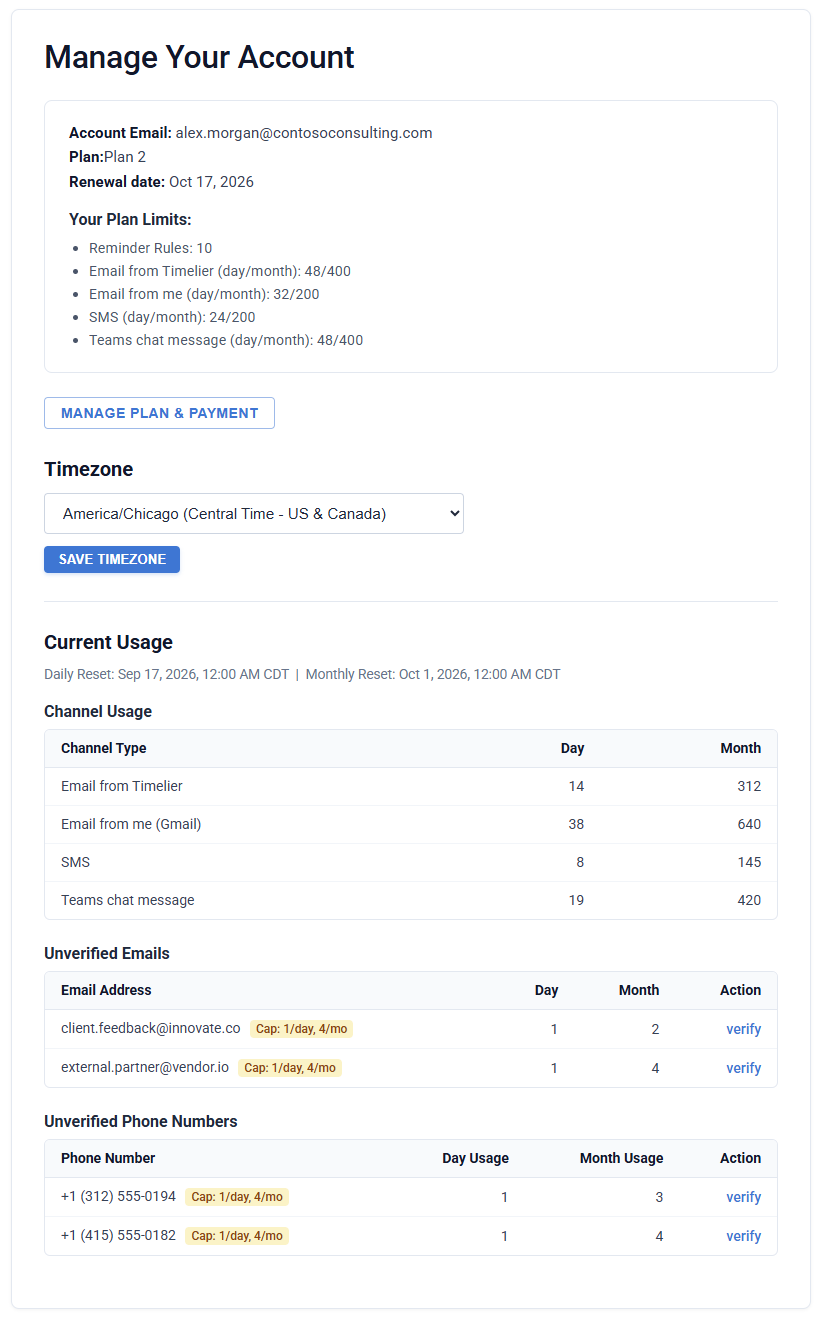
The usage audit includes three key monitoring tables:
- Channel Usage Table: Shows the exact number of messages successfully delivered across each channel (Email from Timelier, Email from Me, SMS, and Teams Chat) during the current day and current billing month.
- Unverified Emails Table: Lists every unverified recipient email that has received reminders, showing their daily and monthly message counts against the 1/day and 4/month cap. A convenient verify link allows you to jump directly to the verification workflow.
- Unverified Phone Numbers Table: Tracks mobile phone numbers receiving SMS reminders, displaying day and month usage counters alongside a direct verify link.
Managing Billing, Payment & Invoices
Timelier integrates with Stripe to provide a secure, self-service customer billing portal. To access the billing portal, click the Manage Plan & Payment button on your Manage Your Account screen.
Inside the Stripe Customer Portal, you can perform the following actions:
- Update Payment Methods: Add new credit or debit cards, update expiring cards, set a default payment method, or remove outdated cards.
- Download Invoices & Receipts: View complete billing history with dates and amounts, and download itemized PDF receipts and invoices for your accounting records.
- Edit Billing Information: Update your company legal name, billing contact email address, physical address, and Tax ID / VAT number.
- Review Renewal Dates: See the exact date and estimated charge for your upcoming subscription renewal.
Upgrading, Changing, or Canceling Plans
Upgrading Your Plan
If your calendar automations expand and you need more active reminder rules or higher channel quotas, click Subscribe Now or manage your plan through the billing portal:
- Plan upgrades take effect immediately upon checkout.
- Stripe automatically calculates prorated credit for any unused time on your prior billing cycle.
- Your new reminder rule and channel quotas become available right away.
Switching Between Monthly and Annual Billing
You can toggle between monthly and yearly billing cycles at any time. Switching to annual billing applies the 20% discount to all future billing cycles, offering substantial savings for consistent workflows.
Canceling Your Subscription
We believe in transparent, frictionless subscription management. You can cancel your subscription at any time without having to contact customer support:
- Navigate to Manage Your Account in Timelier.
- Click Manage Plan & Payment to open the secure Stripe billing portal.
- Select Cancel plan and confirm the cancellation.
When the billing cycle concludes, your account seamlessly transitions to the Free plan. None of your calendar connections, reminder templates, or verified recipient records are erased. If your active rules exceed the Free plan limit, simply choose which rules you wish to keep active, or re-subscribe at any time with a single click.
Frequently Asked Questions
What happens if I hit my daily or monthly channel limit? ▾
If an automated reminder triggers after reaching your plan's channel quota, Timelier safely skips sending that specific channel message to avoid overages. You can view skipped messages in your Reminders Dashboard. Daily allowances automatically reset at midnight in your account timezone.
Do canceled or skipped reminders count against my channel quota? ▾
No. Reminders that are canceled (e.g., because a calendar event was removed or rescheduled before dispatch) or skipped (due to unverified limits or rule filters) do not count toward your daily or monthly channel usage counters.
How do I change my account timezone for quota resets? ▾
On the Manage Your Account screen, scroll to the Timezone section. Choose your local region from the dropdown menu and click Save Timezone. Daily resets and calendar reminder timings will immediately synchronize with your new timezone.
Can I add multiple verified email addresses and phone numbers? ▾
Yes! You can verify as many recipient email addresses and phone numbers as needed. Once verified, each contact enjoys unrestricted message delivery up to your plan's aggregate channel capacity.
Can I resume my subscription after canceling? ▾
Yes. Before your billing period ends, you can reopen the Stripe Customer Portal and click Resume plan to cancel the pending downgrade. If your plan has already transitioned to the Free tier, click Subscribe Now to reactivate paid benefits instantly.