A Rule tells Timelier which calendar to monitor, which events to look for, and how and when to send reminders. You can create a rule quickly using the Simple Rule Wizard or build complex logic using the Advanced Rule Editor.
- Ensure you have connected at least one calendar source (Connect a Calendar).
- If sending SMS, it is recommended to verify the recipient mobile number(s) (Verify Phone for SMS).
- If sending from your own email/Teams, ensure your account channel is connected (Connect Notification Channels).
Method 1: The Simple Rule Wizard
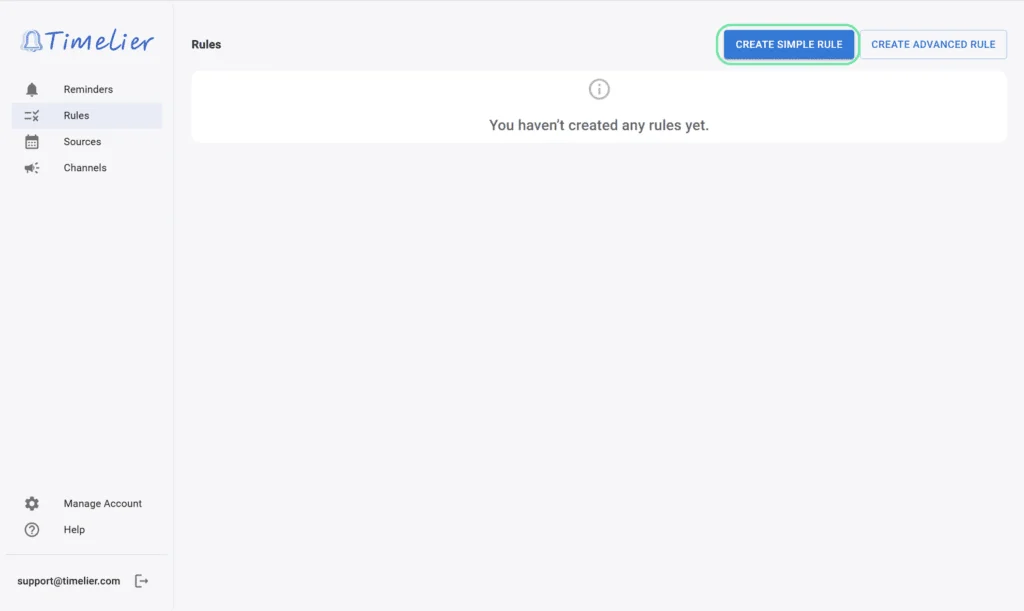
To create a new rule, go to the Rules page in Timelier and click the Create Simple Rule button. This will launch a wizard that will guide you through the process step by step.
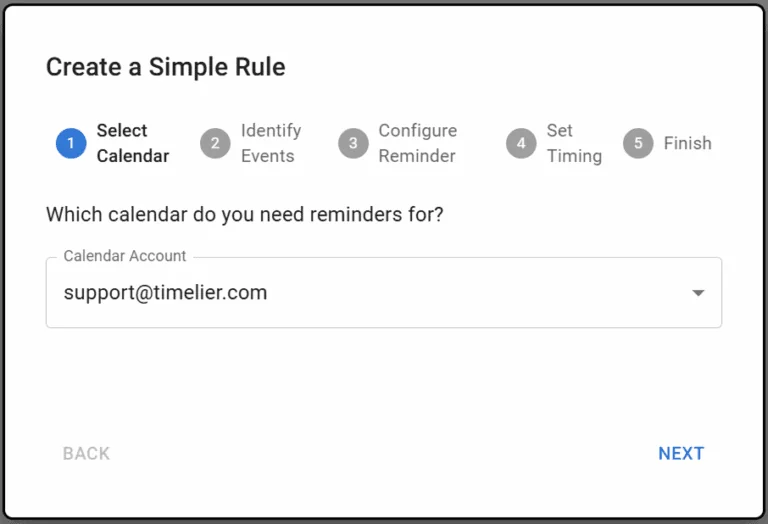
First, choose the calendar that contains the events you want to be reminded about from your connected accounts. For Google and Microsoft accounts, the simple wizard defaults to using the main calendar of the account
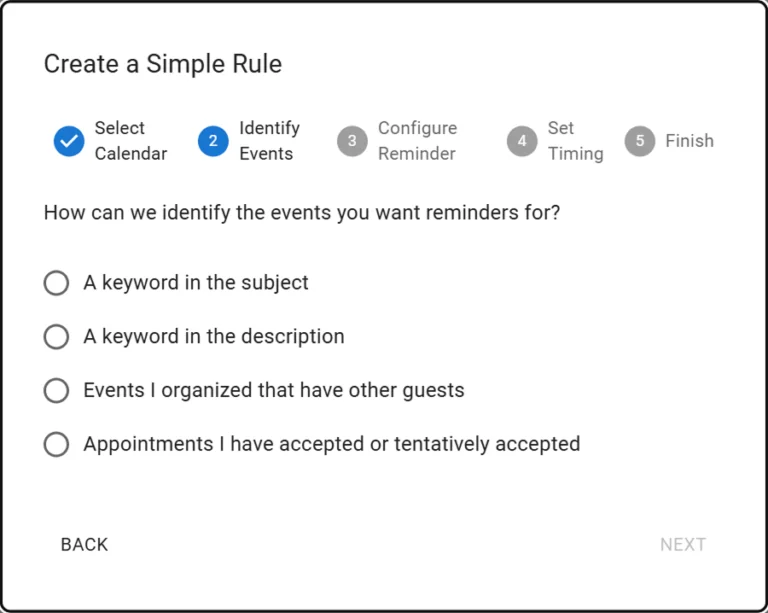
Next, tell us how to identify the events you want reminders for. The Wizard provides four ways people identify their reminder events:
- A keyword in the subject: Useful for events that always have the same word or phrase in the title (e.g. Consultation, Dentist, Meeting).
- A keyword in the description: Useful for events that always have a consistent phrase in the description or meeting notes.
- Events I organized that have other guests: Applies reminders to calendar events where you are the organizer and other attendees are invited.
- Appointments I have accepted or tentatively accepted: Applies reminders to meetings and appointments organized by others where you have confirmed or tentatively accepted.
Now, decide how and to whom you want to send the reminders. Select one of the delivery methods below to see its exact configuration options:
Have Timelier Send an Email to Predetermined Address(es)
We’ll send an email from our address ([email protected]) to any verified
email addresses you choose. If you need to verify an additional email address, see Verify Additional Email Addresses.
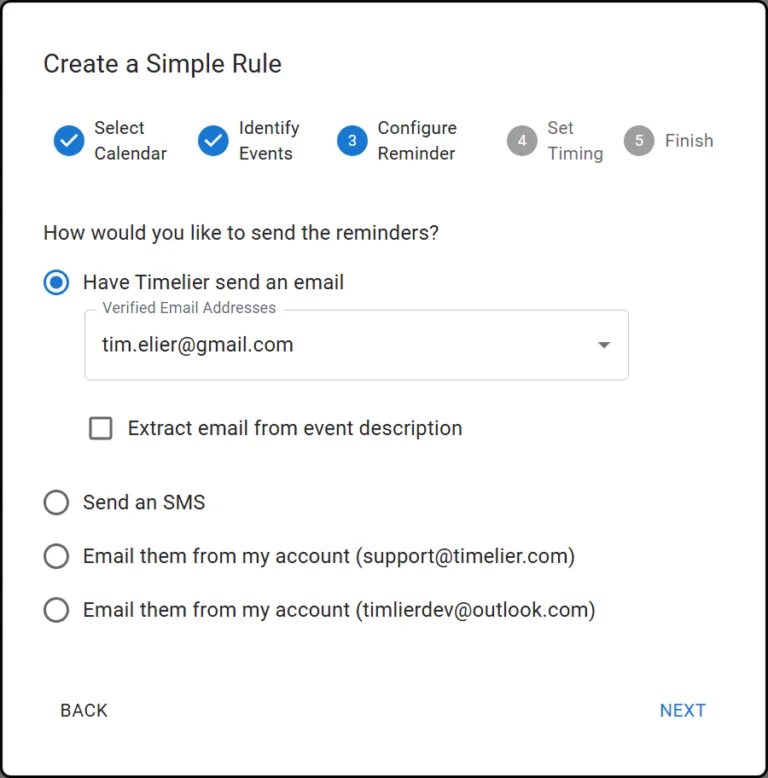
An email will be sent from [email protected] to your verified addresses.
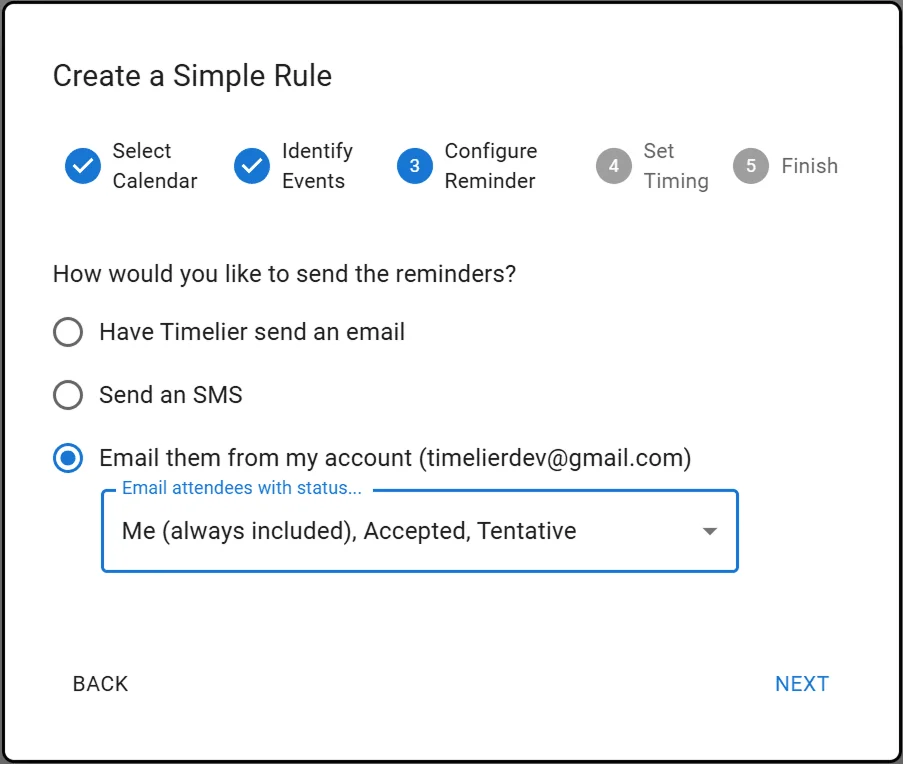
Email Attendees or Extracted Recipients
You can send reminders directly to event attendees or extract attendee addresses dynamically from the appointment notes:
-
Email attendees based on status:
Select which attendees receive reminders based on whether they have accepted, tentatively accepted, or not responded (reminders are typically excluded for declined guests).
-
Extract recipient from event description/details/notes:
When this option is checked, the email address is extracted dynamically from the event description/details/notes. In your calendar event description/details/notes, simply type
email reminder:followed by the email address (e.g.,email reminder: [email protected]). You can separate multiple addresses with commas.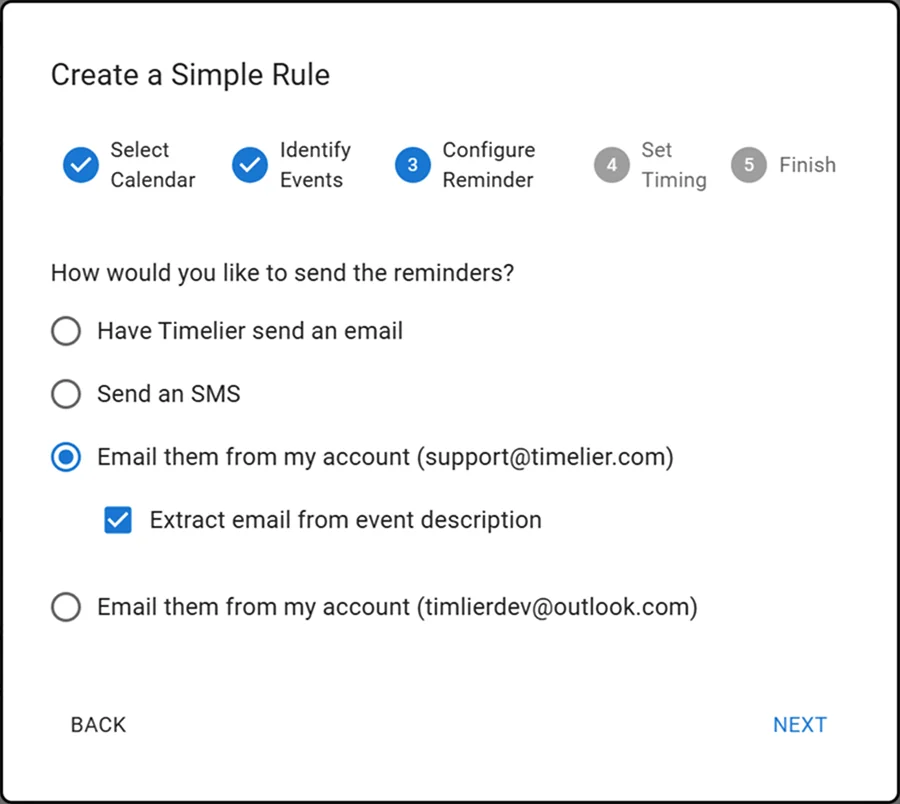
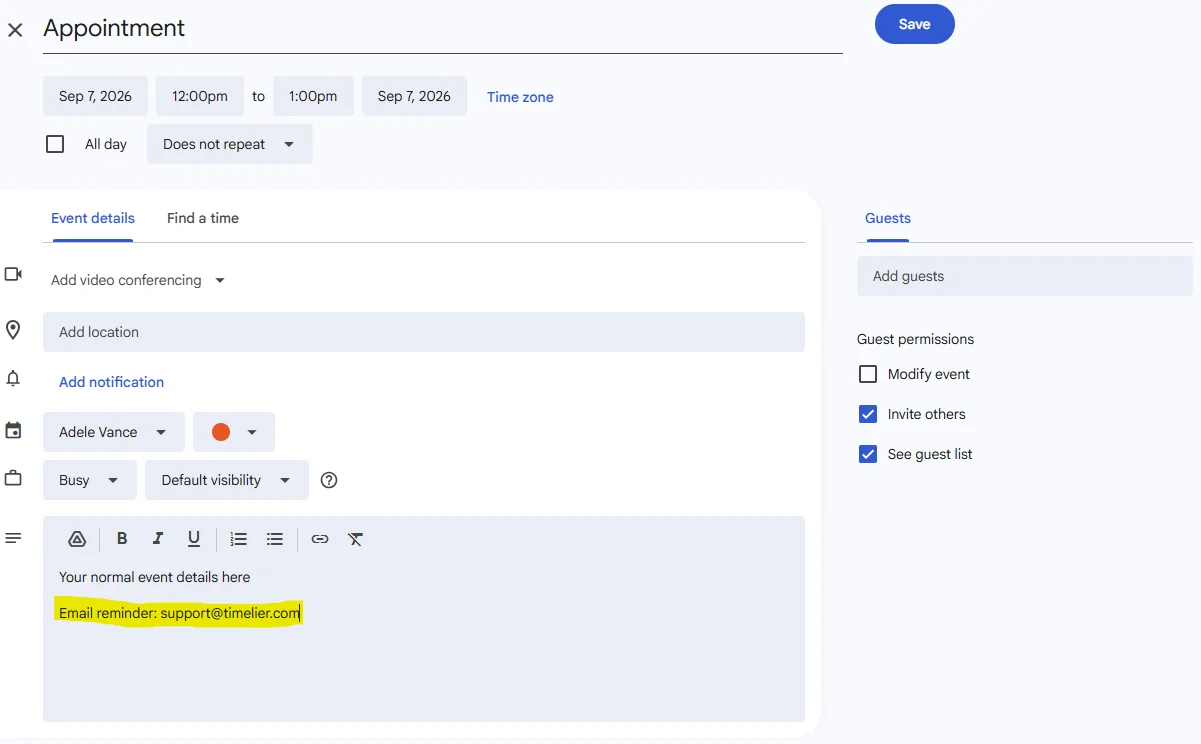
When using "Extract recipient from event details", type "Email Reminder:" followed by a comma-separated list of email addresses in the calendar event description.
Send SMS Reminders via Timelier
Timelier can deliver text message reminders to your verified mobile number or extract phone numbers directly from individual calendar appointments.
- Send to verified phone number:
Sends an SMS directly to your phone number verified in Timelier settings.
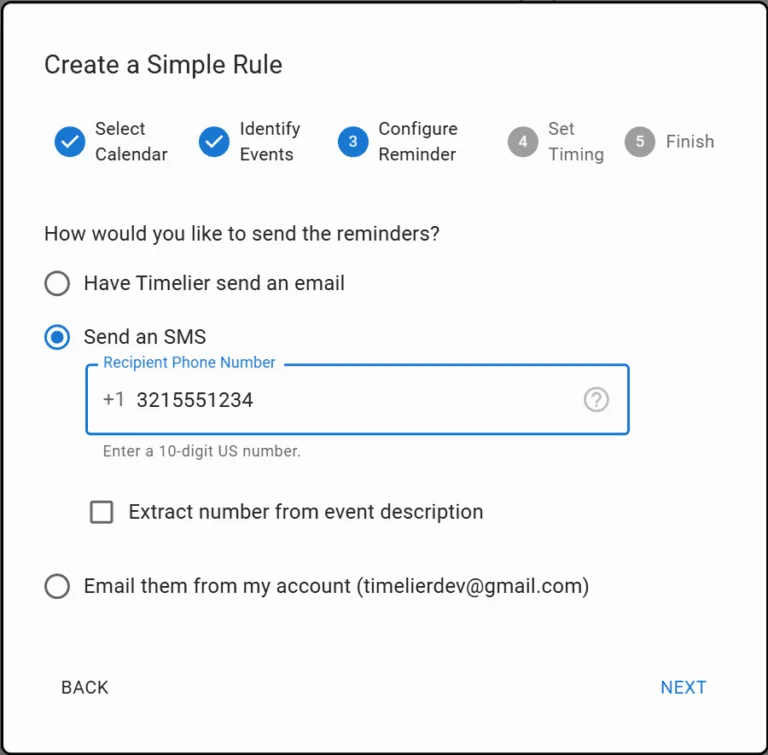
- Extract number from event description/details/notes: When this option is
checked, the recipient's mobile phone number is extracted dynamically from the calendar event description, details, or meeting notes. In your calendar event description, simply type
SMS Reminder:followed by the phone number (e.g.,SMS Reminder: (312) 555-0149).
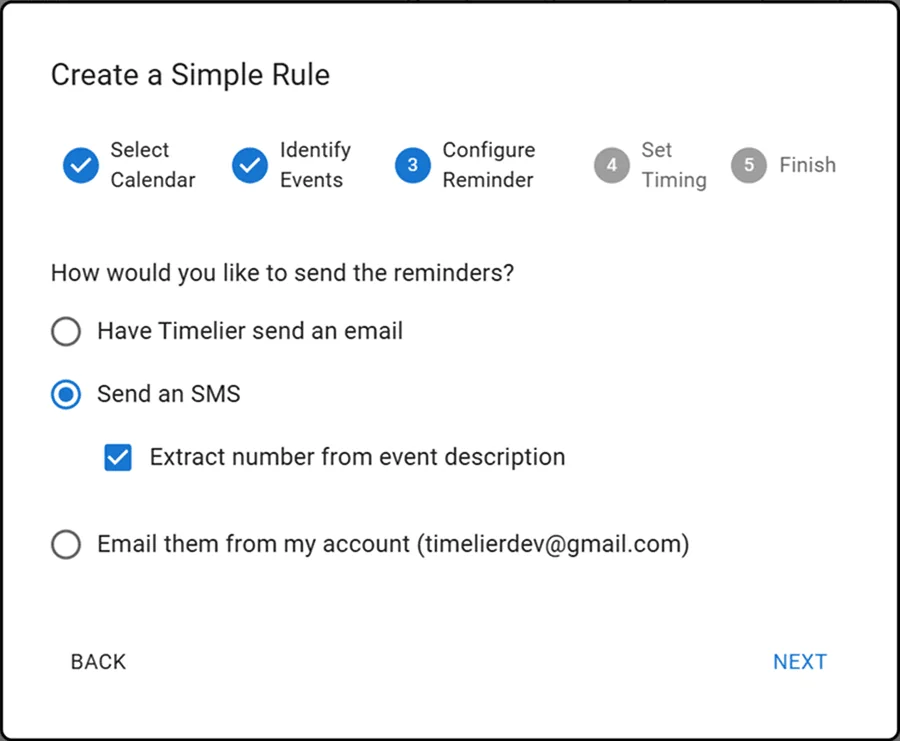
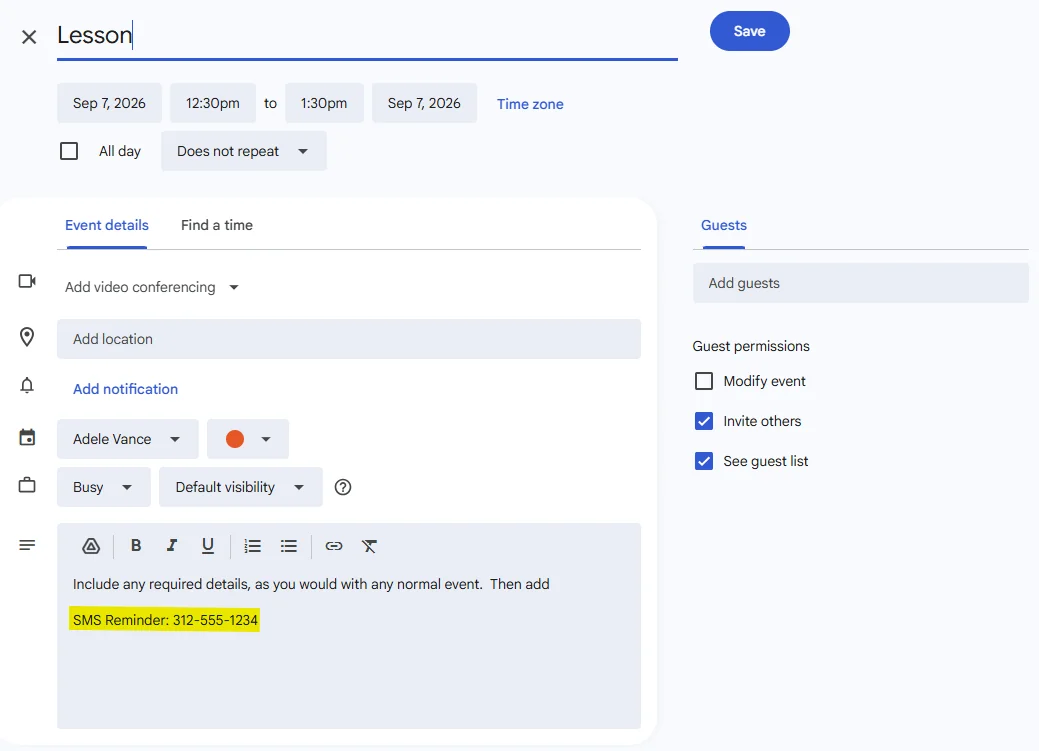
When using "Extract number from event details", type "SMS Reminder:" followed by the phone number in the calendar event description.
Supported Phone Number Formats by Country
Timelier automatically parses and normalizes phone numbers into international E.164 format. Punctuation such as spaces, parentheses, hyphens, and dots is automatically removed.
| Country / Region | Supported Domestic Format | International E.164 Format | Validation & Requirements |
|---|---|---|---|
| United States & Canada Country code +1 |
(312) 555-0149312-555-01491-312-555-0149
|
+1 312 555-0149+13125550149
|
Standard 10-digit North American (NANP) numbers. Area code and exchange code cannot begin with 0 or 1. Fictional, 555 area code, and repeating dummy digits are rejected. |
| United Kingdom Country code +44 |
07123 45678907123-45678907123456789
|
+44 7123 456789+447123456789447123456789
|
Must be a valid UK mobile number starting with 07 (or +44 7..., 10 digits after +44). UK landline numbers cannot receive SMS and are rejected. |
| Australia Country code +61 |
0412 345 6780412-345-6780412345678
|
+61 412 345 678+6141234567861412345678
|
Must be a valid Australian mobile number starting with 04 (or +61 4..., 9 digits after +61). Australian landlines cannot receive SMS and are rejected. |
- Trigger Prefix: Type
SMS Reminder:(case-insensitive) followed by the phone number in your calendar event description or notes. - Multiple Recipients: You can notify multiple recipients by separating numbers with commas or newlines (e.g.
SMS Reminder: (312) 555-0149, 07123 456789). - Online Booking Pages: When using Google Calendar appointment schedules or booking forms like Calendly, label the custom phone question
Phone number for SMS reminder:to automatically insert the required format.
Send Reminders from Your Own Connected Account
An email will be sent directly from your connected Google Workspace or Microsoft 365 account. Because the email originates from your own address rather than a generic notification service, guests are significantly more likely to open and read it!
-
Email attendees from my account: Select whether to message attendees who have
accepted, tentatively accepted, or not responded.
-
Email extracted recipients from my account: Extract destination addresses using
email reminder:inside the event body.
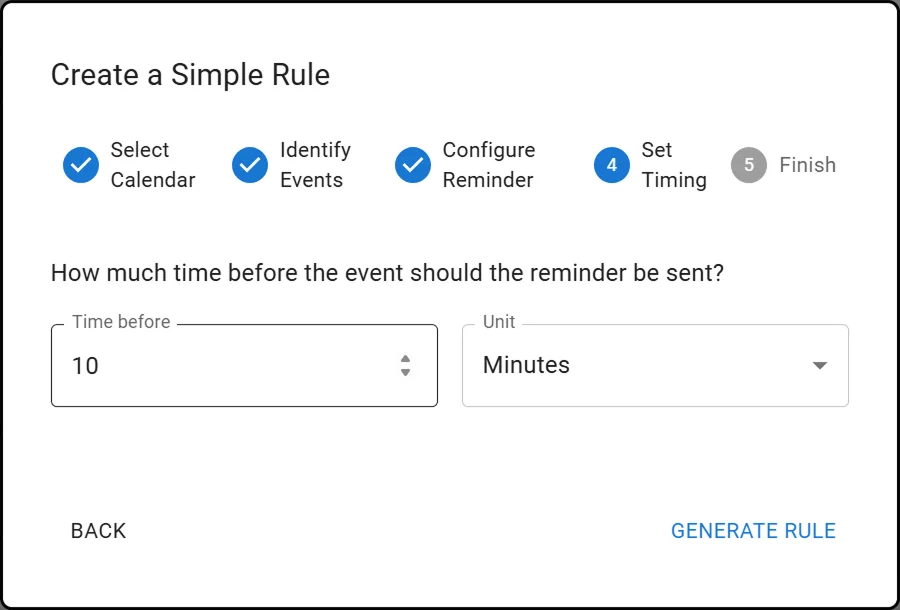
Specify how much time before the event you want the reminder to be delivered:
- Type a number in the Time before text box.
- Select Minutes, Hours, or Days in the Unit dropdown.
- Timelier supports any duration in those units up to 1 week in advance (e.g., 15 minutes, 2 hours, 1 day, or up to 7 days).
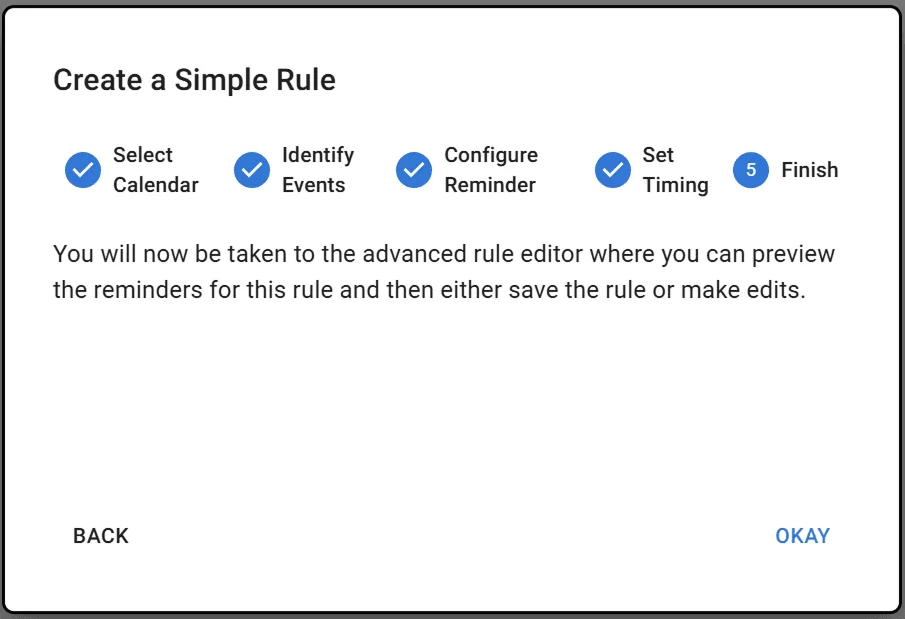
The Simple Rule Wizard is an interactive aid for automatically filling out the Advanced Rule Editor. After clicking “Generate Rule” in the wizard, you will be taken to the Advanced Rule Editor with all your selections pre-populated.
Typically, the first thing you will want to do is click “Preview Reminders” at the bottom of the form to verify that your calendar events match as expected (see the reminder preview below). Once satisfied, click “Save Rule”.
Method 2: The Advanced Rule Editor
The Advanced Rule Editor gives you full granular control over your reminder automation. You can access it anytime by clicking the Create Advanced Rule button on the Rules page, or you will be automatically brought there after clicking "Generate Rule" in the Simple Rule Wizard.
In the “Select a source of events” dropdown, choose one of your connected Google, Microsoft, Apple, or ICS calendar accounts. In the Calendar dropdown, select the specific calendar to monitor.
Unlike the Simple Rule Wizard, the Advanced Editor allows you to select a non-primary calendar from a Google or Microsoft account that was connected using the "sign in with Google/Microsoft" method.
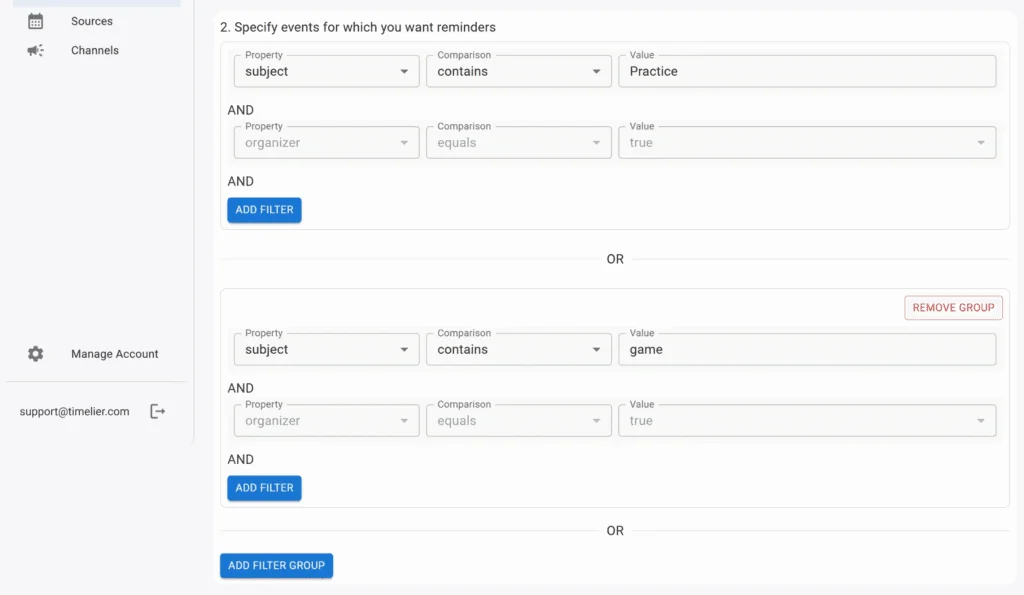
To determine which events receive reminders, set up filters based on properties of your calendar events. An event triggers reminders only when the filter conditions evaluate to true.
Filters can be structured using flexible conditional logic:
- AND logic within a filter group: Every criteria in the same group must evaluate to true for the group to match.
- OR logic across filter groups: Click Add Filter Group to create additional sets of criteria. If any group matches, reminders will be triggered for the event.
Supported Filter Properties
Depending on your connected calendar provider, the following event properties are available:
| Property | Comparisons | Description & Values |
|---|---|---|
subject |
contains, does not contain, equals,
does not equal, starts with, ends with
|
Matches text in the event title (e.g., subject contains "Consultation"). |
description |
contains, does not contain |
Searches for keywords or custom trigger phrases anywhere in the meeting notes, agenda, or body. |
attendees |
contains, does not contain |
Matches against attendees' email addresses. Enter a single email (e.g.
[email protected]) or a partial domain (e.g. @domain.com).
|
start time |
is before, is after, equals |
Filters based on the event's start time and timezone (e.g., start time is after 09:00 AM Central). |
end time |
is before, is after, equals |
Filters based on the event's scheduled end time and timezone. |
freebusy |
equals, does not equal |
Filters by calendar availability status. For Google: free, busy.
For Microsoft / Apple: free, tentative, busy,
oof (Out of Office), workingElsewhere, or unknown.
|
response status |
equals, does not equal |
Filters by your invitation response status: accepted, tentative
(or tentatively accepted), declined, or no response (needs action /
not responded). |
organizer |
equals, does not equal |
Boolean check (true / false) indicating whether you are the
meeting organizer. |
attendee count |
is greater than, is less than, equals,
does not equal
|
Numeric comparison on the total number of participants invited to the event (e.g., attendee count is greater than 1). |
categoriesMicrosoft only |
contains, does not contain, equals,
does not equal, starts with, ends with
|
Matches color categories assigned to the appointment in Outlook (e.g., categories contains "VIP"). |
colorsGoogle only |
equals, does not equal |
Matches Google Calendar event color tags: Lavender, Sage, Grape, Flamingo, Banana, Tangerine, Peacock, Graphite, Blueberry, Basil, Tomato. |
Note for ICS Subscriptions: Calendar sources connected via ICS feed link support
filtering on subject, description, start time, and
end time.
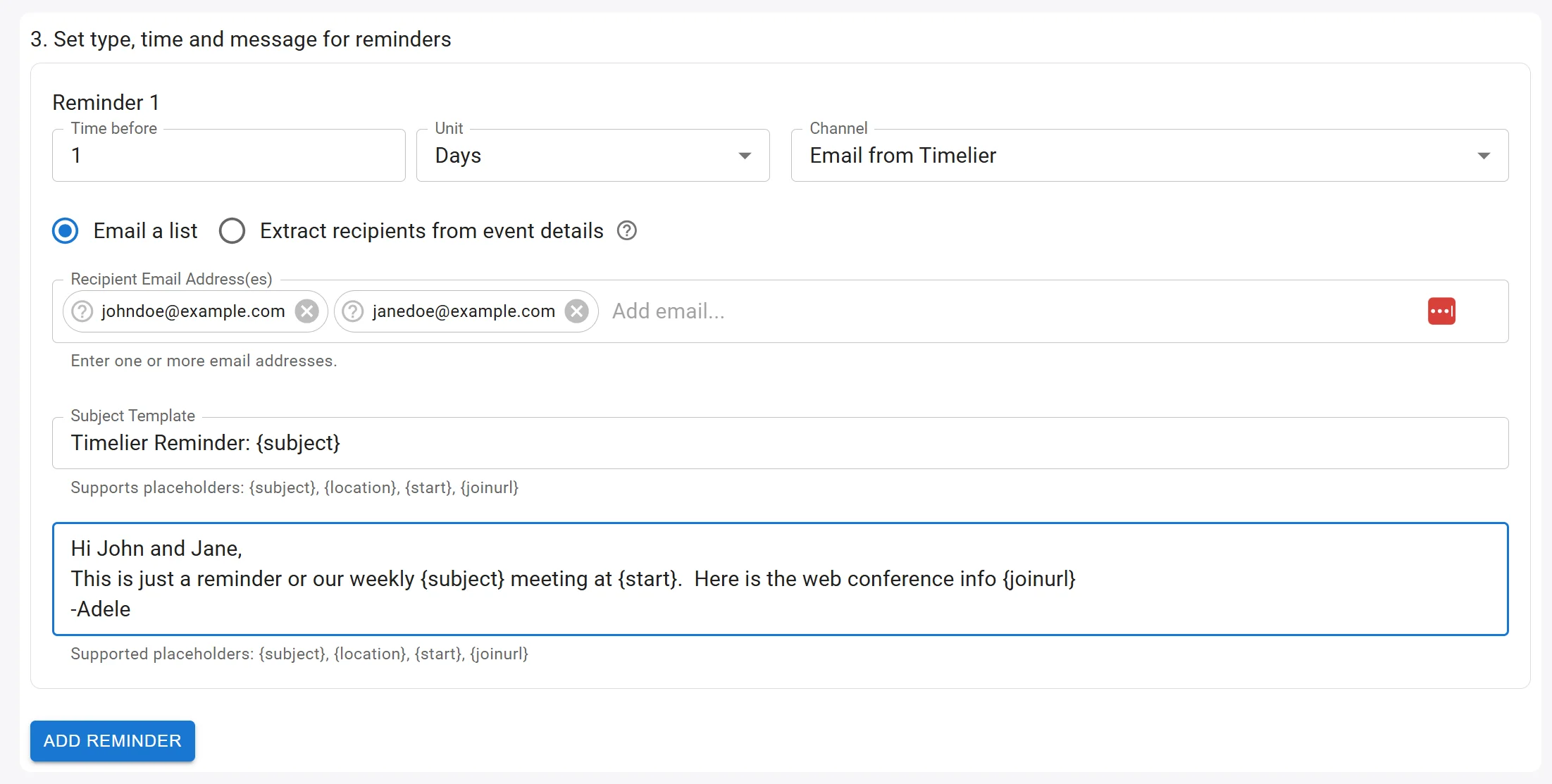
In this section, you define how, when, and what message will be delivered. You can add up to three separate reminders per rule by clicking the “Add Reminder” button (for example: 1 day before, 2 hours before, and 15 minutes before).
For each reminder, you configure:
- Time before & Unit: Enter a number and choose Minutes, Hours, or Days in the unit dropdown (supports any duration up to 1 week / 7 days).
- Channel: Choose how you want the reminder delivered. Select a channel tab below to view its specific settings:
Email from Timelier
Delivers notification emails sent from [email protected]. You can choose
between two recipient methods:
-
Email a list:
Select one or more verified email addresses configured in your Timelier account.
-
Extract recipients from event details / notes:
Automatically scans the calendar event description/details/notes for
email reminder:followed by an email address (e.g.,email reminder: [email protected]). Multiple addresses can be comma-separated.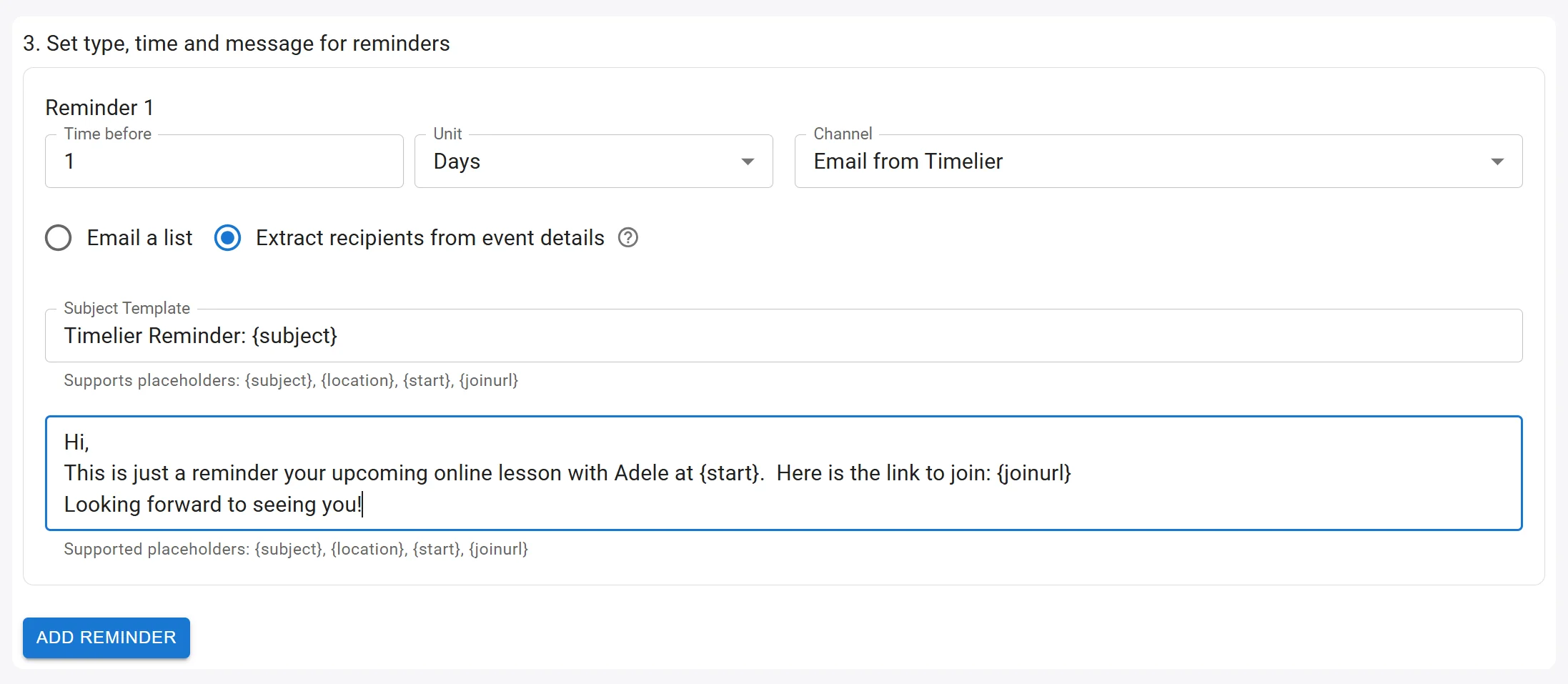
When using "Extract recipient from event details", type "Email Reminder:" followed by a comma-separated list of email addresses in the calendar event description.
Email from Me (Connected Account)
Sends emails directly through your connected Google Workspace, Microsoft 365, or Apple iCloud account, so messages arrive directly from your own email address.
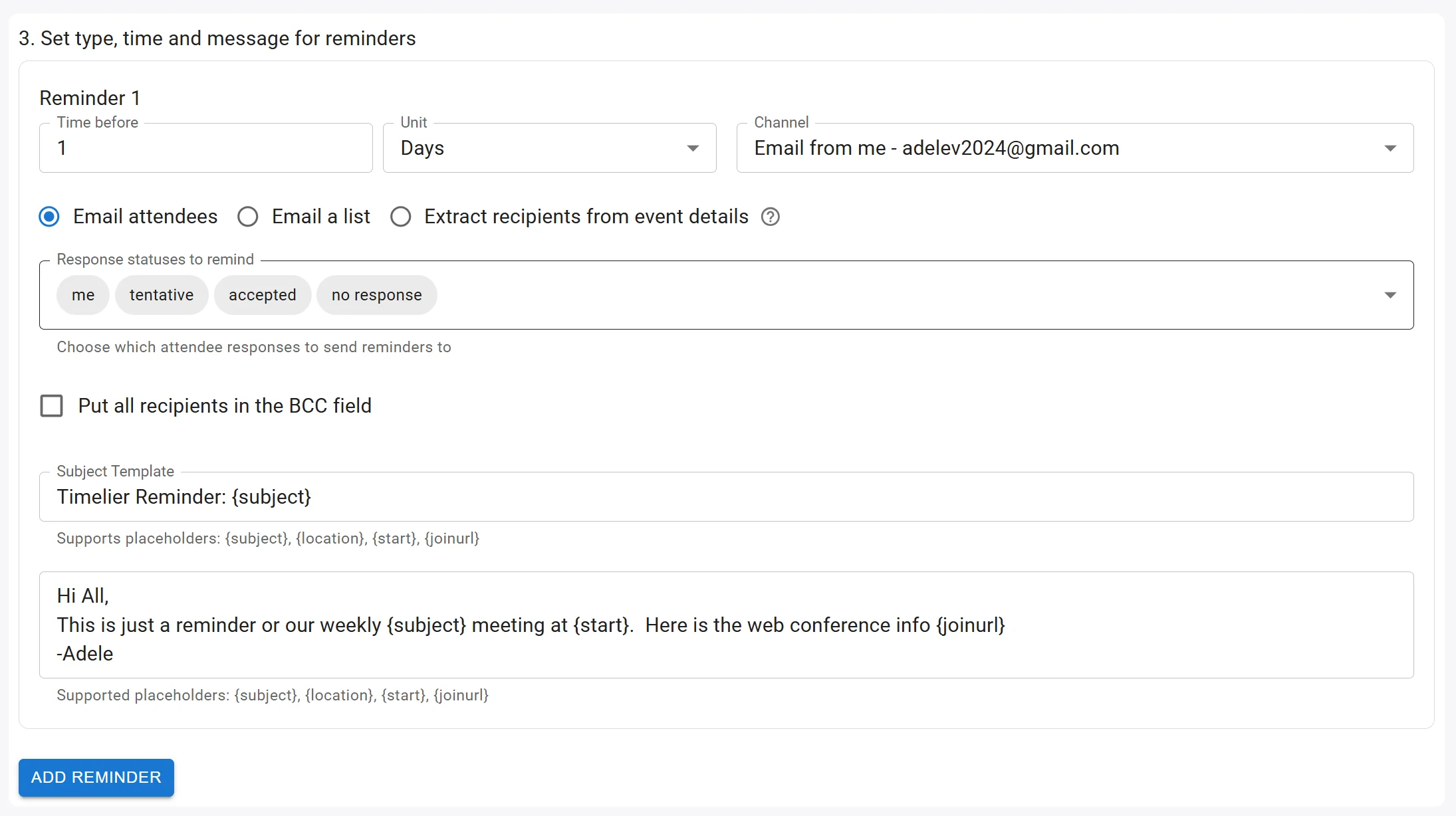
-
Email attendees:
Filters attendees based on their invitation response status (accepted, tentatively accepted, or no response).
-
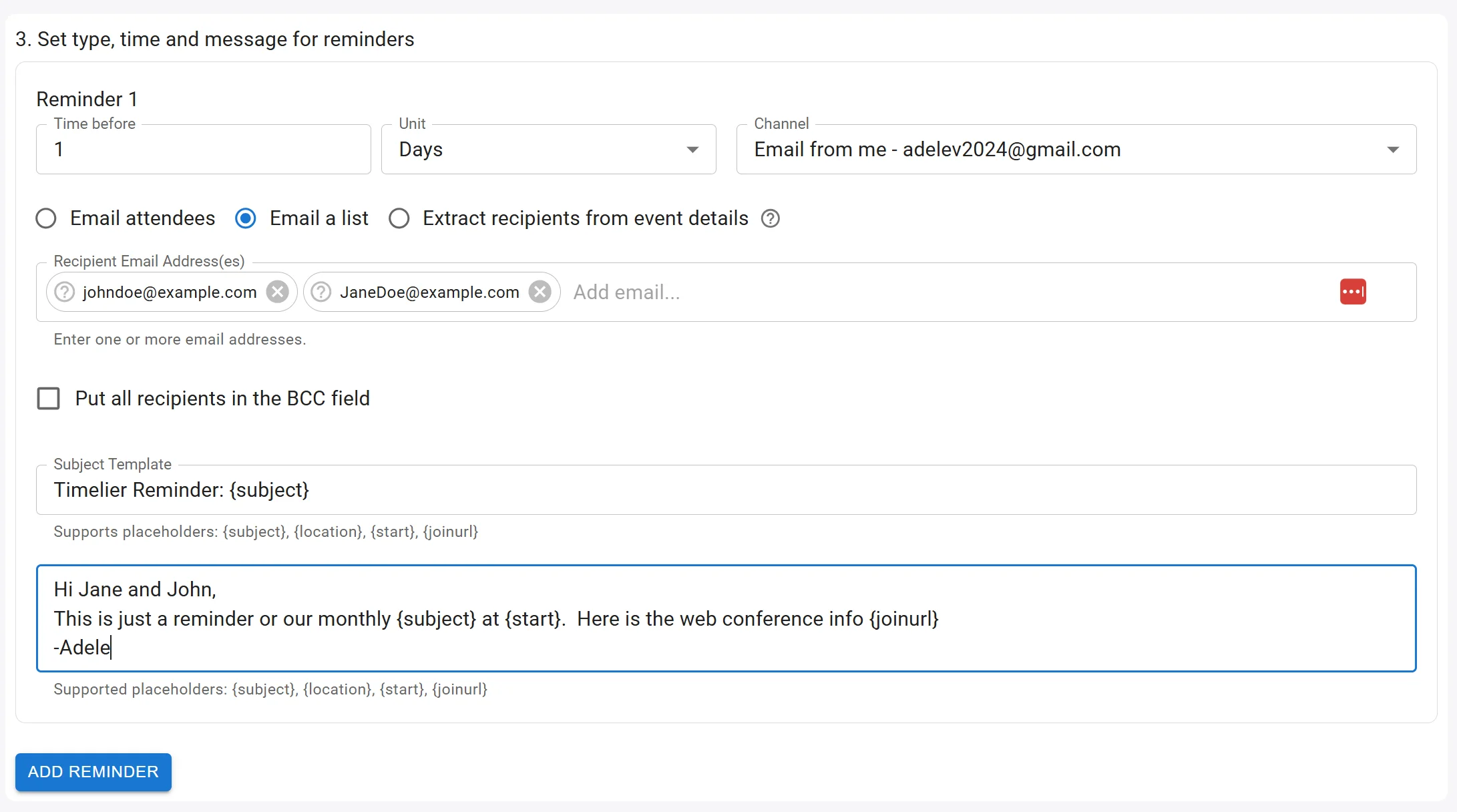
Email a list:
Send reminders directly to a specific list of recipient email addresses.
-
Extract recipients from event details / notes:
Extracts destination email addresses dynamically by typing
email reminder:in the calendar appointment body.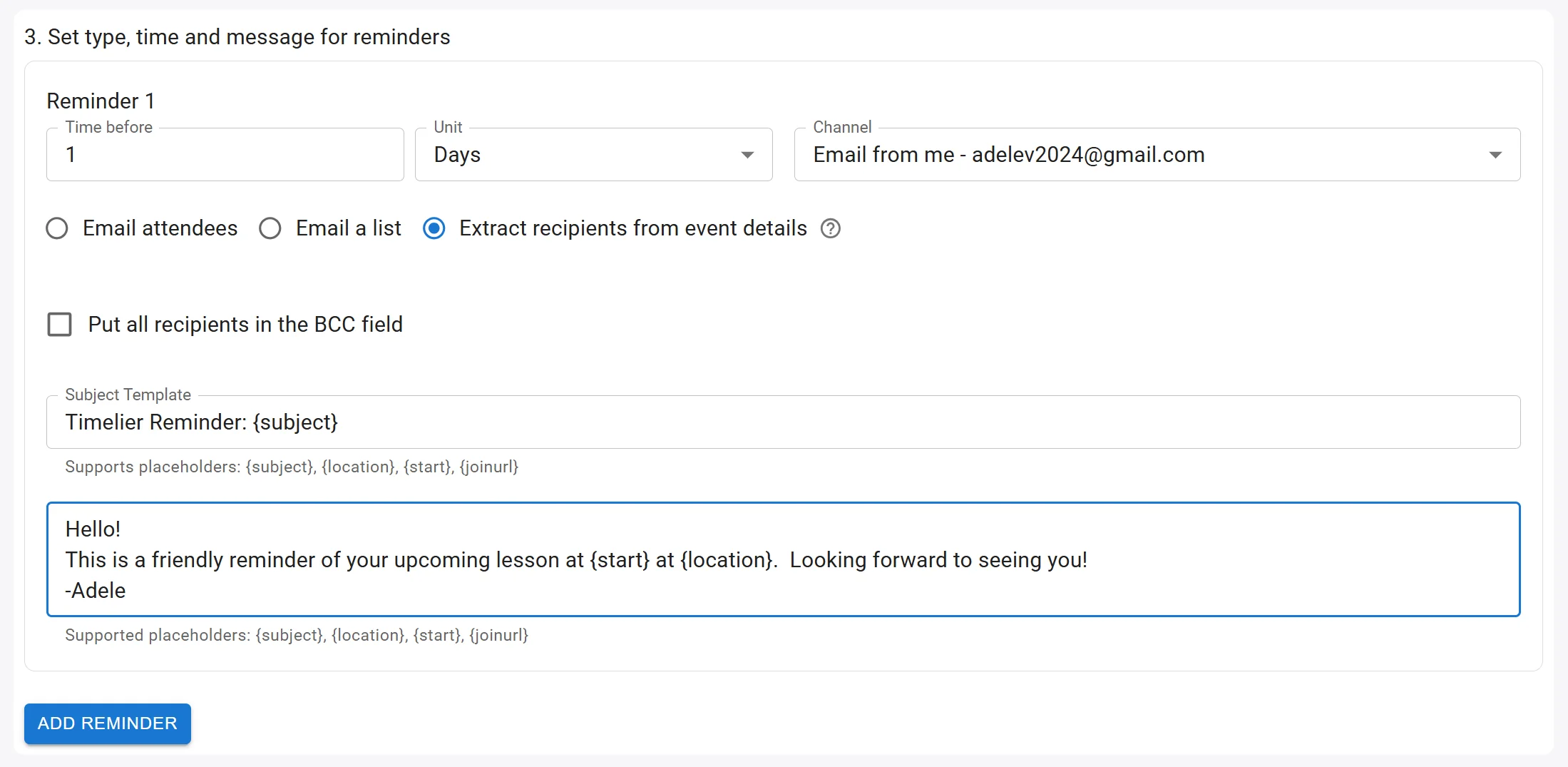
When using "Extract recipient from event details", type "Email Reminder:" followed by a comma-separated list of email addresses in the calendar event description.
-
Use BCC:
Optional setting to send reminders to attendees using BCC to keep guest email addresses private.
SMS Reminders
Sends automated text messages directly to mobile phones.
-
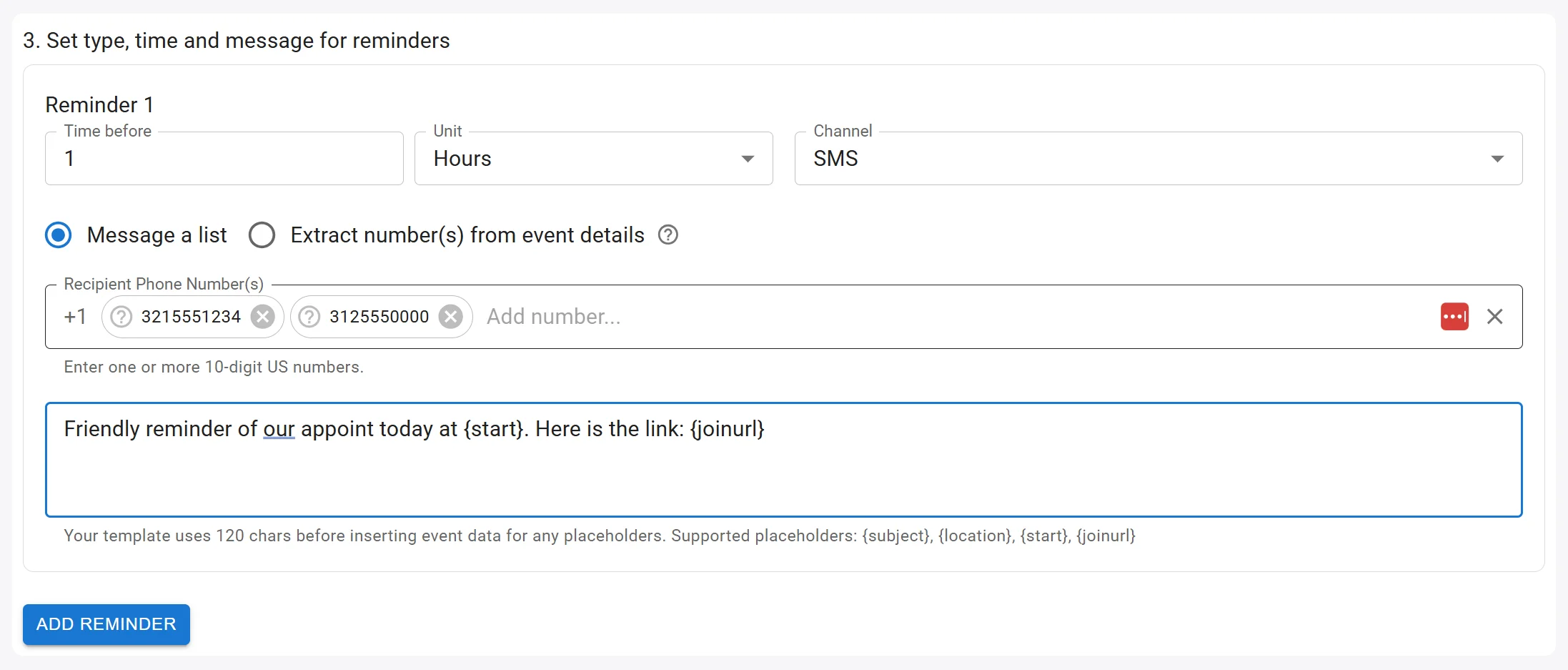
Message a list:
Select from phone numbers verified in your Timelier account settings.
-
Extract number(s) from event details:
Scans the event description for
SMS reminder:followed by the recipient's phone number (e.g.,SMS reminder: (312) 555-0149,07123 456789, or0412 345 678).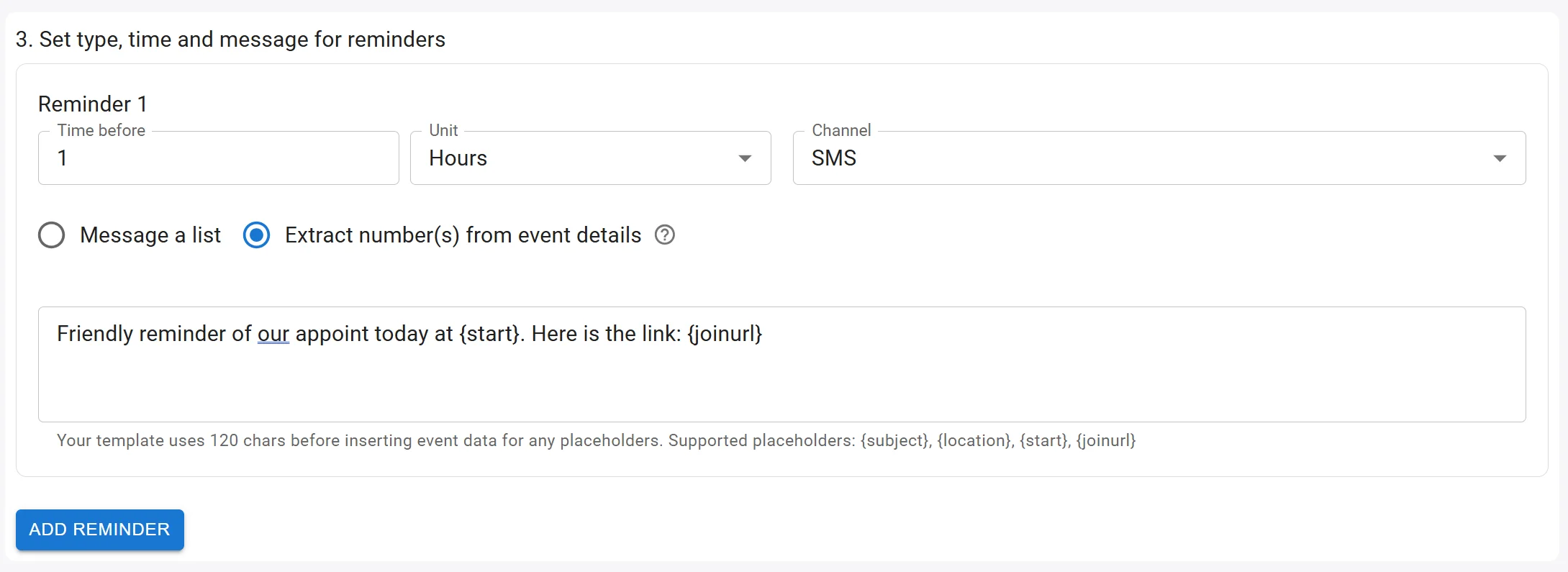
When using "Extract number from event details", type "SMS Reminder:" followed by the phone number in the calendar event description.
Supported Phone Number Formats by Country
Timelier automatically normalizes phone numbers into international E.164 format and ignores spaces, parentheses, hyphens, and periods.
Country / Region Supported Domestic Format International E.164 Format Validation & Requirements United States & Canada
Country code+1(312) 555-0149
312-555-0149
1-312-555-0149+1 312 555-0149
+13125550149Standard 10-digit North American (NANP) numbers. Area code and exchange code cannot begin with 0 or 1. Fictional, 555 area code, and repeating dummy digits are rejected. United Kingdom
Country code+4407123 456789
07123-456789
07123456789+44 7123 456789
+447123456789
447123456789Must be a valid UK mobile number starting with 07(or+44 7..., 10 digits after +44). UK landline numbers cannot receive SMS and are rejected.Australia
Country code+610412 345 678
0412-345-678
0412345678+61 412 345 678
+61412345678
61412345678Must be a valid Australian mobile number starting with 04(or+61 4..., 9 digits after +61). Australian landlines cannot receive SMS and are rejected.Tips for Extracting Phone Numbers:- Trigger Prefix: Type
SMS Reminder:(case-insensitive) followed by the phone number in your calendar event description or notes. - Multiple Recipients: You can notify multiple recipients by separating numbers with commas or newlines (e.g.
SMS Reminder: (312) 555-0149, 07123 456789). - Online Booking Pages: When using Google Calendar appointment schedules or booking forms like Calendly, label the custom phone question
Phone number for SMS reminder:to automatically insert the required format.
- Trigger Prefix: Type
Microsoft Teams
Delivers reminder notifications into Microsoft Teams conversations or team channels:
-
Teams Chat:
Send a reminder directly to a specific 1:1 direct chat or a group conversation from your connected Microsoft account.
-
Teams Webhook:
Post notification cards into any Microsoft Teams channel using an incoming webhook connector URL.
Customizing the Reminder Message
For any reminder type, you can customize the message text. Timelier supports dynamic placeholders to automatically inject live event details into your reminder message:
| Placeholder | Event Property | Example Value Injected |
|---|---|---|
| {subject} | The title or subject of the calendar event | Quarterly Financial Review |
| {location} | Physical address, conference room, or URL | Room 402, Building B |
| {start} | The formatted start time of the event | 2:30 PM |
| {joinurl} | Direct URL to join Zoom, Teams, or Google Meet | https://zoom.us/j/123456789 |
Reminder: {subject} is starting at {start}. Join here: {joinurl}
For a Zoom meeting titled "Team Meeting" at 1:00 PM, this produces:
Reminder: Team Meeting is starting at 1:00 PM. Join here: https://zoom.us/j/123456789
When you click the Preview Reminders button, your rule's filter expressions and timing schedules are simulated against your selected calendar. A live list of upcoming reminders that would be generated is shown below.
The preview also displays events that did not match the filter, helping you confirm that your exclusion criteria are working properly.
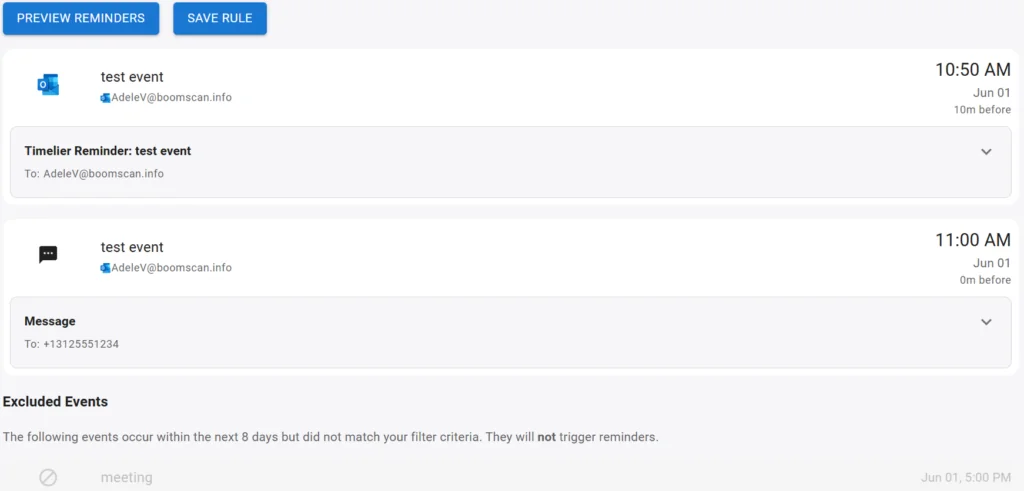
If the preview of upcoming reminders matches what you expect, click Save Rule. A dialog will prompt you to enter a recognizable name for this rule.
Use a descriptive name (e.g., “VIP Client Consultation Reminders”) to easily distinguish between rules if you manage multiple automated workflows.
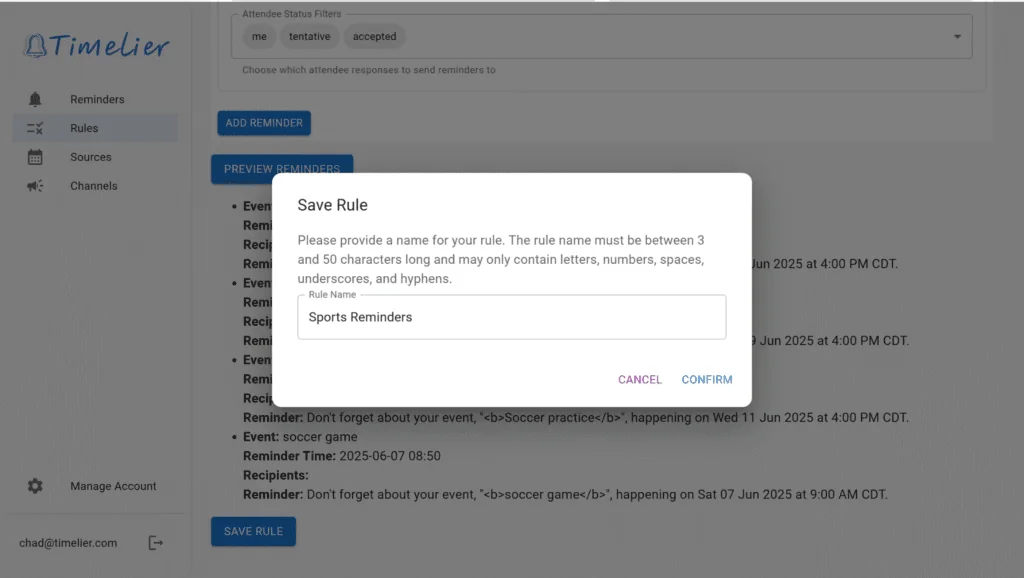
Once saved, your rule is immediately active! To view your active rules, toggle them on/off, edit settings, or delete rules, see the next guide: Manage Reminder Rules →